

How to request and manage leave
Request, edit, cancel, approve and deny time off in Vacation Tracker from your own app with the REST API, from an AI assistant with MCP, or react to it with Zapier.
You approve leave for a team of almost a hundred people, and your team has its own house rules: remote work is requested at least a day ahead, nobody works remotely more than one day a week, and some leave types go to the team lead first and then to you. Most requests are clear-cut, so you built an agent that reads each request, checks it against your rules, and approves or denies it. Some requests are not clear-cut: a same-day remote request might be fine once, but not every week. For those, the agent asks you, remembers your answer, and applies it next time. The problem is how the agent approves: it clicks through Vacation Tracker logged in as you. It breaks whenever the screen changes, and the audit log shows every decision as yours, so nobody can tell which approvals you made and which the agent made.
Vacation Tracker is the source of truth for leave, policies and balances. Fixed rules such as notice periods, leave duration limits, blackout periods and how many people can be away at once are built-in automations that need no code. This guide is for everything that needs your own logic or judgment: with the REST API, your agent, app or service requests, changes, approves and denies leave with an API key instead of clicking, every action is logged, and the same approver rules apply as in the dashboard.
Short answer: create a leave request with POST /v2/leaves, adding X-On-Behalf-Of to request it as the employee. Approve or deny it with POST /v2/leaves/{id}/approve or /deny, edit it with PATCH /v2/leaves/{id}, and cancel it with POST /v2/leaves/{id}/cancel. Send an Idempotency-Key on every write. To do the same in plain language, use the MCP server.
Give this to your agent
Here's how to request and manage leave in Vacation Tracker with the Vacation Tracker API v2:
- Request leave with POST /v2/leaves. To request it as an employee, pending approval, add the X-On-Behalf-Of header with their user ID (needs users:act-on-behalf). To add leave that is already approved, send userId in the body instead (needs leaves:approve).
- Edit with PATCH /v2/leaves/{id}, cancel with POST /v2/leaves/{id}/cancel. Prefer cancel over DELETE /v2/leaves/{id}, which is for leave that should not exist at all.
- Approve or deny OPEN leave with POST /v2/leaves/{id}/approve or /deny (needs leaves:approve). With multi-level approval, the first approval leaves it OPEN with approvedLevel "FIRST".
- Send a new Idempotency-Key header on every write, and reuse it when you retry the same write.
- A 202 Accepted means the write is still running: follow it with GET /v2/operations/{id}.
- A key can never do more than its owner. Errors have a stable code and a resolution, for example 422 LEAVE_NEGATIVE_BALANCE.
- Keep the API key in configuration or secrets, never in code.

Full guide: https://vacationtracker.io/developers/llms.mdx/guides.manage-leave.md
API v2 docs: https://vacationtracker.io/developers/llms.txt

Unless I already told you what to build in this session, read the documentation and ask me what to do next.How it works
A leave in Vacation Tracker goes through a few states: it is requested (OPEN), then approved or denied, and can later be edited, cancelled or deleted. Every tool below applies the same rules as the dashboard: leave policies, automations, approvers and roles.
Employees keep requesting leave as they do today, in the dashboard, Slack or Teams. A webhook tells your agent about each new request, the agent decides, and approves or denies it through the API:
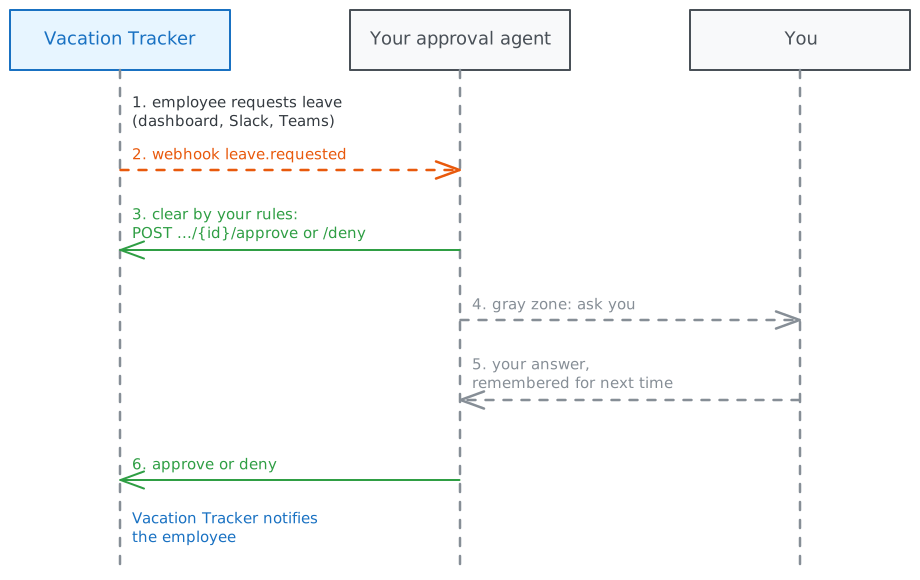
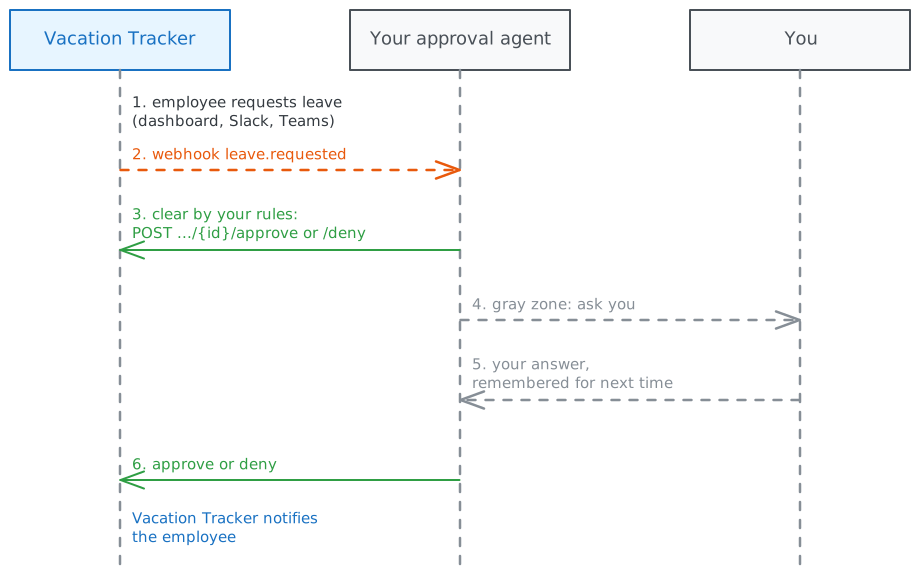
The agent uses an API key that you create, so it approves as you: only for the people you can approve in Vacation Tracker, and the leave timeline shows the key's integration name next to yours, for example "Ana Miller (through LEAVE_AGENT)". When the agent can't or shouldn't decide, it can also leave the request OPEN, and you decide it in the dashboard, Slack or Teams as usual.
A key can never do more than its owner. A user's key can request and manage only that user's own leave. An approver's key can also approve and deny for the departments they approve, and a location admin's or administrator's key for the locations or workspace they manage. See Role ceiling and data reach.
There are two ways to create leave for someone else, and they behave differently:
| You want to | Send |
|---|---|
| Request leave for an employee, pending approval | X-On-Behalf-Of: <their ID>, no userId |
| Add leave for an employee, already approved | userId: <their ID>, with leaves:approve |
Choose a tool
| You want to | Use |
|---|---|
| Approve or deny leave with your own rules or an AI agent, or request leave from your own app or HR tool | REST API v2 |
| Let everyone request, move or cancel their own leave by asking, in the dashboard, Slack or Teams | Vee |
| Ask your own AI assistant to book, change or approve leave in plain language | MCP server |
| Apply your own logic in other apps when leave is requested, approved or cancelled, without coding | Zapier |
Zapier only reacts to leave events. It cannot request, change or approve leave. To do that from a Zap, call the REST API from it, for example with a "Webhooks by Zapier" step.
With the REST API
The steps below cover both sides: requesting and changing leave from your own code, and approving or denying it from your agent, as in the story.
1. Create an API key
In the dashboard, go to Add-ons → Open API and create a key. Set Leaves to Read & write (leaves:read, leaves:write). Under Sensitive actions, turn on:
- Approve and deny requests (
leaves:approve) if the integration approves or denies requests, or adds approved leave for other people. - Act on behalf of other users (
users:act-on-behalf) if it requests leave in other people's names.
2. Request leave
To find the IDs, use GET /v2/leave-types and GET /v2/users. GET /v2/users/{id}/balances tells you how much the person has left before you request: see Read leave balances.
curl -X POST https://api.vacationtracker.io/v2/leaves \
  -H "Authorization: Bearer vt_live_..." \
  -H "Content-Type: application/json" \
  -H "Idempotency-Key: 5f1c7a52-3d0e-4b8e-9d6a-2c4f0b9e1a77" \
  -d '{
    "leaveTypeId": "leaveType-fcc1e5c5-ba93-479d-bd58-8f860ba10615",
    "startDate": "2026-11-09",
    "endDate": "2026-11-13",
    "reason": "Family trip"
  }'
Without userId, the leave is requested for the acting user: the key owner, or the user in X-On-Behalf-Of (see step 5). The response is 201 Created with the leave:
{
  "data": {
    "id": "leaveRequest-cfe5d39b-f1f0-45aa-85cd-ce93e637a262",
    "userId": "user-63b17e97-d38b-4586-8498-bb4f5d2e2c14",
    "autoApproved": false,
    "durationCalendarDays": 5,
    "durationWorkingDays": 5,
    "startDate": "2026-11-09",
    "endDate": "2026-11-13",
    "isFullDayLeave": true,
    "leaveTypeId": "leaveType-fcc1e5c5-ba93-479d-bd58-8f860ba10615",
    "locationId": "location-79c77ac8-e5bf-479f-9488-648a58379ff1",
    "departmentId": "team-0a21c25e-6925-4a5b-90ee-ecf82096c4f6",
    "status": "OPEN",
    "reason": "Family trip",
    "statusReason": null,
    "approvedLevel": null,
    "createdAt": "2026-10-01T09:12:40.062Z"
  }
}
status is OPEN until an approver decides, or APPROVED right away when the leave policy needs no approval. approverId appears once the leave is approved. reason and statusReason are null for keys without leaves:read-reason.
Part-day leave. Send isFullDayLeave: false with startHour, startMinute, endHour and endMinute in the user's time zone. On a leave type booked in half days, the leave must last exactly half of the user's working hours that day.
Adding approved leave for someone else. Set userId to another user's ID. This needs leaves:approve, and the leave is created already approved, as when a manager adds leave in the dashboard. Only overlaps, dates without working days and part-day leaves longer than a working day block it; the other policy rules are skipped. If the leave breaks an automation, you get 409 AUTOMATION_OVERRIDE_REQUIRED with details.warnings. To add it anyway, repeat the request with every listed code in overrideAutomations.
3. Edit, cancel or delete
| Action | Request | Who | Notes |
|---|---|---|---|
| Edit | PATCH /v2/leaves/{id} | The owner of the leave, or someone who manages them | Works on OPEN and APPROVED leave. Send only the fields you change. |
| Cancel | POST /v2/leaves/{id}/cancel | The owner of the leave, or someone who manages them | Works on OPEN and APPROVED leave. Optional reason, stored as statusReason. |
| Delete | DELETE /v2/leaves/{id} | Approvers, location admins and administrators | Removes the leave. Returns the deleted leave. |
curl -X PATCH https://api.vacationtracker.io/v2/leaves/$LEAVE_ID \
  -H "Authorization: Bearer vt_live_..." \
  -H "Content-Type: application/json" \
  -H "Idempotency-Key: $(uuidgen)" \
  -d '{ "endDate": "2026-11-16" }'
Editing your own leave applies every rule of the leave policy again. Editing someone else's applies only the overlap, working day and part-day checks. Automation overrides are not accepted on edits.
Prefer cancel when someone no longer needs the leave: the leave stays in the history with status CANCELLED. Use delete for leave that should not exist at all, such as a duplicate.
4. Approve or deny
To find requests waiting for a decision, list OPEN leaves:
curl "https://api.vacationtracker.io/v2/leaves?startDate=2026-01-01&endDate=2026-12-31&status=OPEN" \
  -H "Authorization: Bearer vt_live_..."
Then approve one:
curl -X POST https://api.vacationtracker.io/v2/leaves/$LEAVE_ID/approve \
  -H "Authorization: Bearer vt_live_..." \
  -H "Content-Type: application/json" \
  -H "Idempotency-Key: $(uuidgen)" \
  -d '{ "reason": "Enjoy your trip" }'
Use /deny the same way. Both need leaves:approve, work only on OPEN leave, and the acting user must be an approver (or substitute approver) of the person's department, a location admin, or an administrator. The body is optional; reason is shown to the person.
In a department with multi-level approval, the first approval returns the leave still OPEN with approvedLevel: "FIRST". A second-level approver has to approve it again.
5. Act for someone else
To request leave in an employee's name from an HR tool, send their user ID in X-On-Behalf-Of. The key needs users:act-on-behalf, and the key owner must manage that person. The leave is then requested as if the person did it, with every policy rule applied. When the key has an integration name, the leave timeline shows it next to the person's name, for example "Marcus Rodriguez (through HR_BOT)".
A request on behalf of someone is allowed only when both the key and that person's role allow it. An administrator's key cannot approve leave on behalf of an employee, because employees cannot approve. See Acting on behalf of users.
6. Make writes safe to retry
Send an Idempotency-Key header with a new random UUID on every write, and the same value when you retry that write. A retry then never creates a second leave or approves twice. Keys are kept for 24 hours per API key. See Idempotency.
7. Handle slow writes
Every write waits for the change and returns the result: 201 for a new leave, 200 for edits, cancellations, deletions and decisions. If the change takes longer than 20 seconds, you get 202 Accepted with an operation instead:
{
  "operation": {
    "id": "pa_3f6e2a1c-8b4d-4c1e-9a7f-5d2b0c6e8f91",
    "status": "PENDING",
    "url": "/v2/operations/pa_3f6e2a1c-8b4d-4c1e-9a7f-5d2b0c6e8f91"
  }
}
A 202 is not a failure. Poll GET /v2/operations/{id} every few seconds, backing off while it stays PENDING, until status is SUCCEEDED, FAILED or UNKNOWN, or subscribe to the operation.completed and operation.failed webhooks. Stop at UNKNOWN: no result arrived within 15 minutes, so read the leave to check whether the change was applied before you retry, with the same idempotency key. Never send the write again with a new idempotency key. See Synchronous writes and operations.
8. List leave
curl "https://api.vacationtracker.io/v2/leaves?startDate=2026-11-01&endDate=2026-11-30&expand=user,leaveType" \
-H "Authorization: Bearer vt_live_..."startDateandendDateare required. You get every leave that overlaps the range.statusis one ofAPPROVED(the default),OPEN,DENIED,CANCELLED,EXPIREDorDELETED, one per request.- There is no filter by user, department or leave type. Filter on
userId,departmentIdandleaveTypeIdin your code. expand=user,approver,leaveTypeembeds those objects.userandapproverneedusers:read,leaveTypeneedsleave-types:read.- The list is paginated. Keep requesting with
nextTokenuntil it is missing, even after a short or empty page. See Pagination.
To follow changes as they happen instead of listing, subscribe to the leave.requested, leave.added, leave.approved, leave.denied, leave.updated, leave.cancelled, leave.deleted and leave.expired webhooks.
9. Handle errors
Every error has a stable code and a resolution you can show to the person or act on. The ones you will see most when managing leave:
| Code | Status | Cause |
|---|---|---|
VALIDATION_ERROR | 400 | A field is missing or invalid. details.fields lists them. |
INSUFFICIENT_SCOPE | 403 | The key lacks a scope, for example leaves:approve when adding leave for someone else. |
ON_BEHALF_OF_NOT_ALLOWED | 403 | The key cannot act for the user in X-On-Behalf-Of. |
FORBIDDEN | 403 | The acting user's role does not allow the action, for example approving outside their departments. |
RESOURCE_NOT_FOUND | 404 | The leave or user does not exist, or is outside the key's data reach. |
AUTOMATION_OVERRIDE_REQUIRED | 409 | Adding leave for someone else breaks an automation. details.warnings lists them. |
LEAVE_OVERLAP | 422 | The person already has leave on those dates. |
LEAVE_NEGATIVE_BALANCE | 422 | The person does not have enough balance. |
LEAVE_NO_WORKING_DAYS | 422 | The dates contain no working days. |
LEAVE_START_DATE_IN_PAST | 422 | The leave type does not allow leave in the past. |
LEAVE_REASON_REQUIRED | 422 | The leave type requires a reason. |
LEAVE_BLACKOUT_PERIOD, LEAVE_MAXIMUM_USERS_AWAY, LEAVE_PROBATION_PERIOD, LEAVE_DURATION_LIMIT, LEAVE_NOTICE_PERIOD | 422 | The person's own request breaks an automation. Overrides do not apply to someone's own request. |
LEAVE_REQUEST_NOT_EDITABLE | 422 | The leave can no longer be edited or cancelled. |
LEAVE_REQUEST_NOT_OPEN | 422 | The leave was already approved, denied or cancelled. |
IDEMPOTENCY_KEY_REUSED | 422 | The same Idempotency-Key was sent with a different request. |
The full list is in Errors.
With Vee
Vee is the AI assistant built into Vacation Tracker. Anyone can ask it in the dashboard, Slack, Microsoft Teams or the mobile app, with nothing to set up:
- "Request two hours off on Wednesday."
- "Would a week off in August clash with anyone?"
- "Move my leave to next week."
- "Cancel my leave request."
Vee prepares the change and saves nothing until you confirm. It works on your own leave and doesn't approve or deny requests: approvers keep using the dashboard, Slack or Teams, or MCP and the API.
With an AI assistant (MCP)
Connect your AI client to the MCP server and ask in plain language:
- "Book vacation for me from May 4 to May 8."
- "Move my Friday off to Monday."
- "Cancel my leave next week."
- "Which leave requests are waiting for me? Approve Ana's."
- "Deny Mark's request for the release week and tell him to pick other dates."
The assistant uses three tools:
| Tool | What it does |
|---|---|
request_leave | Checks a request first (mode: "preview"): working days, balance before and after, blocking errors, automation warnings, and whether approval is needed. Books it (mode: "submit") only after you confirm. |
update_leave | Edits, cancels or deletes an existing leave. |
decide_leave | Approves or denies a pending request. Approvers and above only. |
The assistant can do only what your role allows in the web app. Anyone can request, change and cancel their own leave. Approvers, location admins and administrators can also book leave for the people they manage and decide their requests. Every change is made as you, never as someone else, and is recorded in the logs as done "via AI assistant (MCP)". If an automation such as a blackout period blocks a booking for someone else, the assistant shows you the warnings and overrides them only if you agree.
MCP fits one request at a time. For bulk changes or an integration that runs on its own, use the REST API.
With Zapier
Zapier triggers start a Zap when leave changes in Vacation Tracker:
| Trigger | Fires when |
|---|---|
| New Leave Request Created | Someone requests leave. |
| New Leave Added | A manager adds leave for someone (already approved). |
| Leave Request Approved | A request is approved, by an approver or automatically. |
| Leave Request Denied | A request is denied. |
| Leave Updated | A leave or request is changed. |
| Leave Cancelled | A leave or request is cancelled. |
| Leave Deleted | A leave or request is deleted. |
Use them to post approved leave to a team channel, add it to a shared calendar, or create a task in another tool. To request, change or approve leave from a Zap, add a "Webhooks by Zapier" step that calls the REST API with an API key, as in the steps above.
Summary
- Vacation Tracker stays the source of truth: the API, MCP and Zapier all apply the same policies, automations, approvers and roles as the dashboard.
- A key can never do more than its owner, and sensitive actions need
leaves:approveorusers:act-on-behalf. X-On-Behalf-Ofrequests leave as the employee, pending approval;userIdadds it already approved.- Send an
Idempotency-Keyon every write, and treat202 Acceptedas "still working", not a failure. - Prefer cancel over delete, and use webhooks instead of polling the leave list.
Frequently asked questions
Can an AI agent approve leave requests for me?
Yes. Create an API key with leaves:approve, subscribe your agent to the leave.requested webhook, and let it call POST /v2/leaves/{id}/approve or /deny. It approves as you, only for the people you can approve, and the leave timeline shows the key's integration name. For requests it can't decide, it can leave them OPEN for you.
Can I request time off for an employee through the API?
Yes. Send X-On-Behalf-Of with the employee's ID to request it as them, waiting for approval like a request from the dashboard. Send userId instead to add leave that is already approved. Both need the matching scope on the key and the matching role for its owner.
What happens when the employee doesn't have enough balance?
The request fails with 422 LEAVE_NEGATIVE_BALANCE. Shorten the leave, choose another leave type, or ask an administrator to adjust the quota.
How do I approve a leave request that needs two approvals?
Approve it once per level with POST /v2/leaves/{id}/approve. After the first approval the leave stays OPEN with approvedLevel: "FIRST" until a second-level approver approves it too.
Should I cancel or delete leave?
Cancel when someone no longer needs the leave: it stays in the history as CANCELLED. Delete only leave that should not exist at all, such as a duplicate.
Related:
- Read leave balances: check how much someone has left before requesting.
POST /v2/leaves,PATCH /v2/leaves/{id},POST /v2/leaves/{id}/approve: the full reference.- Webhooks: get notified about leave changes in your own code.
How to read leave balances
Get PTO and leave balances for one person or the whole company from Vacation Tracker with the REST API, MCP or a scheduled report, and what each number means.
How to send approved leave to an HRIS or payroll system
Send every approved leave and PTO day from Vacation Tracker to your HRIS or payroll system, including edits and cancellations, with the REST API and webhooks or Zapier.