





Last updated on September 7, 2026
How Do I Access the Dashboard?
The dashboard is the web app where you request leave, view your balance, and (if you're an Admin or Approver) manage settings and approvals. It's available at app.vacationtracker.io for everyone, regardless of your integration.
Sign In via the Web
Open app.vacationtracker.io/signin. The sign-in page offers four options — pick the one that matches your workspace's integration:
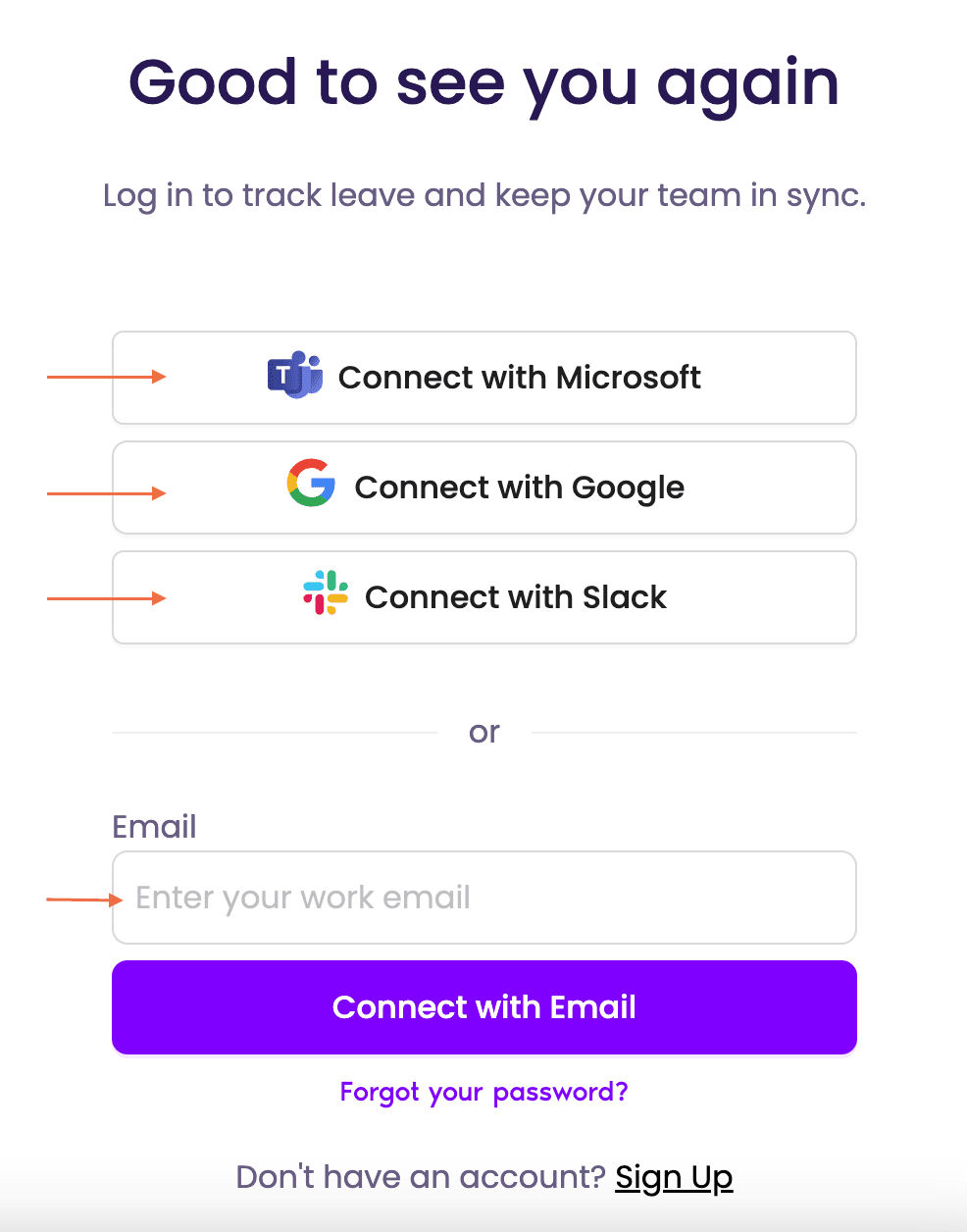
Slack / Microsoft / Google Workspace
- Click Sign in with Slack, Sign in with Microsoft, or Sign in with Google — whichever your workspace uses.
- Approve the OAuth permissions if prompted. You're redirected straight to the dashboard.
Email Only
If your workspace is on the Email Only integration, sign in with the email address an Admin invited you with:
- On the sign-in page, click Sign in with Email.
- Enter the email address your account was created with.
- Enter your password (the one you set when you accepted the invite).
- If you've forgotten it, click Forgot password? — you'll get a reset link by email.
- If your Admin enabled MFA for you, enter the 6-digit code from your authenticator app after the password step.
Once signed in, the URL app.vacationtracker.io/app/dashboard takes you straight to the dashboard from then on.
From Your Integration
Mobile Apps
If you prefer mobile, Vacation Tracker has iOS and Android apps. Download from App Store or Google Play. Sign in the same way as the web — pick your integration's auth method or use Sign in with Email if you're on Email Only.
Common Questions
You'll either land on a different account (if you have one set up under that integration) or hit an error saying the account isn't recognized. Vacation Tracker doesn't merge accounts across integrations — a Slack-linked account and an Email Only account with the same email are still two separate workspaces. Sign in with the exact method your Admin used to add you.
No. The Email Only flow is email + password. The Google / Microsoft sign-in buttons are for accounts on those integrations specifically — they map back to the OAuth identity from your workspace. Use Sign in with Email instead.
Check spam first. If it's not there, ask your Admin to resend — they can do it from the Users page (the Invite Users button). Once your account is created in Vacation Tracker, the invite can be re-sent at any time.
 Book a Call