




Last updated on February 18, 2026
How Do I Customize Leave Quotas for Individual Users?
When setting up your organization's Vacation Tracker, one of the first things you do is set a number of days for each leave type you have. If the number of leave days differs for some users, you can manually edit them.
Two Editing Modes
Steps
- Sign in to your dashboard at app.vacationtracker.io/signin.
- On the left-hand side, click Users.
- When the Users page appears, click on the User you wish to edit.
- Once the user's profile page opens, scroll down to the Leave Quotas box. You can edit the leave quota for the current year or other years using the Select Period dropdown, and choose different leave types to edit using the Leave Type dropdown.
- Once you have selected the appropriate year and the leave type, click Change under the Quota field to make changes to the amount.
- A pop-up page will appear where you can make the necessary changes. Decide whether you want to save your changes for future years using the Do you want to apply base leave quota for the future years? question — answer Yes to make the new quota recur every year, or No to apply it only to the period you selected.
- Once you are done, click Update and your changes will be saved.
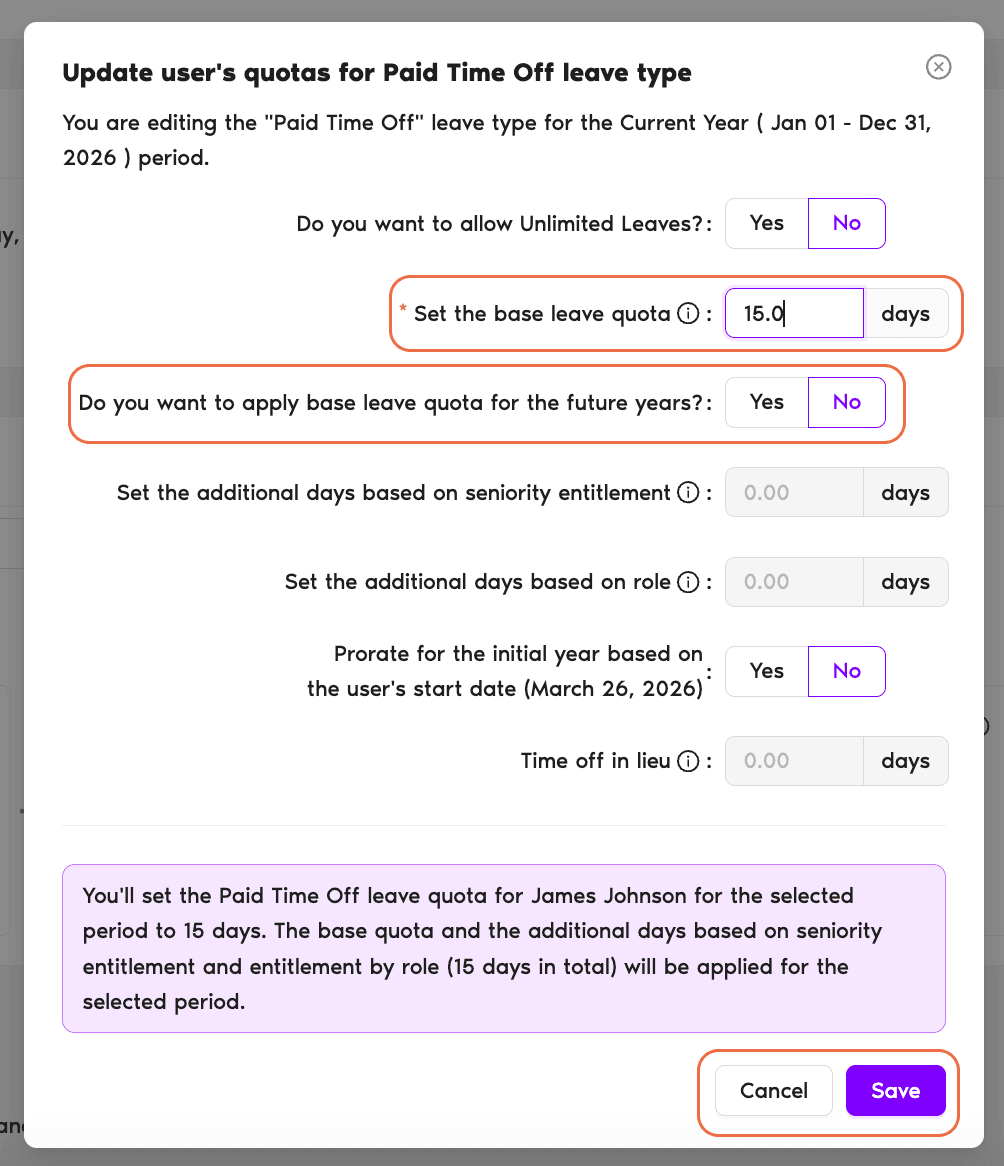
Example: Change the leave quota from 15 days to 17 days. If you don't want to save this quota for future years, leave the answer to "Do you want to apply base leave quota for the future years?" as No. If you want to save your changes for future years, click Yes.
Add-on quotas live here too
This is also where you allocate more days to specific users if you have the Seniority Entitlement Add-on, Entitlement By Role Add-on, or Time Off In Lieu (TOIL).Brought Forward (rolled over) days
You are also able to add an Initial Brought Forward quota for individual users — see How Do I Set Initial Brought Forward (Rolled Over) Days? Book a Call