





Last updated on February 13, 2026
How Do I Customize SBE or Entitlement by Role for Individual Users?
Seniority Based Entitlement (SBE) and Entitlement by Role are automations that award Users additional leave days. Although you create a general policy, if the extra awarded days differ from the automation's general policy for a specific person, you can manually edit this on a User's profile page.
Background reading
For more information on setting the SBE and Entitlement by Role automations, see How Do I Set Up Seniority Based Entitlement (SBE) Automation? and How Do I Set Entitlement by Role?Since both the setting for SBE and Entitlement by Role are in the same section, you can make changes for both at the same time (if your company uses both automations). If you only use one, follow the steps below for each automation separately.
Edit Extra Awarded Days for SBE
- Go to the Vacation Tracker Dashboard — app.vacationtracker.io/signin.
- On the left-hand side, click on Users.
- When the Users page appears, click on the User you wish to edit.
- Once the user's profile page opens, scroll down to the Leave Quotas box. You'll be able to choose if you want to edit the information for the current year or other years, and select different leave types to edit.
- Once you have selected the appropriate year and the leave type, click on Change under the Quota field to make changes.
- A pop-up will appear with different editing options. Go to the line "Set the additional days based on seniority entitlement" to change the amount of additional days.
- Click on Save and the changes will be applied to the quota.
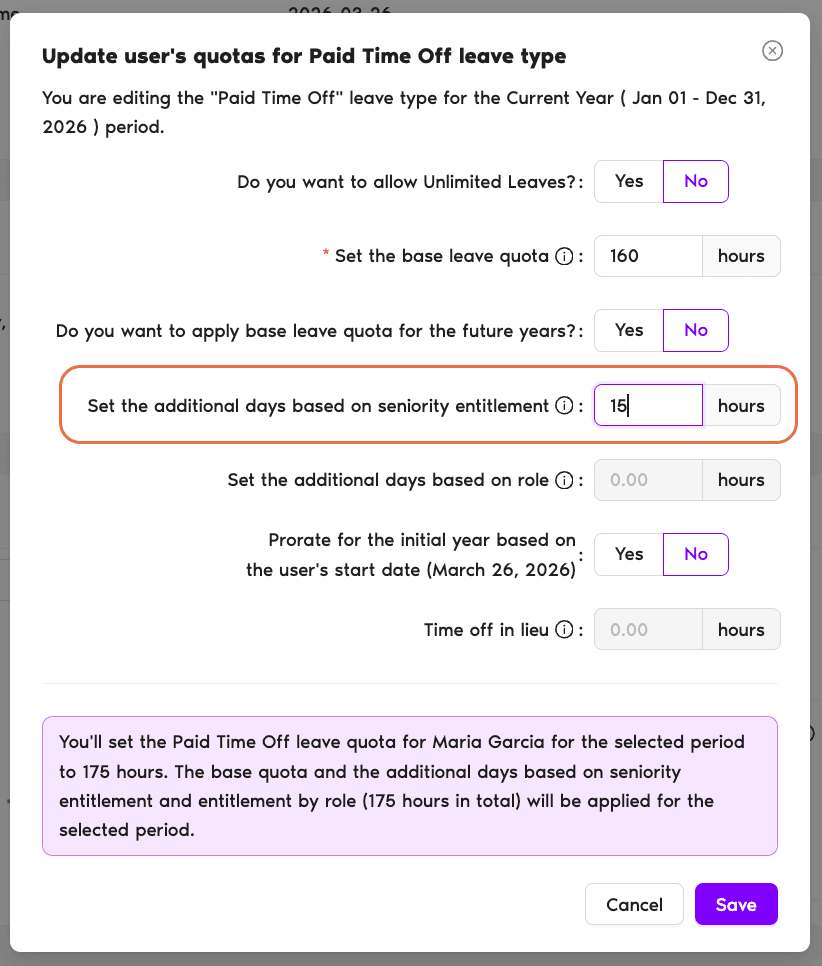
Anniversary date required
The seniority entitlement will have to happen at least once on the User's anniversary date before this field can be edited. If the User wasn't awarded at least once by the system, the field is automatically greyed out.Edit Extra Awarded Days for Entitlement by Role
- Go to the Vacation Tracker Dashboard — app.vacationtracker.io/signin.
- On the left-hand side, click on Users.
- When the Users page appears, click on the User you wish to edit.
- Once the user's profile page opens, scroll down to the Leave Quotas box. You'll be able to choose if you want to edit the information for the current year or other years, and select different leave types to edit.
- Once you have selected the appropriate year and the leave type, click on Change under the Quota field to make changes.
- A pop-up will appear with different editing options. Go to the line "Set the additional days based on role" to change the amount of additional days.
- Click on Save and the changes will be applied to the quota.
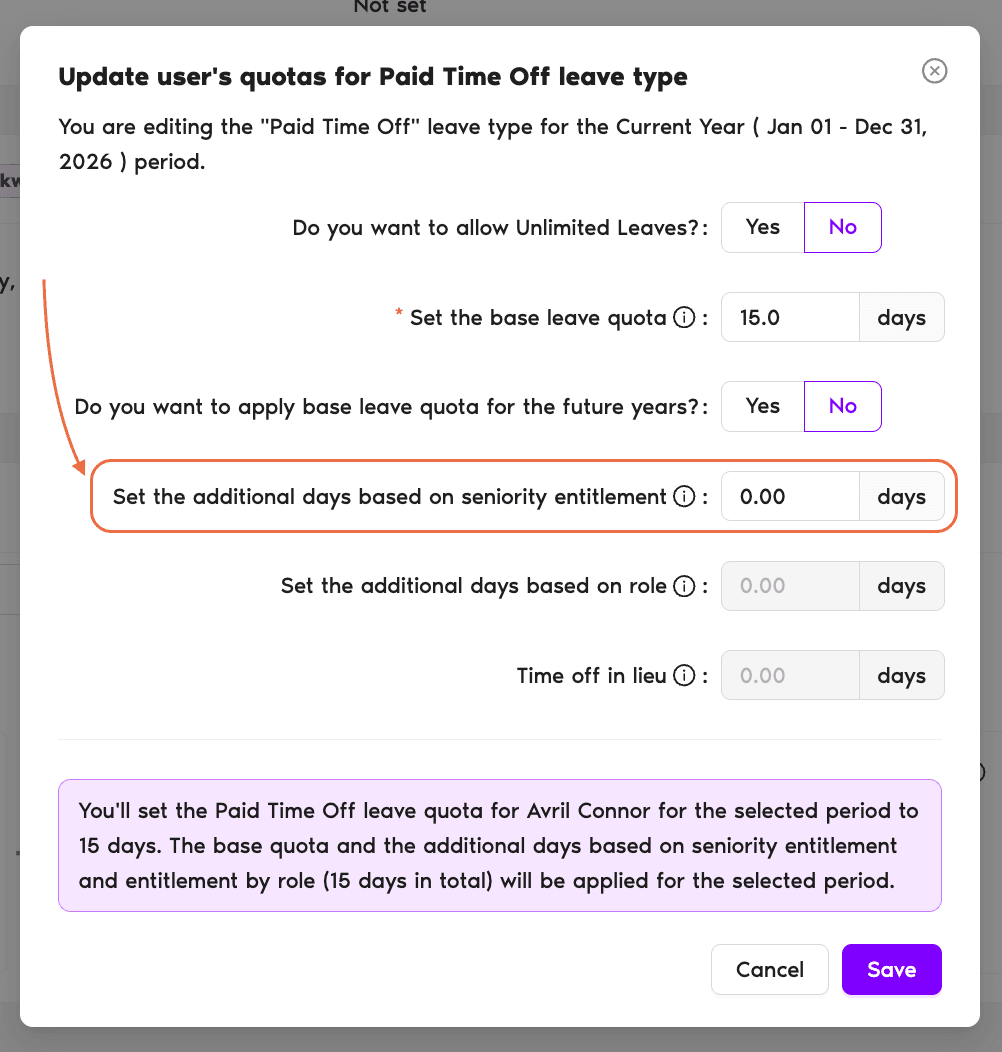
Label required
You won't be able to edit this field unless the correct label has been set for the user. For more information on setting labels, see the helpdesk: How Can I Categorize Users (Adding Labels)?Additional days, not base quota
These are additional days that will be added on top of the User's base quota. If you're looking to solely edit an individual's base quota, see the helpdesk: How Do I Customize Leave Quotas for Individual Users?Browse all automations
For more information on our Automations, see Guide: What Automations does Vacation Tracker offer? Book a Call