





Last updated on May 27, 2026
How Do I Delete the Seniority Based Entitlement (SBE) Automation?
If there was a mistake when your Seniority Entitlement was created — or something changed that requires you to delete the automation — here's how an Admin can remove it (and choose what happens to days that have already been awarded).
Steps to Delete
- Log in to your Vacation Tracker account at app.vacationtracker.io/signin.
- Open Workspace Settings and select Add-ons.
- Click View on the Seniority Entitlement card.
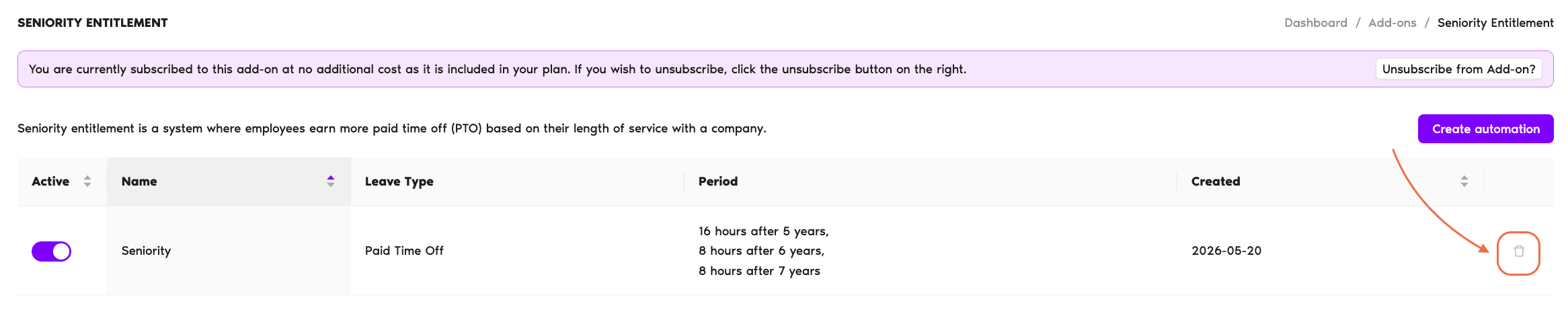
- The page lists your existing policies in a table (Active, Name, Leave Type, Period, Created). Click the small bin icon at the right end of the row for the policy you want to delete.
- You'll have to confirm that you actually want to delete the already created automation.
- You'll be presented with two options on whether to keep awarded days (see below).
Keep or Remove Awarded Days?
Yes — Keep awarded days
This option will keep all added days / hours from the Seniority Entitlement. When you open Reports → Company Audit Logs, you will see that the awarded days have been kept.
Tip: Keeping days for Users can be useful if your policy for Seniority Entitlement changed — where old Users should keep the automation and awarded days, but new Users should have a different policy.
No — Remove awarded days
This option will remove all added days / hours from the Seniority Entitlement. When you open Reports → Company Audit Logs, you will see that the awarded days have been deleted.
 Book a Call