





Last updated on August 5, 2026
How Do I Set Entitlement by Role?
Entitlement by Role is an Automation that awards additional days to specific groups of Users automatically. Create a label, tag the relevant Users with it, and the automation tops up their leave balance based on that label.
Example: If we want to give additional PTO days to our Managers, we'll create a label called Manager, add it to all our Managers, and then create an automation that will give them additional days based on that label.
Complete plan only
Entitlement by Role can only be used with the Complete plan, since labels are not available on the Core plan. For more on plan differences, see the helpdesk: Guide: What Are The Differences Between Our Core & Complete Plans?Create labels first
Before setting up the automation for role-based entitlement, you should already have a label (or labels) created. To learn how to create labels, see the helpdesk: How Can I Categorize Users (Adding Labels)?Setting It Up
- Log in to your Vacation Tracker account at app.vacationtracker.io/signin.
- On the left-hand side, click Workspace Settings → Add-ons.
- Click View on the Entitlement By Role card under My Add-ons. If you haven't subscribed yet, switch to the Discover More Add-ons tab and select Entitlement By Role there.
- Click Create automation in the top-right corner.
- Fill in the form:
- Click Create at the bottom.
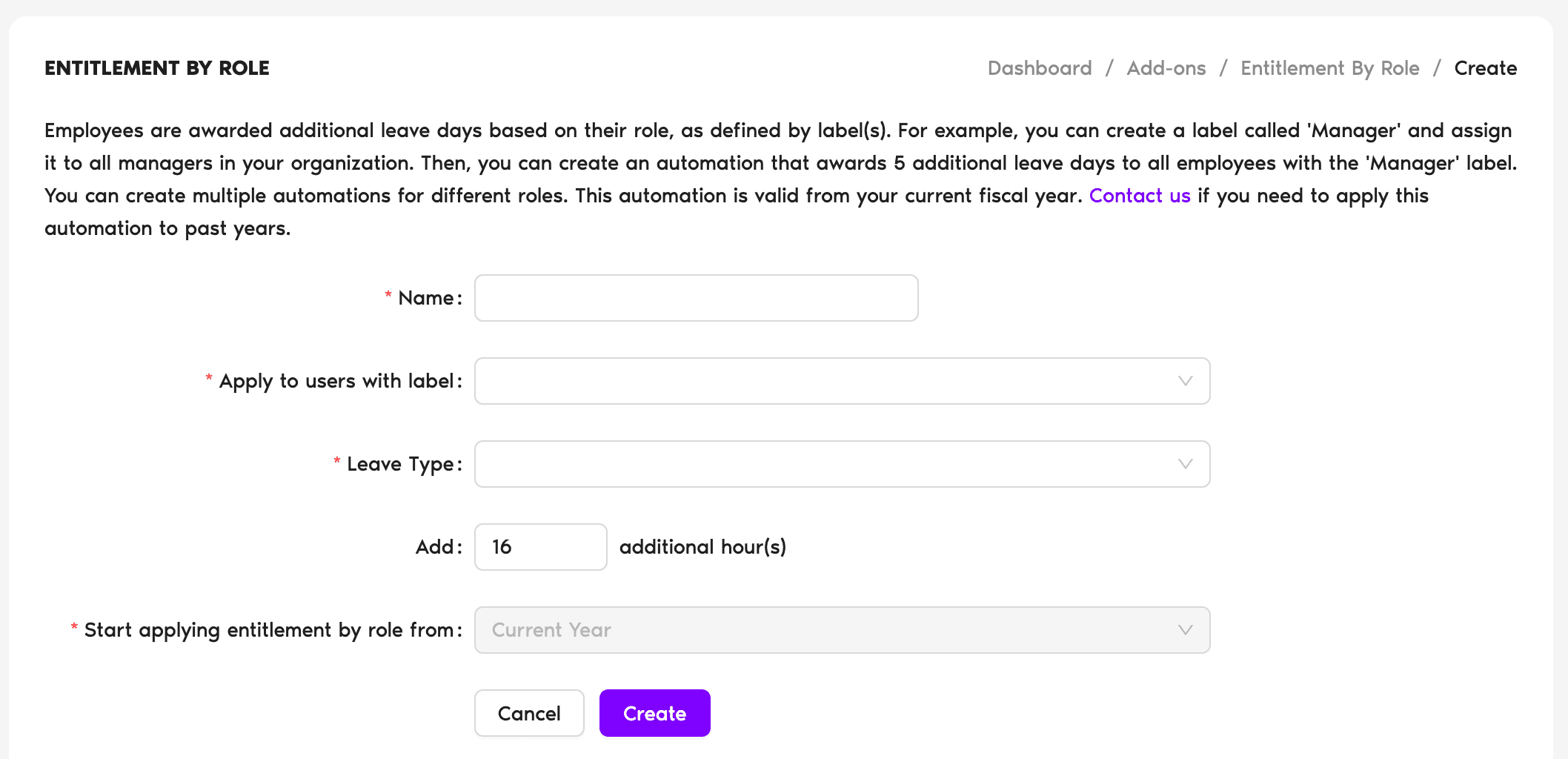
Current year only
For now, only the current year can be selected. If you need to push the change into the past, please reach out to our Support team.Reviewing & Editing
You can revisit any Entitlement by Role automations you've previously created by going to Workspace Settings → Add-ons and clicking View on the Entitlement By Role card. You'll be able to deactivate, edit and delete the automation. If you'd like to edit the settings, you can do so by clicking on the automation name.
Earning Rules
Customize for individuals
If you want to manually change role entitlement for an individual, see How Do I Customize Seniority Based Entitlement (SBE) or Entitlement by Role for Individual Users?Browse all automations
To learn more about the Automations Vacation Tracker offers, see Guide: What Automations does Vacation Tracker offer? Book a Call