





Last updated on July 1, 2026
How Do I Cancel My Upcoming Leave Request?
Plans changed? You can cancel a leave you've submitted from any of three places — the Dashboard, Slack, or Microsoft Teams — without going through an Admin. Cancelling returns the days to your balance immediately and notifies your Approver(s).
From the Dashboard
- Sign in at app.vacationtracker.io.
- On the Dashboard, scroll to Pending Requests (for leaves still awaiting approval) or Scheduled Leaves (for approved upcoming leaves).
- Find the leave you want to cancel.
- Click Cancel Leave on that leave's card.
- Confirm the cancellation in the pop-up.
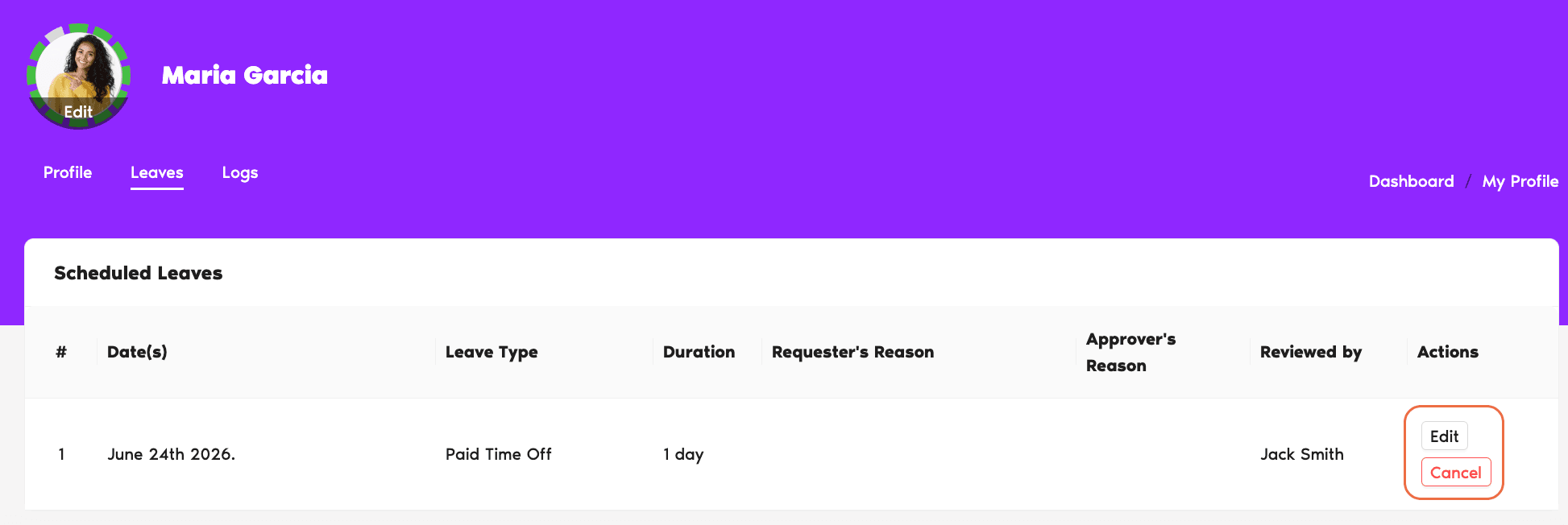
From Slack
- Type
/vacationanywhere in Slack (channel, DM, or your own DM — it works in any conversation). - From the menu, pick My Status to open your profile view.
- Find the leave you want to cancel in your list of upcoming leaves.
- Click Cancel on that leave.
- Confirm the cancellation.
From Microsoft Teams
- Open the Vacation Tracker bot in Microsoft Teams.
- Click the My Profile tab at the top of the bot.
- Find the leave you want to cancel in your upcoming leaves.
- Click Cancel on that leave.
- Confirm the cancellation.
However you cancel, the days return to your balance immediately, your Approver(s) get a notification, and the leave shows up as Cancelled in your Leaves tab going forward.
Common Questions
Yes. Cancellation returns the days to your balance immediately — refresh your Leave Quotas section and you'll see Remaining tick back up.
Yes. A cancellation notification is sent to whoever approved (or was due to approve) the leave, on whatever channel they use. No action is required from them — it's a heads-up.
It depends on the Leave Policy. If the policy permits past or in-progress cancellation, you'll see the Cancel option for that leave; if it doesn't, the option is hidden. In that case, ask your Admin or Approver to edit or delete the leave from your profile.
 Book a Call