





Last updated on July 1, 2026
How Do I Create a Location?
A Location groups users who share the same workweek, holidays, time zone, and leave policies. Most teams create one Location per country or office — it's the container everything else (leave policies, holidays, quota reset rules) hangs off.
How to Create a Location
- Sign in at app.vacationtracker.io.
- In the left-hand menu, expand Leave Setup and click Locations.
- At the top of the Locations page, click Create a Location.
- Fill in the form — the four sections are covered below.
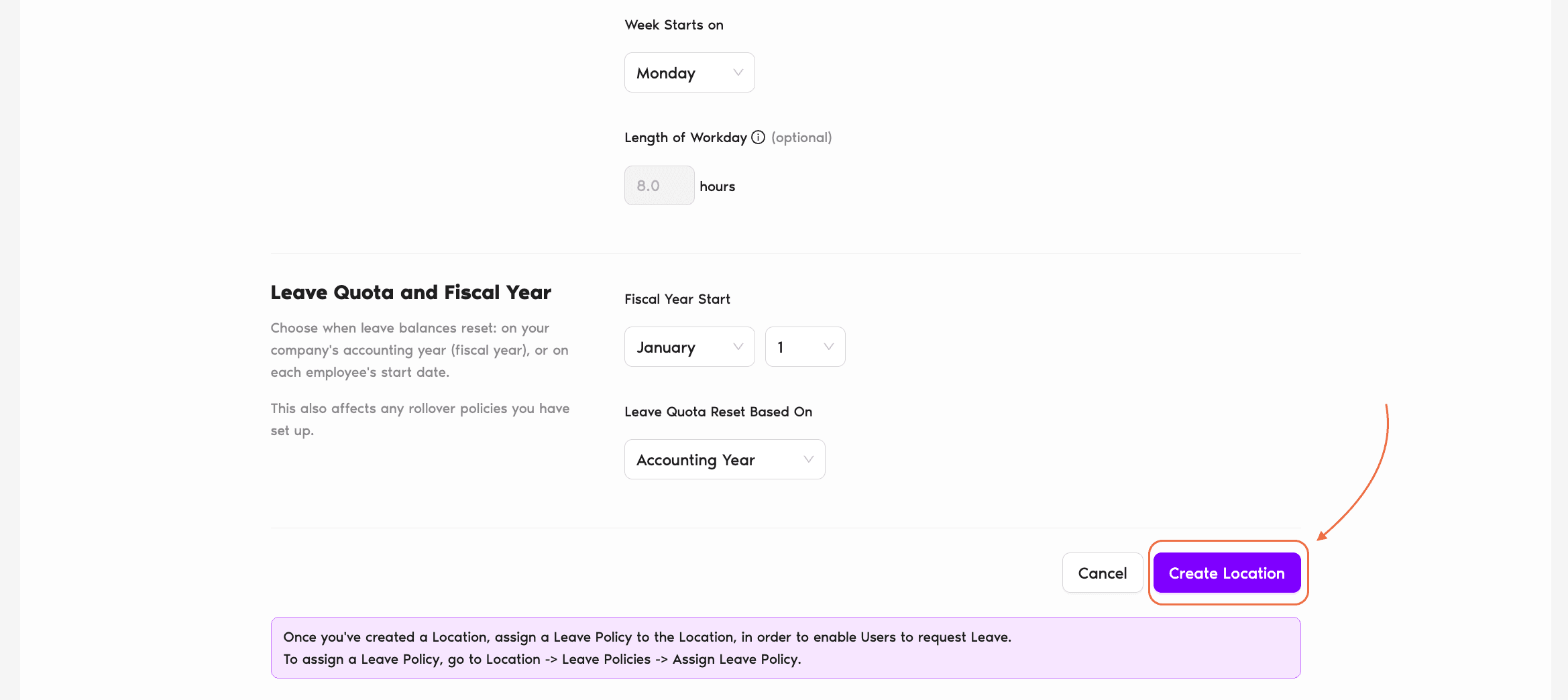
- Click Create Location at the bottom to save.
What Goes in Each Section
Location Settings
Name Required
What you'll call this Location. Most teams use a country, office, or region name — for example "United States", "Canada", "Paris HQ".
Users Optional
Pick users from your workspace to assign to this Location now. You can skip this and add users any time afterwards — nothing forces you to populate the Location at creation.
Time zone Required
The time zone used for leave calculations, calendar views, and activity logs for users in this Location. The default is whatever the app picks up from your browser — change it to match the majority of users in this Location.
Default Location
Make This Location Default (Yes / No, default No)
If you set this to Yes, every newly imported user is automatically assigned to this Location. Useful when you have one main office and import team members in bulk. Only one Location can be the default at a time.
Workweek and Workday
Workweek
Check the days of the week that count as working days for this Location. Default is Monday–Friday. Leave requests and balances are calculated based on these days — a user in a Location with Sunday–Thursday as workweek won't burn balance on a Saturday, for example.
Week Starts On
Controls which day appears first on Calendar views for this Location. Default is Monday. Most teams pick either Sunday or Monday based on regional convention.
Length of Workday Complete plan
How many hours constitute a standard workday in this Location. Default is 8 hours. Changing this is only possible on the Complete plan.
Leave Quota and Fiscal Year
Fiscal Year Start
A Month + Day combo that sets when leave quotas reset each year. Default is January 1. Change it if your company's leave year follows a fiscal calendar — for example, April 1 for the UK fiscal year or July 1 for an Australian one.
Leave Quota Reset Based On
Two options:
After You Create
Creating the Location is just the container. The next things to set up are usually:
Common Questions
Yes, and the limit depends on your plan: Free allows 1 Location, Core allows up to 3 Locations, and Complete is unlimited. See the full plan comparison on the pricing page.
Yes — open the Location from the Locations page and click Edit Location General Settings in the General tab. You can rename, change the time zone, adjust workweek, or flip the reset basis. Some changes (like switching reset from Accounting Year to User Employment Date) affect every user in the Location, so tread carefully.
No — each user is in exactly one Location at a time. If someone moves regions, change their Location assignment on the user profile rather than duplicating them.
 Book a Call