



Last updated on October 28, 2026
How Do I Set Holidays?
Each Location in Vacation Tracker gets its own holiday calendar. Public holidays are imported automatically when you create a Location. You can import more by country and region, or build your own list of custom holidays, including recurring ones, multi-day observances, and half-day cutoffs.
Getting to the Holidays Tab
- Sign in at app.vacationtracker.io.
- In the left-hand menu, expand Leave Setup and click Locations.
- Click the Location card, then switch to the Holidays tab.
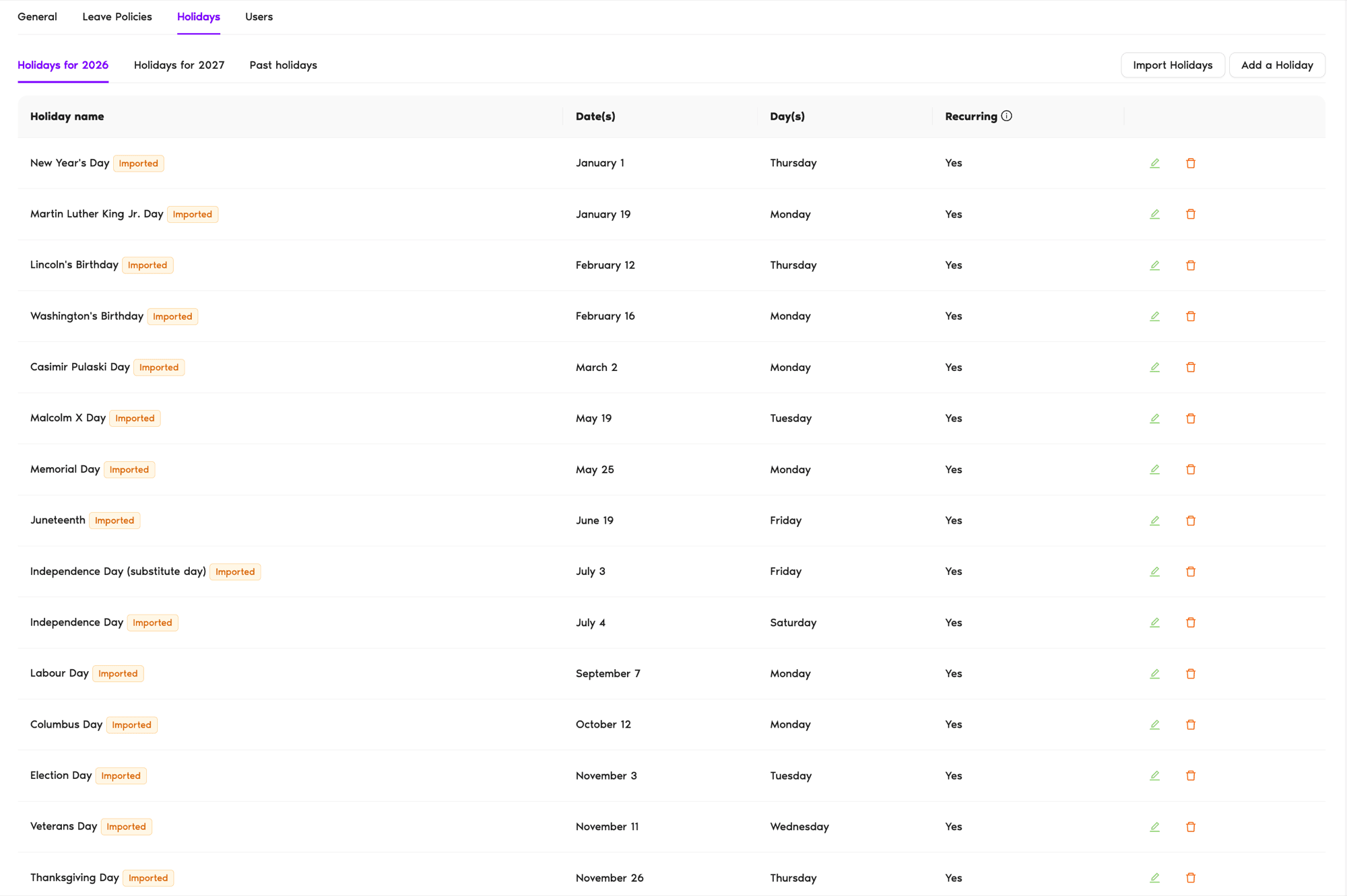
You'll see three tabs, Holidays for [current year], Holidays for [next year], and Past holidays, plus two action buttons at the top right: Import Holidays and Add a Holiday. Each holiday in the list is tagged Imported or Custom.
Holidays Added When You Create a Location
When you create a Location, Vacation Tracker imports the public holidays for the Country you select, plus the regional holidays if you pick a State, Province, or Nation. They show up on the Holidays tab with the Imported tag. If you later change the Location's Country or region on the General tab, you can choose to replace its holidays with the new set. See How Do I Edit a Location? for how that works.
Option 1: Import Holidays
Use this when you want to add or update the standard set of public holidays for a country or region. Import Holidays is a 3-step wizard with visual progress indicators at the top (Select country → Select holidays → Confirm).
- Click Import Holidays at the top right of the Holidays tab. You'll land on Step 1.
- Select country: The year (defaults to the current year), country, and state, province, or nation are filled in from the Location's settings. Change them if needed and click Next.
- Select holidays: A list of holidays for that country appears with some pre-selected. Use the Filter by holiday type option (Observance / Public) to narrow things down. Check or uncheck so only the holidays your organization observes stay selected. Click Next.
- Confirm: Review the final list of holidays you're about to import. Under Do you want to import selected holidays for future years automatically? choose Yes if you want Vacation Tracker to handle the rollover, or No. Click Import [number] selected holidays to finish.
The holidays are added to the Location and every user in that Location gets them. Use the Back button in the wizard at any time to revisit earlier steps; no import happens until you click the import button on the final step.
Option 2: Add a Custom Holiday
Use this for company-specific observances, floating holidays, or anything that isn't in the standard country list.
- Click Add a Holiday at the top right of the Holidays tab.
- Fill in the form. See the field reference below.
- Click Save.
Add a Holiday: Field Reference
Name
The display name for the holiday (e.g., "Company Founding Day").
Assign to Locations
The Location this holiday applies to. It's set to the Location you opened the form from and can't be changed here.
Recurring holiday?
Yes / No. Set to Yes if this holiday repeats every year; No for a one-off. Yes reveals additional recurrence fields.
Holiday type
Three options: Single-day holiday, Multi-day holiday, or Half-day holiday. Pick Single-day for normal holidays, Multi-day for observances spanning several consecutive days, Half-day for early closures. See How Do I Enable Half-Day Holidays? for that flow.
Date
Present when Recurring = No. Pick the exact date (or date range, for Multi-day).
Recurrence type (when Recurring = Yes)
Two options:
Starts on (optional)
Month and Day pickers for the recurring holiday's anchor date.
Ends on (optional)
Shown for a recurring Multi-day holiday. Month and Day pickers for the last day of the holiday.
Transfer to the next working day when fall on weekends
Only on custom recurring holidays; imported holidays don't have this option. Yes / No. If Yes, a holiday that falls on a Saturday or Sunday automatically shifts to the next working day. Matches how many "substitute day" rules work for public holidays.
What Happens After You Save
Holidays you set up (imported or custom) behave like non-working days for everyone in the Location:
Common Questions
Yes. Holidays live inside a Location, so you need to create the Location first. Its public holidays are imported when you create it. See How Do I Create a Location?
No. When you add a holiday from a Location's Holidays tab, Assign to Locations is set to that Location. If you have the same holiday across several Locations, add or import it separately for each.
The curated list labels each holiday by type. Public holidays are statutory days off; Observance holidays are culturally recognized but not mandated. Use the Filter by holiday type option to show only one category at a time. Most teams import just the Public ones.
What's Next?
How Do I Enable Half-Day Holidays? How Do I Create a Location? How Do I Edit a Location?Admins and Approvers: You can reach us via live chat Monday to Friday, 9 AM – 5 PM EST, or email us anytime at hello@vacationtracker.io.
 Book a Call