






Last updated on October 7, 2026
How Do I Edit a Location?
You edit a Location's settings directly on its General tab, one setting at a time. The same page lets you make the Location the default, manage its users, or delete it. Changes affect every user in the Location, so check what you're updating before you save.
How to Edit a Location
- Sign in at app.vacationtracker.io.
- In the left-hand menu, expand Leave Setup and click Locations.
- Click the card of the Location you want to edit. It opens on the General tab.
- Hover over the setting you want to change and click the pencil icon next to it.
- Make your change and click Save. Click Cancel to discard it.
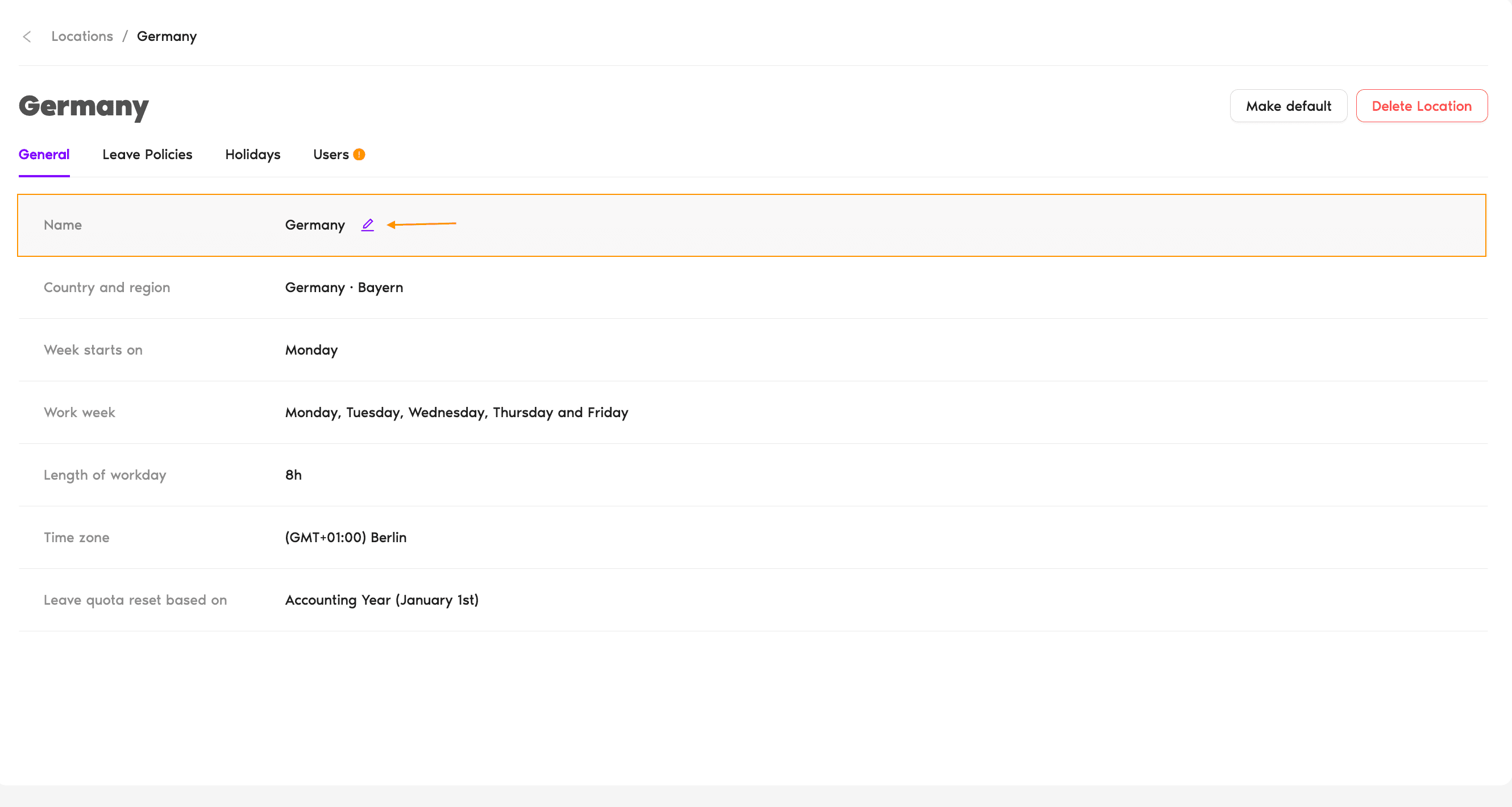
What You Can Change
The General tab lists each setting with its current value. Each one is edited and saved on its own.
Name
Rename the Location (for example, "USA" to "United States - East Coast"). Existing users stay assigned.
Country and region
Change the Country, or the State, Province, or Nation for countries that have regional holidays. When you pick a different one, an Import public holidays checkbox appears showing how many holidays that country or region has. Tick it to replace all of the Location's holidays, including ones added by hand, with the new set. Leave it unticked to change only the setting and keep the current holidays. Changing the Country or region doesn't rename the Location or change its time zone.
Week Starts On
Choose Monday or Sunday as the day Calendar weeks start on.
Work week
Select which days count as working days. If some users in the Location have a custom work week on their profile, you also choose who the change applies to. See the Apply To option below.
Length of Workday Complete plan only
Change the standard workday hours (8 by default). This is what one full day of leave is worth when leave is counted in hours. Editing this setting is only available on the Complete plan. Like Work week, it shows the Apply To option when some users have a custom work week.
Time zone
Pick a different time zone for the Location. Leave calculations, calendar displays, and activity logs will shift to the new zone.
Leave quota reset based on
Choose whether the leave year resets for everyone together (Accounting Year) or on each user's anniversary (User Employment Date). With Accounting Year, also set the month and day the year starts on. When you switch the reset basis, a warning explains that the change might affect users' leave quotas and calculations, and that a brought forward expiry date set on any leave policy in this Location will be disabled.
Users and the Default Location
Users
Open the Users tab and click Add Users to add people to this Location. Users can only belong to one Location at a time, so adding someone moves them from the Location they're in now. To move a user out, click the three dots at the end of their row and choose Move to another location.
Make Default
Click Make default at the top right of the Location and confirm in the prompt. Only one Location can be the default at a time, so the previous default stops being the default. The default Location shows a Default badge next to its name.
About the Apply To Option
Admins can give individual users a custom work week on their User Profile. When anyone in the Location has one, the General tab shows how many under Work week (for example, "1 person has a custom work week"), and the Work week and Length of workday editors show an Apply to choice:
If nobody in the Location has a custom work week, the editor shows "Nobody here has a custom work week, so this applies to everyone." instead.
How to Delete a Location
- Open the Location from the Locations page.
- At the top right, click Delete Location. A confirmation prompt opens.
- Click Delete Location in the prompt to confirm. The Location is removed.
Common Questions
Switching from Accounting Year to User Employment Date (or the reverse) recalculates each user's reset date based on the new rule. Existing balances stay, but when they next reset changes. Be deliberate about this. It's a policy-level shift that affects everyone in the Location.
Because users can only belong to one Location, reassign them to another Location before deleting. Otherwise you'll lose context for their leave policies, holidays, and balances. Move users off the Location first, then delete it.
No. Deletion is permanent. If you've hit delete by accident and need to restore data, reach out to Support as soon as possible.
Admins and Approvers: You can reach us via live chat Monday to Friday, 9 AM – 5 PM EST, or email us anytime at hello@vacationtracker.io.
 Book a Call