





Last updated on November 6, 2026
How Do I Migrate My Account? (Move to a Different Integration)
You can switch between integrations, whether you're using Microsoft Teams, Slack, Google Workspace, or the Email only integration. Your account moves over with all your existing information intact. You sign in with the new platform's account, grant the permissions it asks for, and then map your existing Users.
Talk to Support first
Switching changes how Users sign in and where notifications arrive. Reach out to Support before making the switch.Switch to a Different Integration
- Sign in at app.vacationtracker.io.
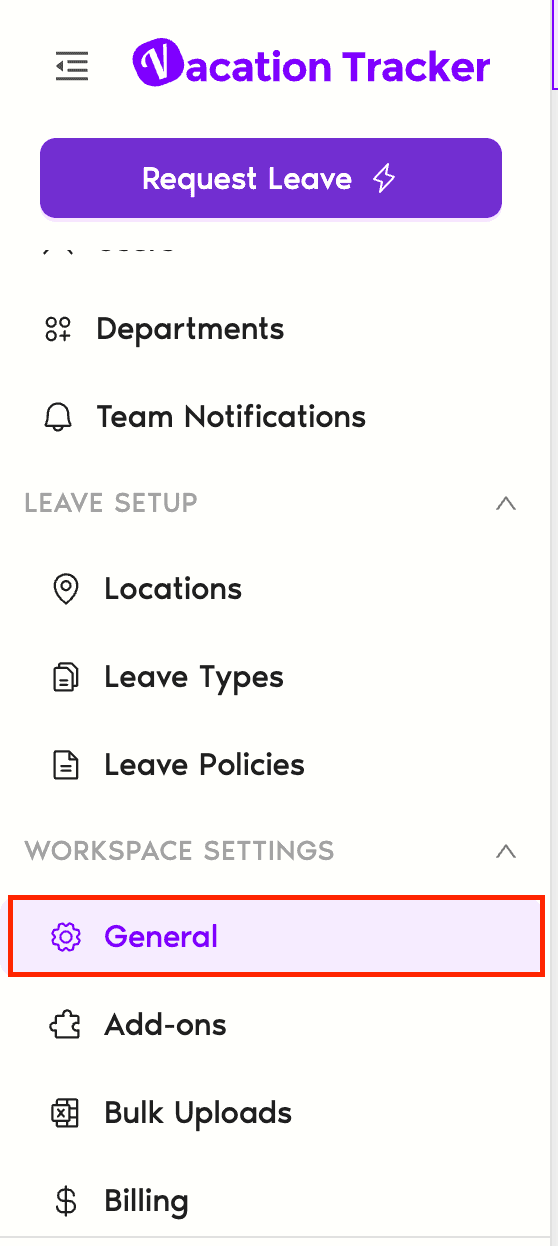
- In the left-hand menu, go to Workspace Settings and select General.
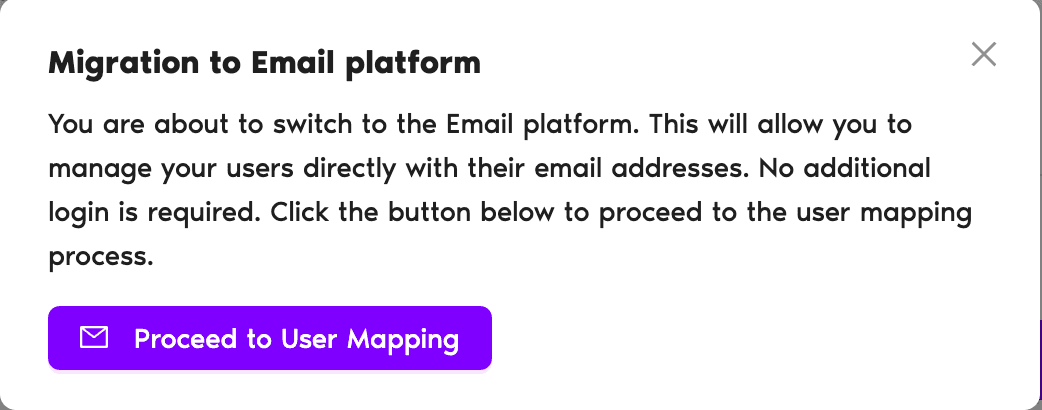
- Under Switch to another platform, select the platform you'd like to use (Microsoft Teams, Slack, Google Workspace, or Email only).
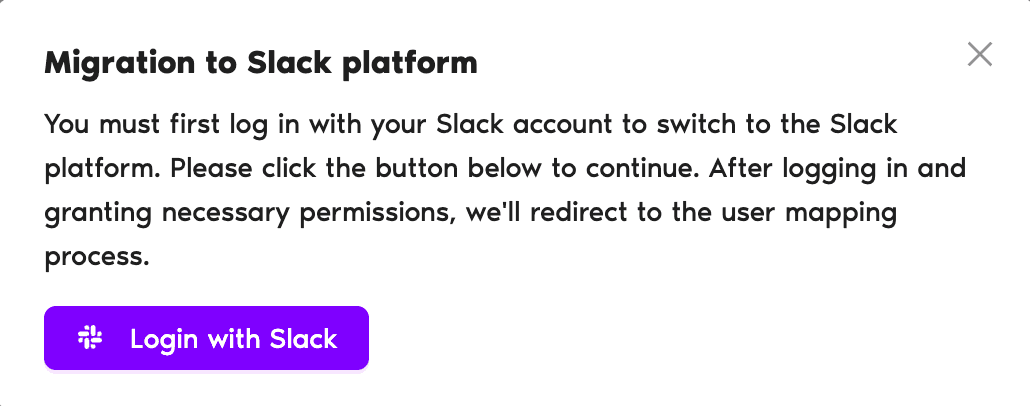
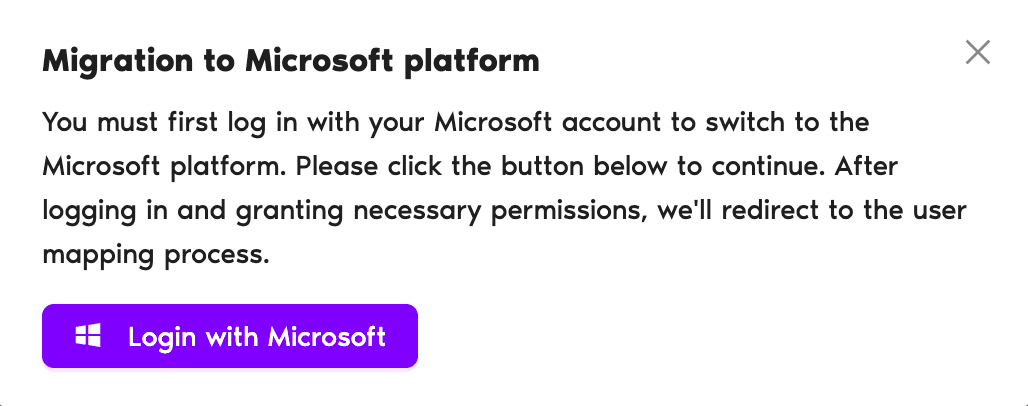
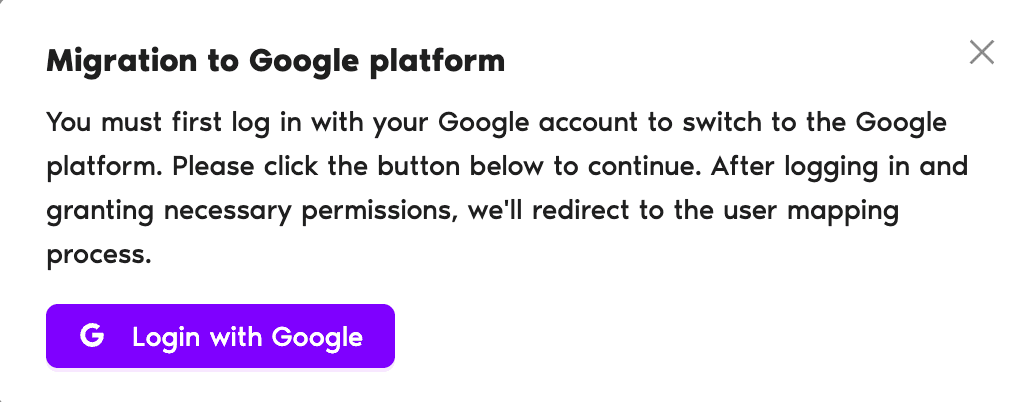
- Depending on the option you chose, sign in to your Microsoft Teams, Slack, or Google account.
- Map existing Users to make sure every user matches the ones you already have in the system.

Migrate From One Microsoft Teams Tenant to Another
If your team already uses the Microsoft Teams integration and you need to move your Vacation Tracker account from one Microsoft tenant to another, you can do this from the same section.
- In Workspace Settings > General, under Switch to another platform, select Change Microsoft tenant.
- Sign in with a Microsoft account that belongs to the new tenant.
- Map existing Users to make sure every user matches the ones you already have in the system.

What's Next?
Guide: Which Vacation Tracker Integration is Right for Me (Google, Microsoft Teams, Slack or Email Only)?Need help?
Regular Users: If you have any questions, email us anytime at hello@vacationtracker.io.Admins and Approvers: You can reach us via live chat Monday to Friday, 9 AM – 5 PM EST, or email us anytime at hello@vacationtracker.io.
 Book a Call