



Last updated on October 23, 2026
Approver Training 6: Send Your Team Leave Summaries and Birthday Messages (Email Only)
Keep your team up to date without opening the dashboard. Send a daily or weekly summary of who's off, or birthday messages.
As an Approver, you see and manage only the notifications you create, and they include only people in your Departments.
Create a Daily or Weekly Summary
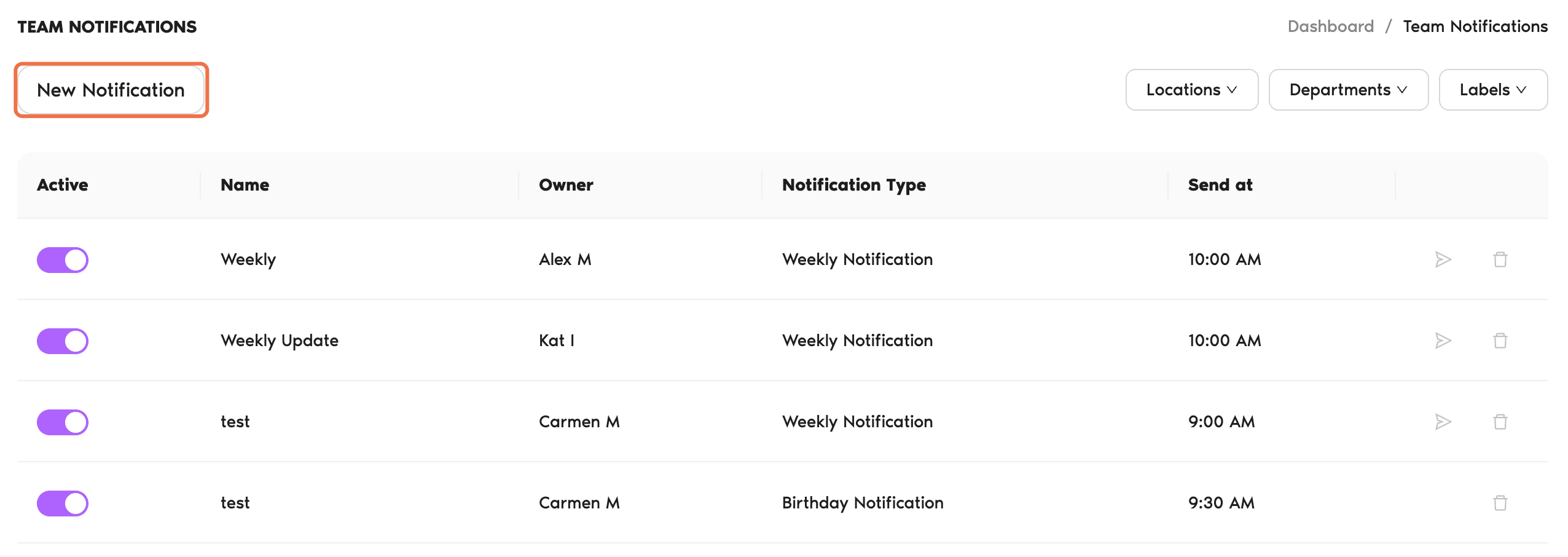
- In the left-hand menu, click Team Notifications.
- Click New Notification and choose Daily/Weekly Notifications.
- Enter a Notification Name and, optionally, filter who it includes.
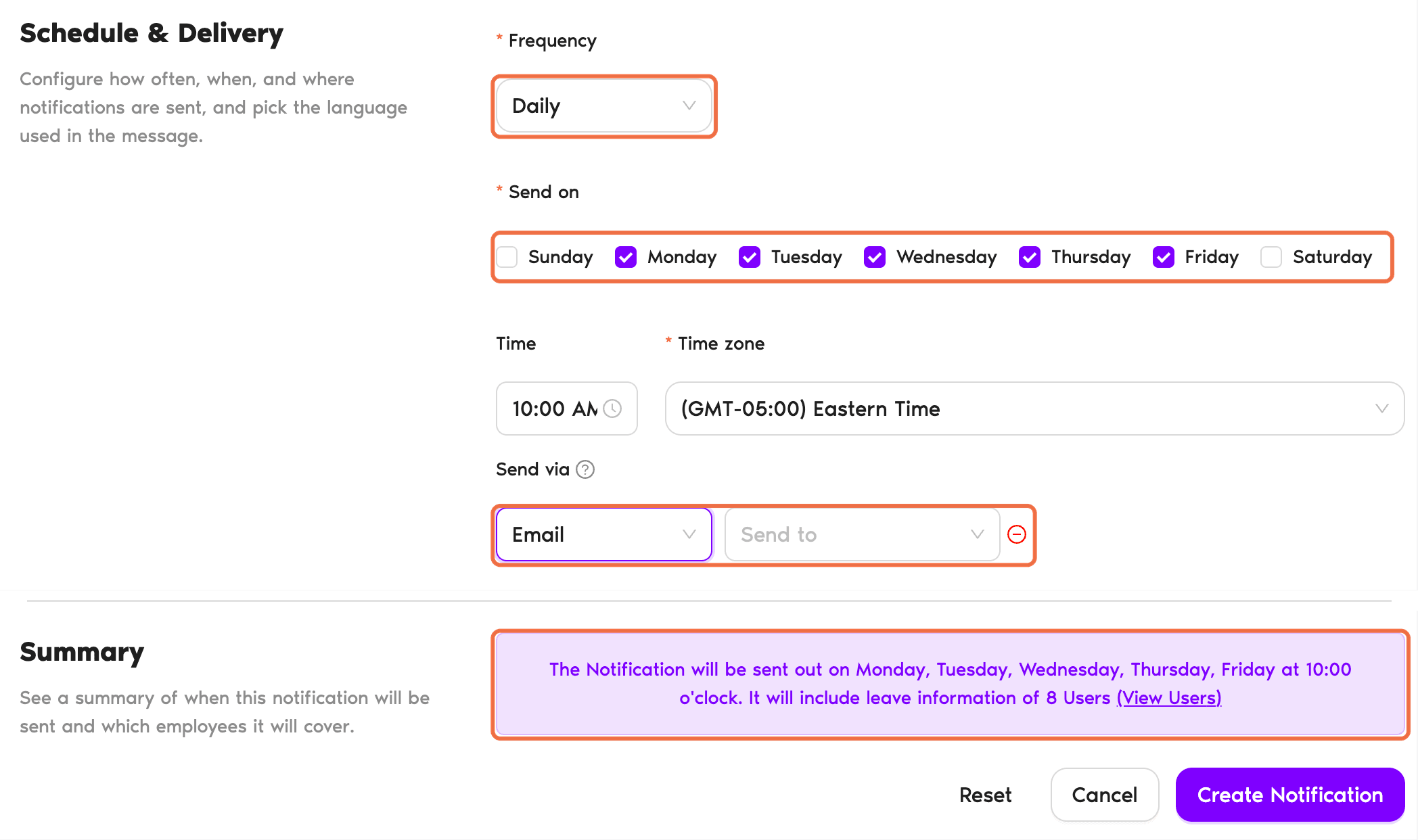
- Set the Frequency, Send on days, Time and Time zone.
- Under Send via, choose Email.
- Choose how to Group leaves by, what to do If No Upcoming Leaves, and the Language.
- Read the Summary, then click Create Notification.
Create a Birthday Message
- Click New Notification and choose Birthday Notifications.
- Enter a name and choose who it applies to.
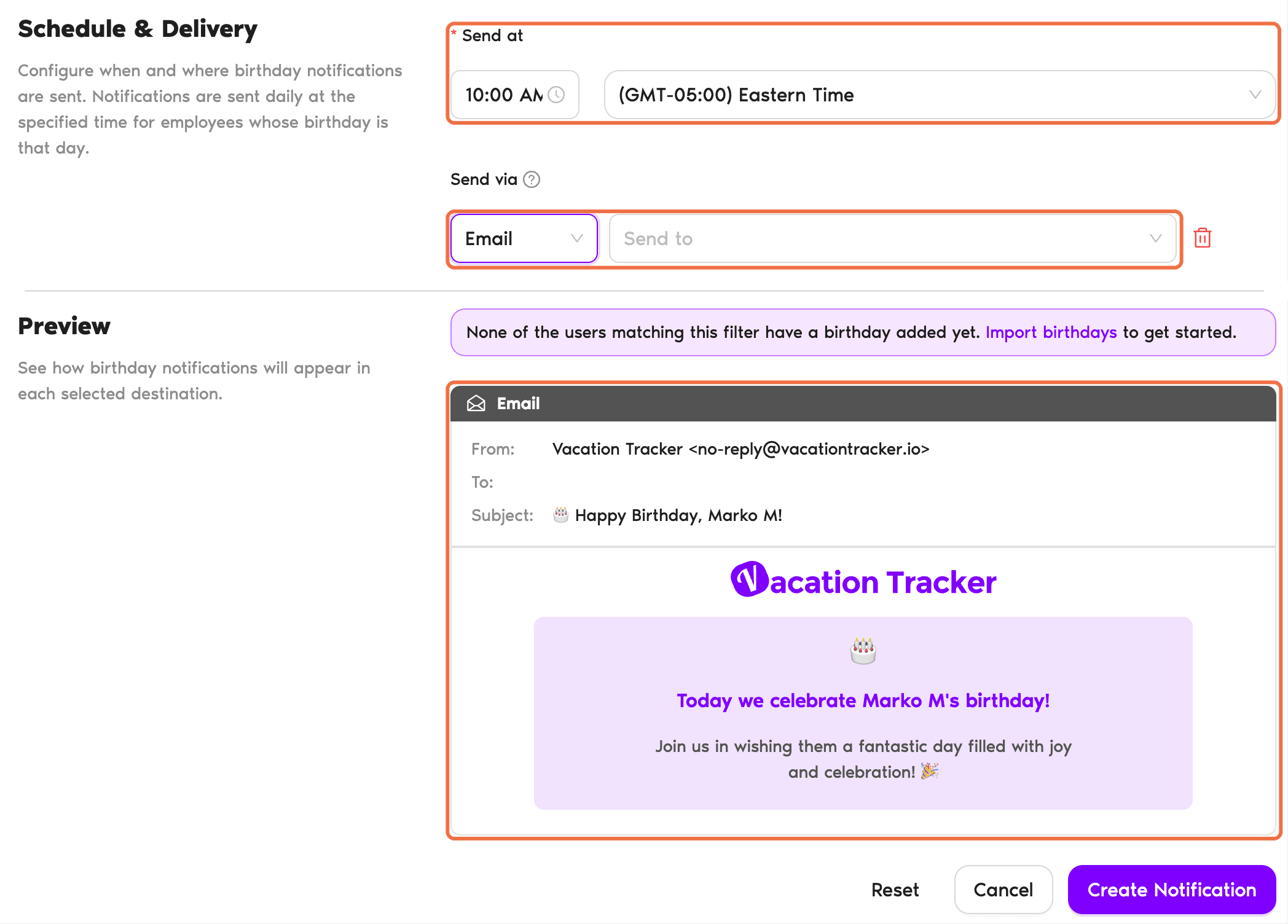
- Set Send at, Send via and the language.
- Click Create Notification.
Check It Worked
The notification is listed on the Team Notifications page with its switch on.
Common Questions
No. You only see and manage the notifications you create.
No. Your notifications only include people in the Departments you approve for.
 Book a Call