



Last updated on October 23, 2026
Location Admin Training 6: Add Leave for Someone in Your Location (Microsoft Teams)
Add leave for someone in your Location when they can't request it themselves, for example when they call in sick. Leave you add is approved right away.
Add the Leave
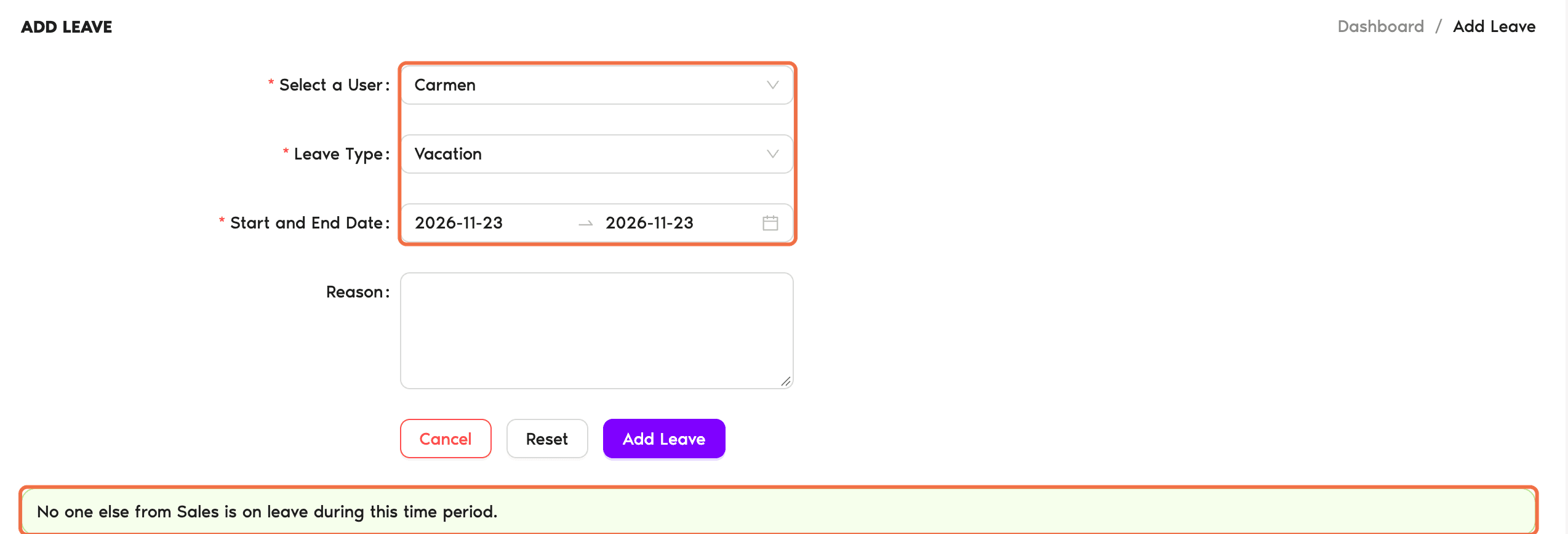
- Click Request Leave at the top of the menu and choose Add Leave.
- Choose the person under Select a User.
- Choose the Leave Type. The list depends on the person's Location.
- Choose the Start and End Date and add a Reason if needed.
- Check the line under the dates. It tells you if anyone else from the Department is on leave at the same time.
- Click Add Leave.
You can also open the person's profile and use the Add Leave tab.
Enter submits the form
Pressing Enter adds the leave straight away. Fill in every field before you press it.Check It Worked
You see the Leave added page, and the leave shows on the Calendar and on the person's Leaves tab.
Common Questions
Leave types come from the person's Location. If one is missing, that Location doesn't have a Leave Policy for it. Article 2 covers adding one.
 Book a Call