



Last updated on October 23, 2026
Location Admin Training 7: Send Leave Summaries and Birthday Messages to Your Team (Slack)
Keep your team up to date without opening the dashboard. Send a daily or weekly summary of who's off, or birthday messages.
Create a Daily or Weekly Summary
- In the left-hand menu, under Team & Approval Flows, click Team Notifications.
- Click New Notification and choose Daily/Weekly Notifications.
- Enter a Notification Name and, optionally, filter who it includes by Location, Department or Label.
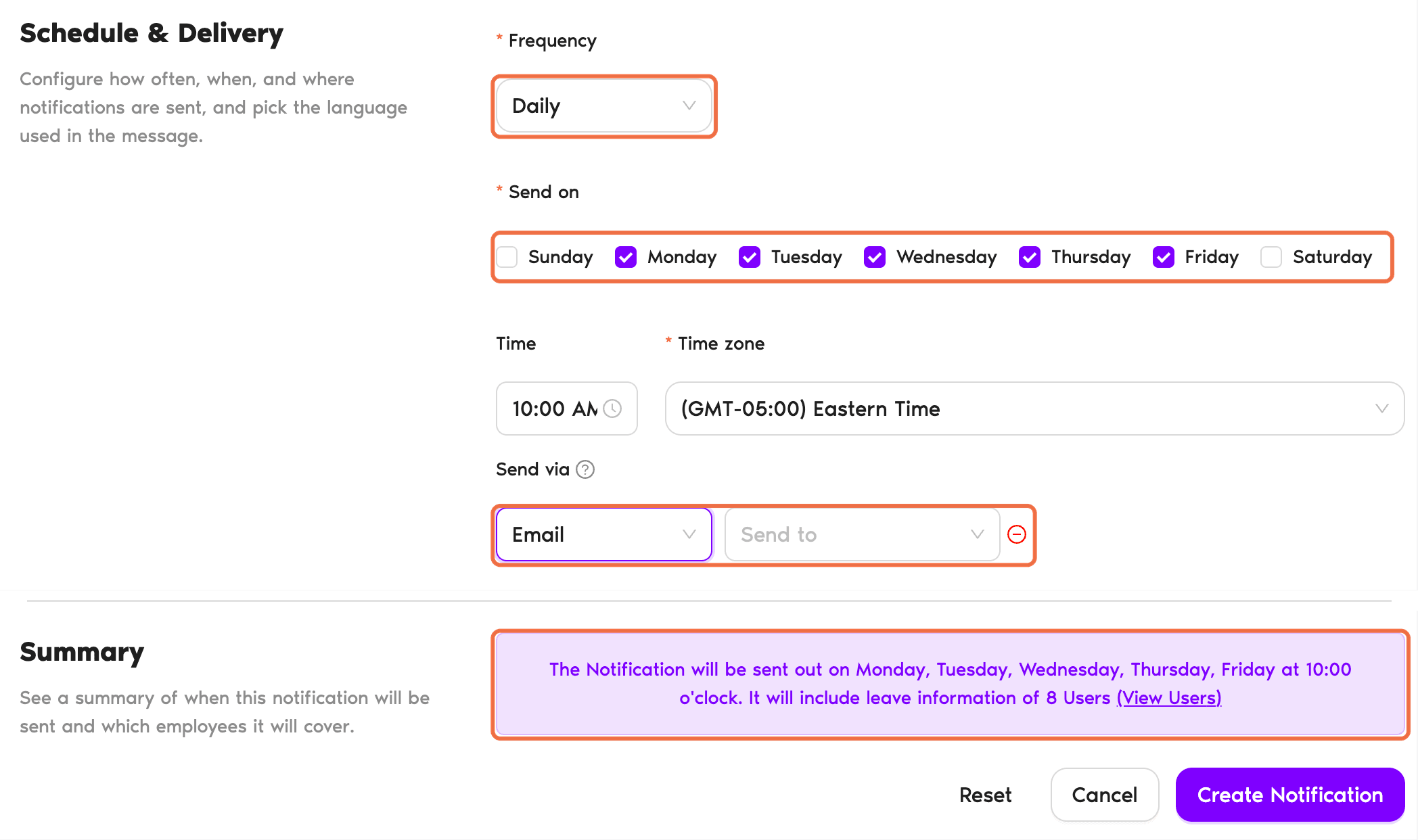
- Set the Frequency, Send on days, Time and Time zone.
- Under Send via, choose Channel and pick the Slack channel (public or private), or choose Email. You can add several email recipients, but only one channel per notification.
- Choose how to Group leaves by, what to do If No Upcoming Leaves, and the Language.
- Read the Summary, then click Create Notification.
Create a Birthday Message
- Click New Notification and choose Birthday Notifications.
- Enter a name and choose who it applies to.
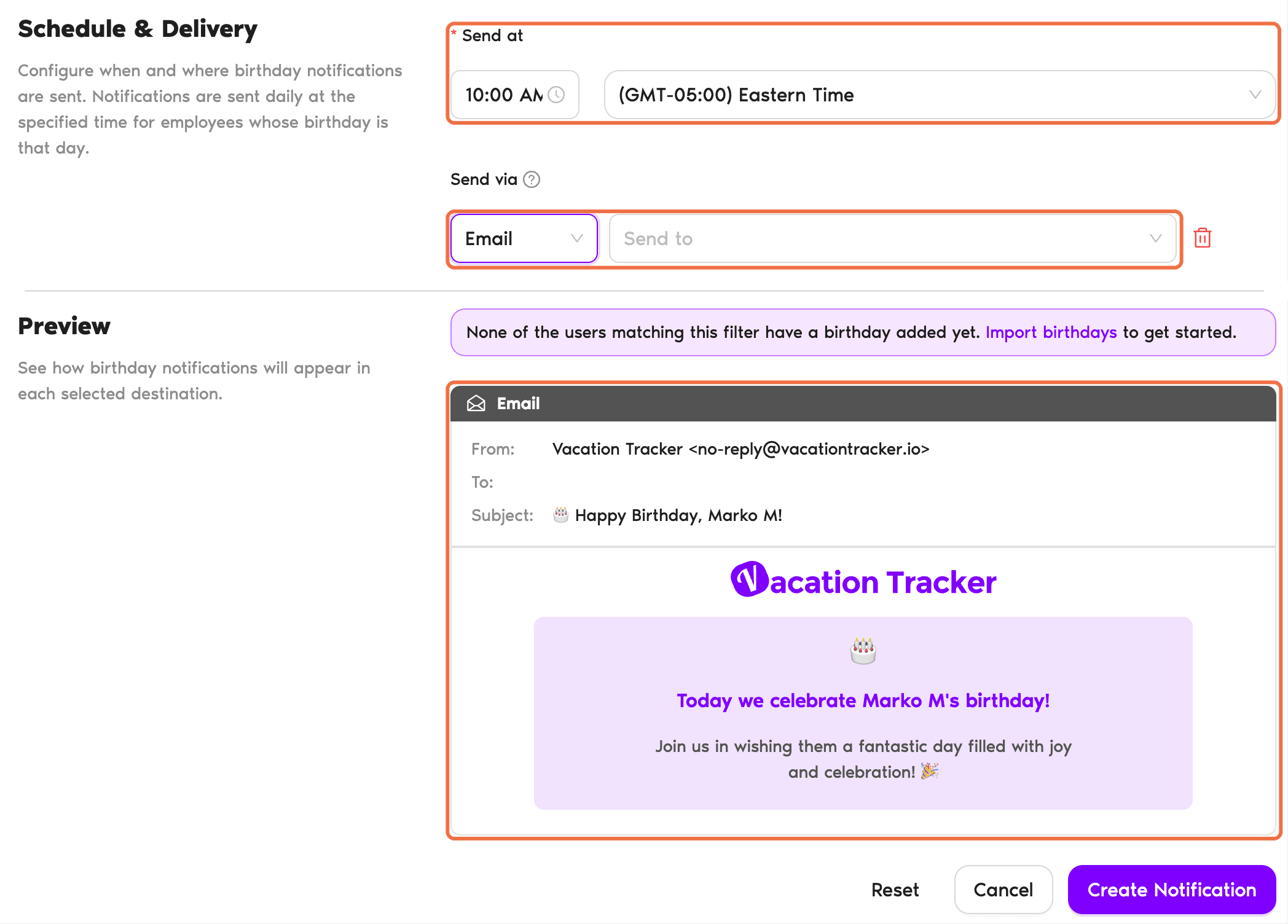
- Set Send at, Send via and the language.
- Click Create Notification.
Check It Worked
The notification is listed on the Team Notifications page with its switch on.
Common Questions
Yes. For example, create a separate summary for each Department in your Location.
Birthdays need a date on the person's profile, and users can turn off their own birthday announcement.
 Book a Call