



Last updated on October 23, 2026
User Training 8: Use Vacation Tracker From an AI Assistant (Email Only)
Use Vacation Tracker from the AI assistant you already use. Ask about your balance, check who's off, or request time off.
Connect Your Assistant
- In the left-hand menu, click Integrations, then MCP.
- Copy the Server address.
- Choose your assistant from the list, for example Claude, ChatGPT, GitHub Copilot, Copilot Studio, Cursor or Codex, and follow its steps to add the address.
- Sign in to Vacation Tracker when your assistant asks. No keys are needed.
Only click Create client ID and secret if your tool asks for one, for example Gemini Enterprise, or Copilot Studio with manual sign-in. Most assistants don't need it. Other assistants can connect too if they support Streamable HTTP and OAuth.
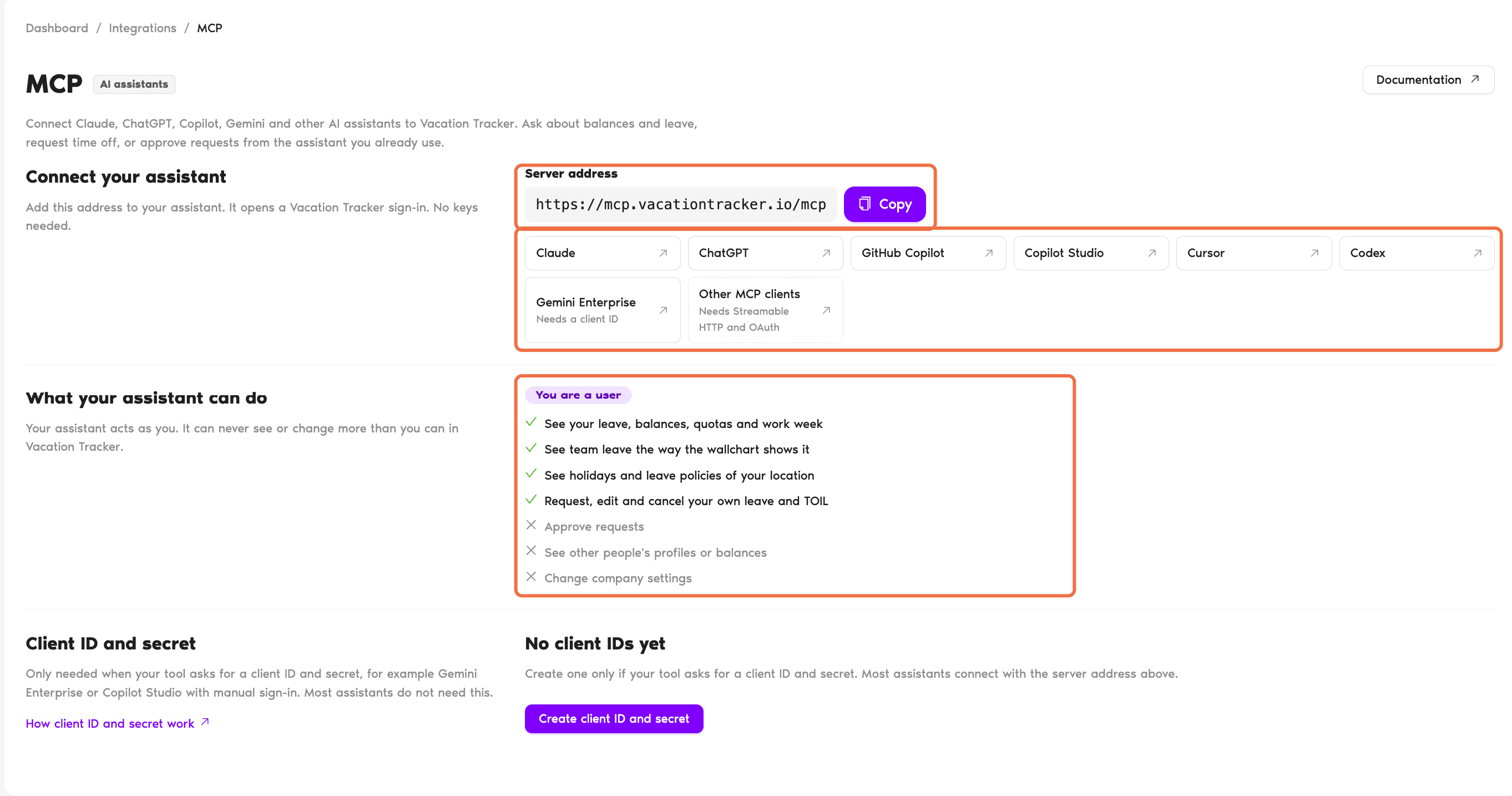
What Your Assistant Can Do
The page shows You are a user and lists what your assistant can do. It acts as you, so it can never see or change more than you can.
It can't approve requests, see other people's profiles or balances, or change company settings.
Check It Worked
Ask your assistant how much leave you have left. It answers with your balance from Vacation Tracker.
Common Questions
Your assistant signs in as you and has the same access you have in Vacation Tracker, nothing more.
No. It's optional. Everything it does, you can also do in the dashboard.
 Book a Call