



Last updated on October 23, 2026
Approver Training 2: Approve or Deny Leave Requests in the Dashboard (Email Only)
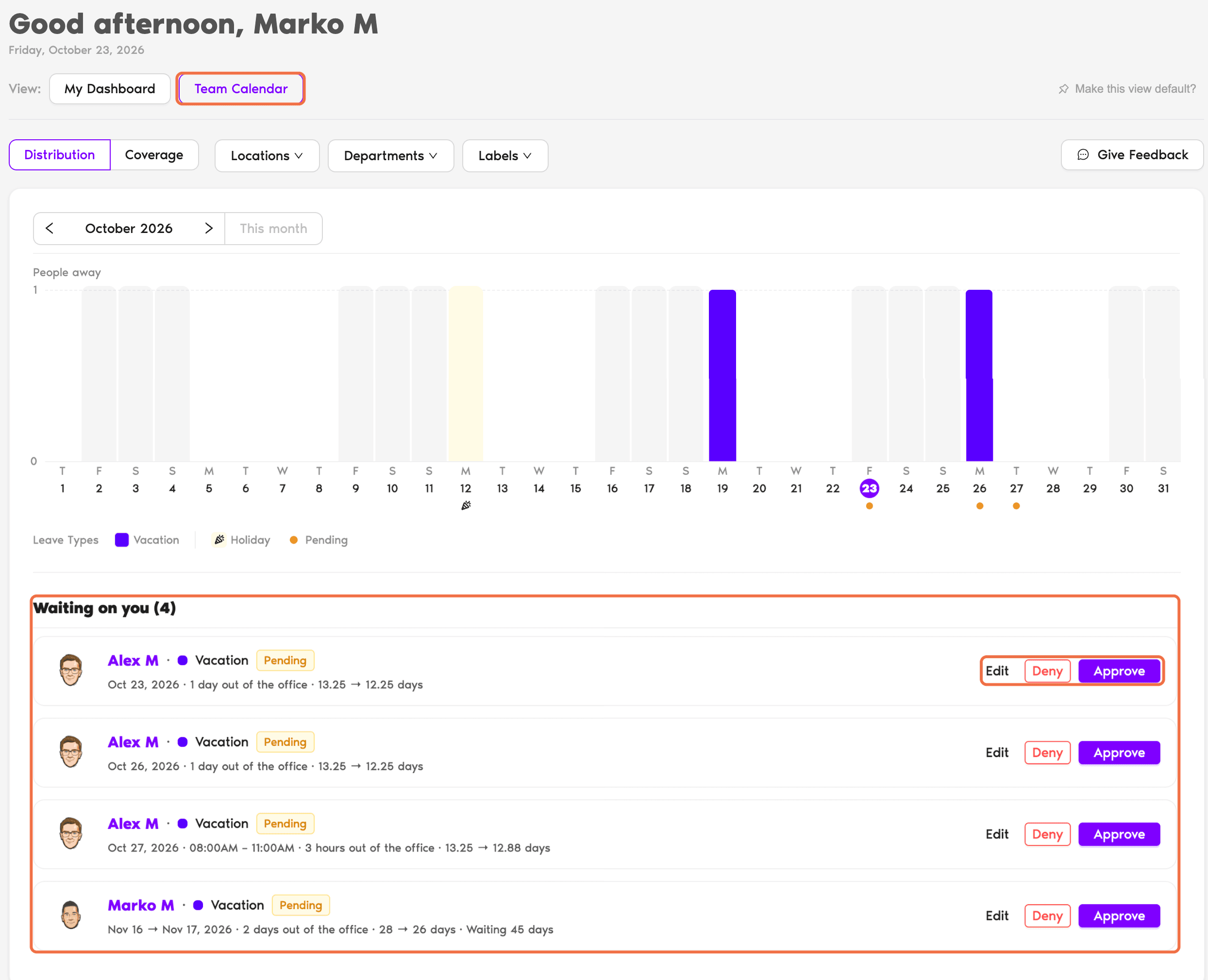
Every request that needs your answer is listed under Waiting on you on your Home page. Open a request to see the full picture before you decide.
Find Your Requests
- Go to Home and switch the view to Team Calendar.
- Look under Waiting on you. The number shows how many requests need your answer.
- Each card shows who's asking, the leave type, the dates and their balance before and after the leave.
Check the Details
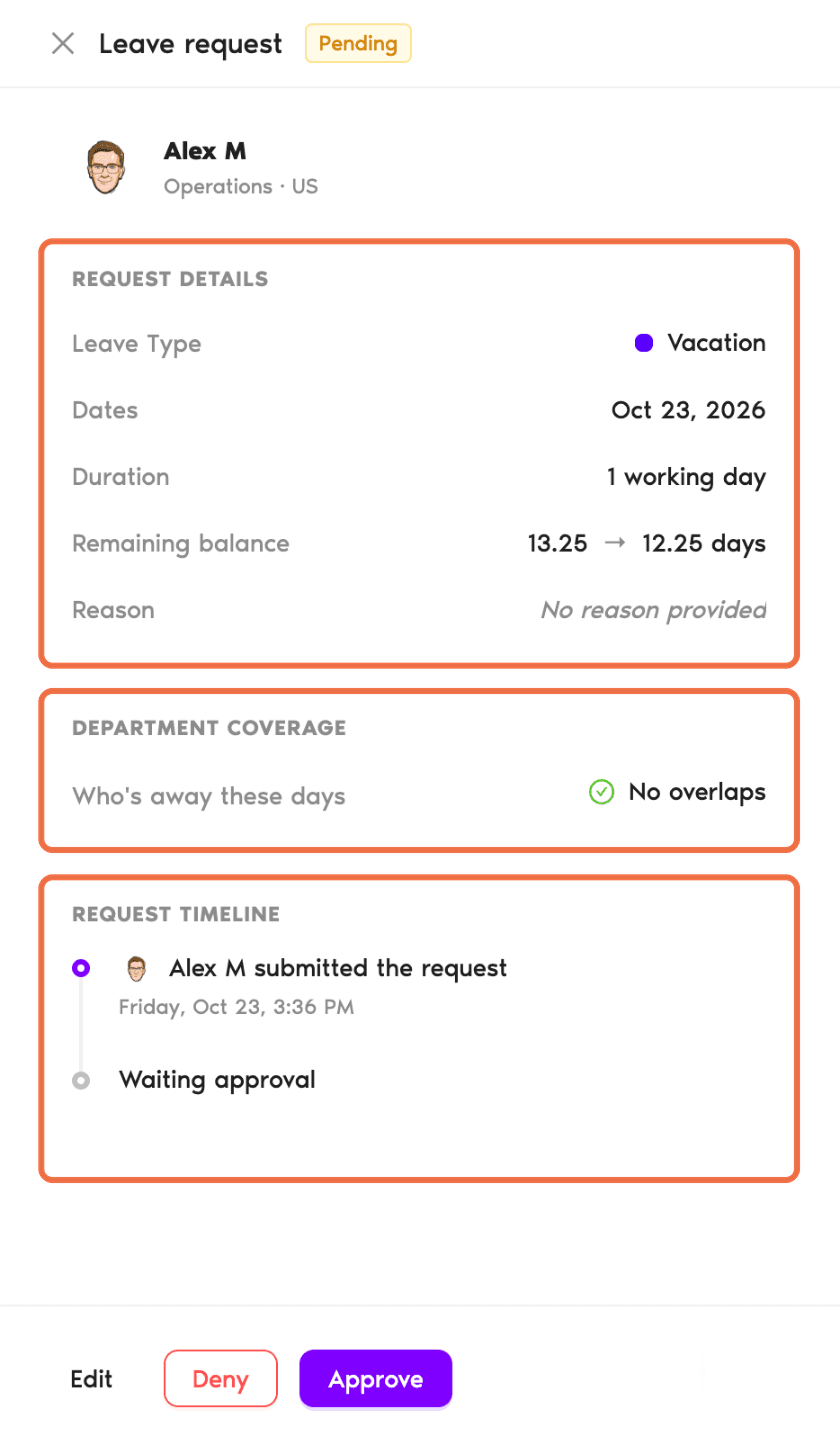
Click a request to open the Leave request panel on the right:
Approve or Deny
- Click Approve to approve the request.
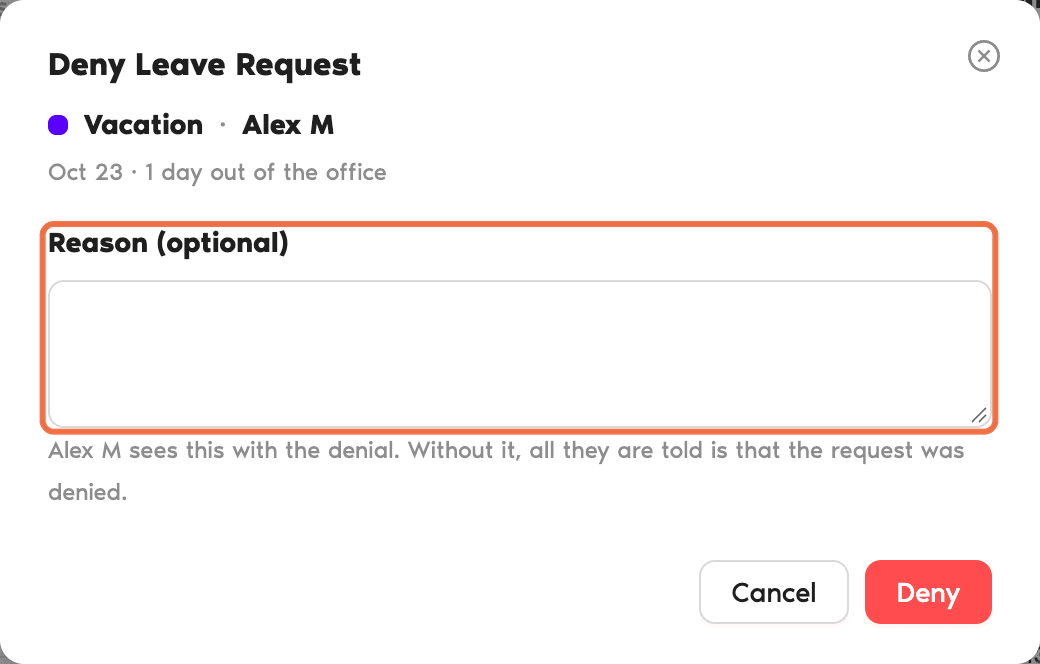
- Or click Deny. In the Deny Leave Request box, add a Reason (optional) and confirm.
You'll find the same buttons on the request card and in the panel.
Answer From a Profile
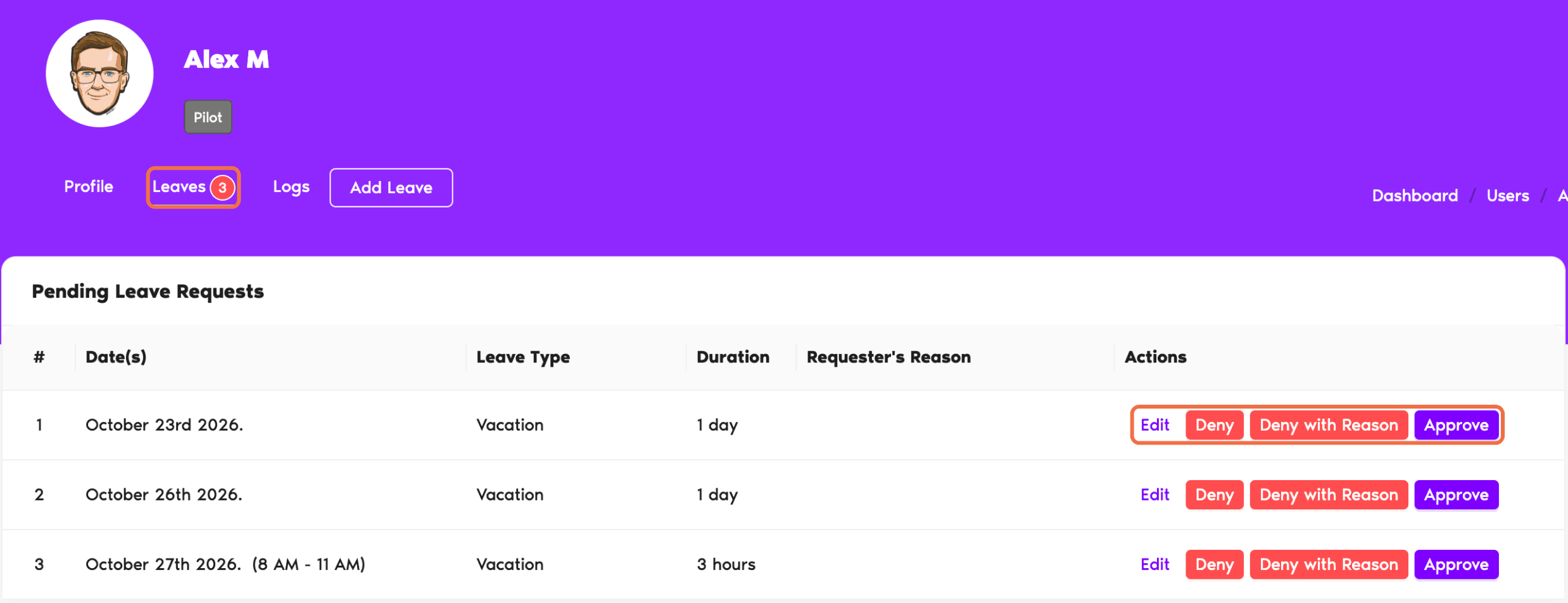
Go to Users, open the person's profile and go to the Leaves tab. Pending requests are listed with Approve, Deny, Deny with Reason and Edit.
Check It Worked
The request is no longer under Waiting on you, and approved leave shows on the Calendar.
Common Questions
Duration counts working days only. Non-working days and holidays in the person's Location aren't counted.
No. It only shows approved leave from people in the same Department.
If your Department has more than one level of approval, the request moves on to the next Approver. The Request timeline shows where it is.
 Book a Call