



Last updated on October 23, 2026
Location Admin Training 3: Update a User's Profile, Working Days and Leave Quotas (Email Only)
Keep each person's details and balance right. You can edit profiles for everyone in your Managed Locations.
Open a Profile
- In the left-hand menu, under Team & Approval Flows, click Users.
- Use the Locations filter to show your Location, then click a name.
The profile has Profile, Leaves, Logs and Add Leave tabs. For people outside your Managed Locations, you can open the profile but not edit it.
Edit Profile Details
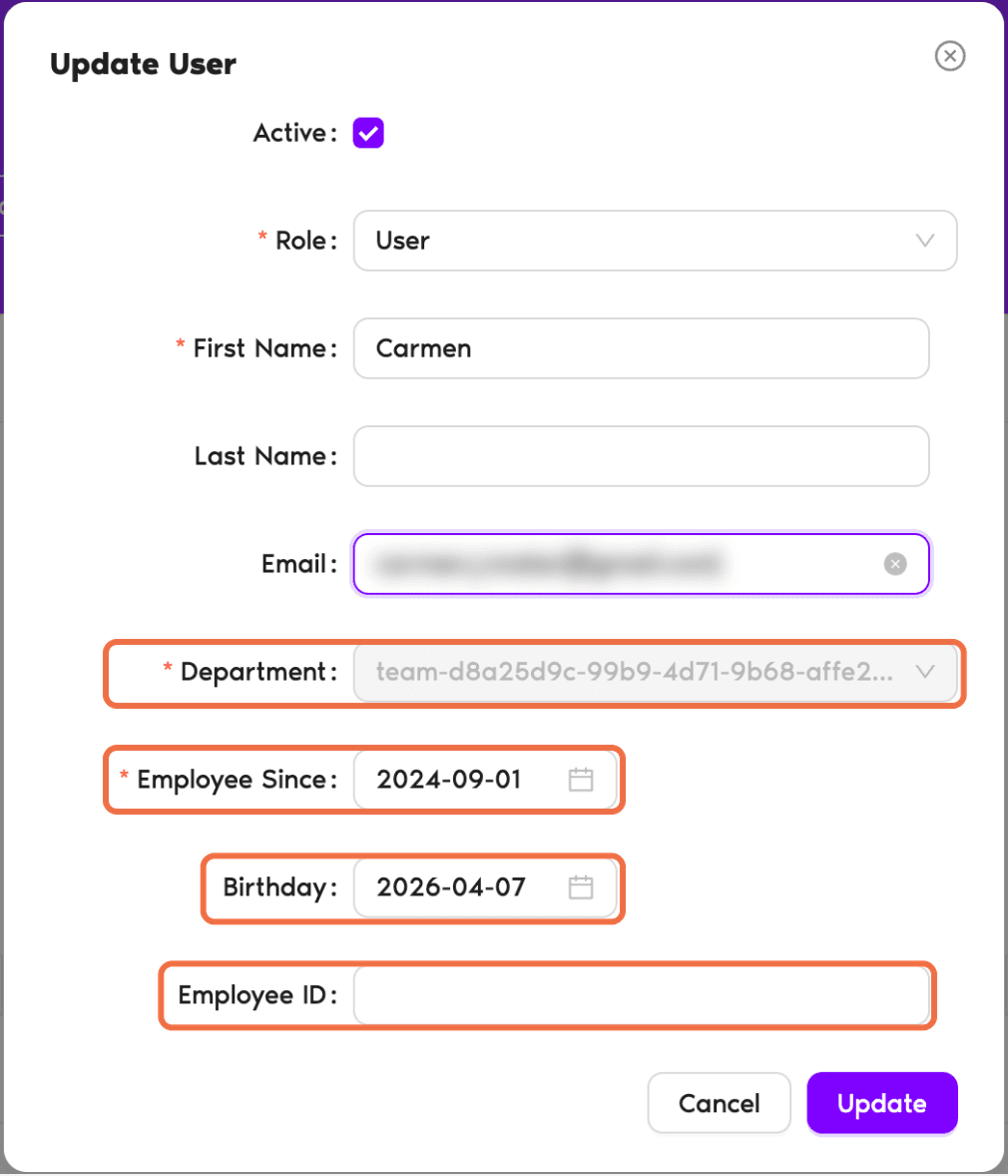
- In the User Profile box, click Edit.
- In Update User, change the name, Department, Employee Since, Birthday, Employee End Date or Employee ID.
- Click Update.
The email address can't be changed here.
Set Custom Working Days
If someone works a different week from the rest of the Location, click Edit in the Working Days box and set their days. The profile then shows a custom workweek tag.

Change a Leave Quota
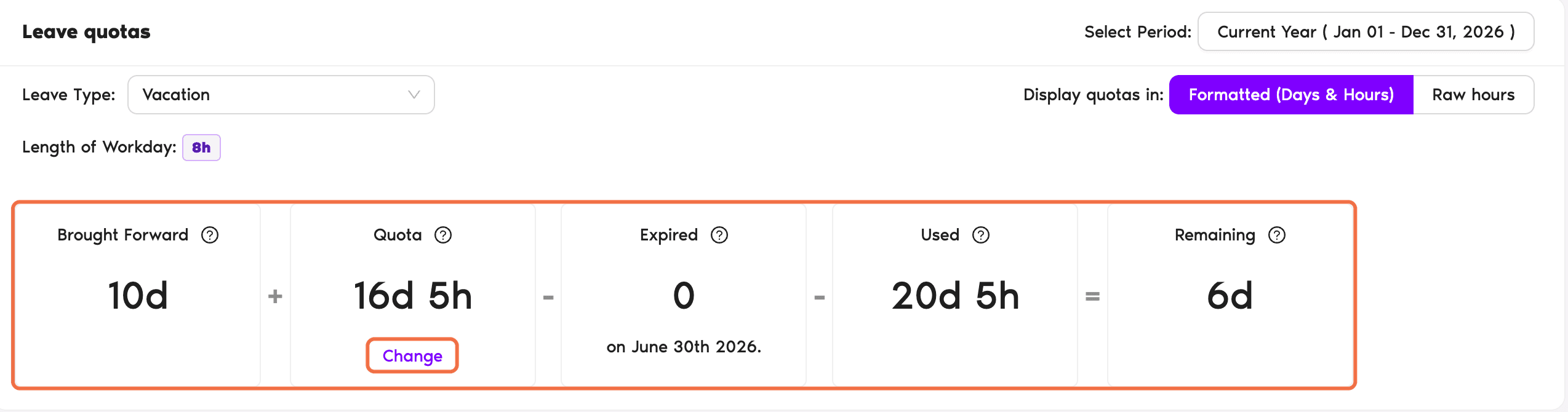
- Scroll to Leave quotas.
- Choose the Period and the Leave Type.
- Click Change, enter the adjustment and save it.
The box shows Brought Forward + Quota + Change - Used = Remaining.
Check It Worked
The profile shows the new details, and Remaining shows the right balance.
Common Questions
They aren't in one of your Managed Locations. Ask your Administrator to change it.
No. Ask your Administrator to move them.
No. Only Administrators can give someone the Administrator or Location Admin role.
 Book a Call