



Last updated on October 23, 2026
User Training 0: What You Do as a User (Google Workspace)
Vacation Tracker is where you request time off, check your balance and see who's away. This training covers the essentials in 8 short articles. Start here.
What You Can Do
Who Approves Your Leave
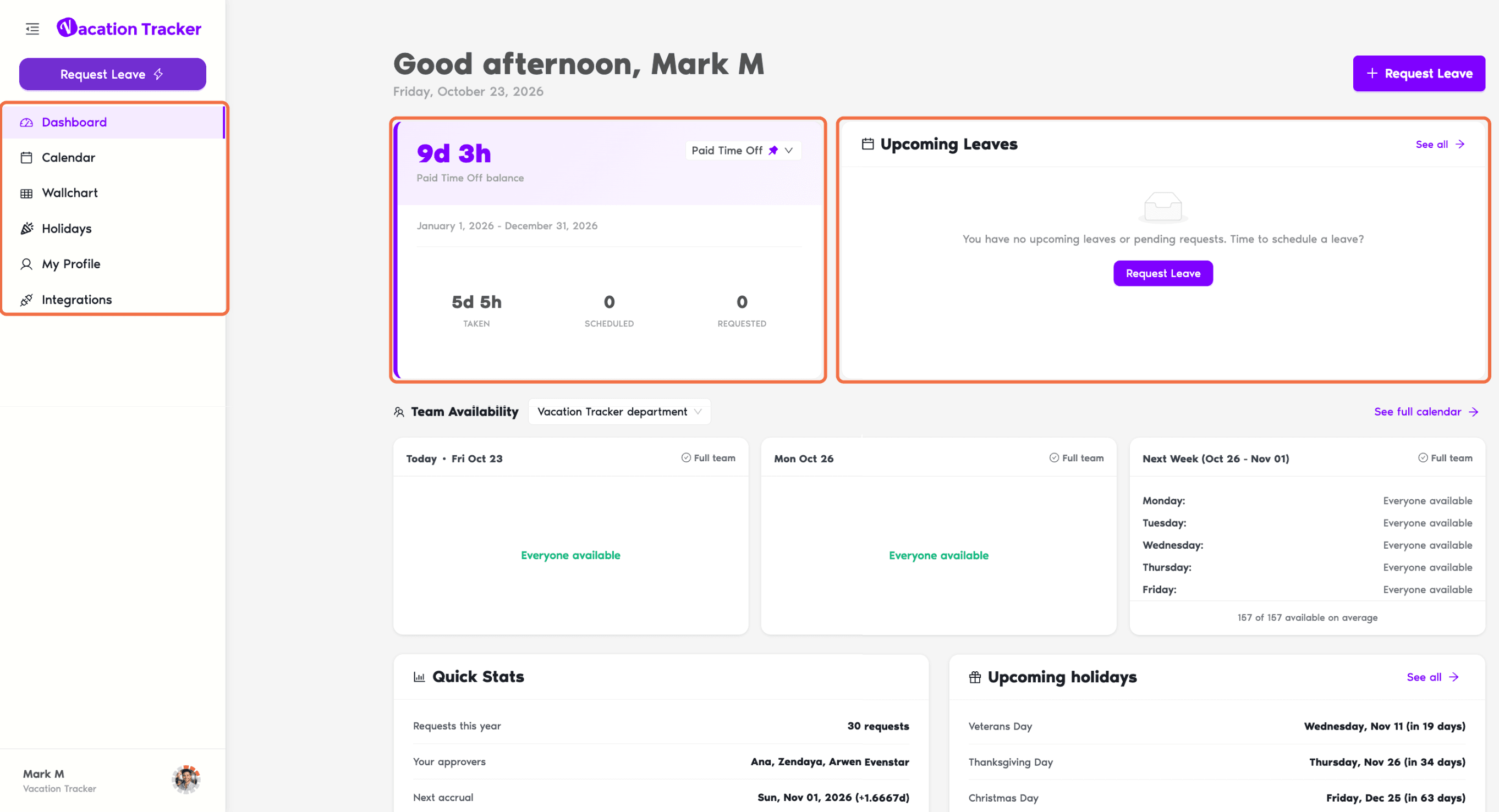
Your requests go to the Approver(s) of your Department. You'll find their names on your Dashboard under Quick Stats and on your profile under Approvers. Some leave types are approved automatically.
Find Your Way Around the Dashboard
Open the dashboard at app.vacationtracker.io, signing in with Google. The left-hand menu has:
Click your name at the bottom of the menu for Account Settings, your language and color theme, and Log out.
The Training Path
Each article covers one job. Follow them in order the first time.
- Request Leave in the Dashboard: and check your balance first.
- Check Your Leave Balance and History: and every request you've made.
- Change or Cancel Your Leave: when plans change.
- Know When Your Leave Is Approved or Denied by Email: the emails you get at each step.
- See Who's Off and Upcoming Holidays: before you plan your time off.
- Set Up Calendar Sync and Out-of-Office: calendar and out-of-office.
- Use Vacation Tracker From an AI Assistant: ask your AI assistant.
Common Questions
Your Administrator decides which features each role can see. If you need something that isn't in your menu, ask them.
Your Administrator or Location Admin sets your leave types, quotas and holidays. Your Approver answers your requests.
 Book a Call