



Last updated on October 23, 2026
Admin Training 9: Choose Which Roles Can See Each Feature (Microsoft Teams)
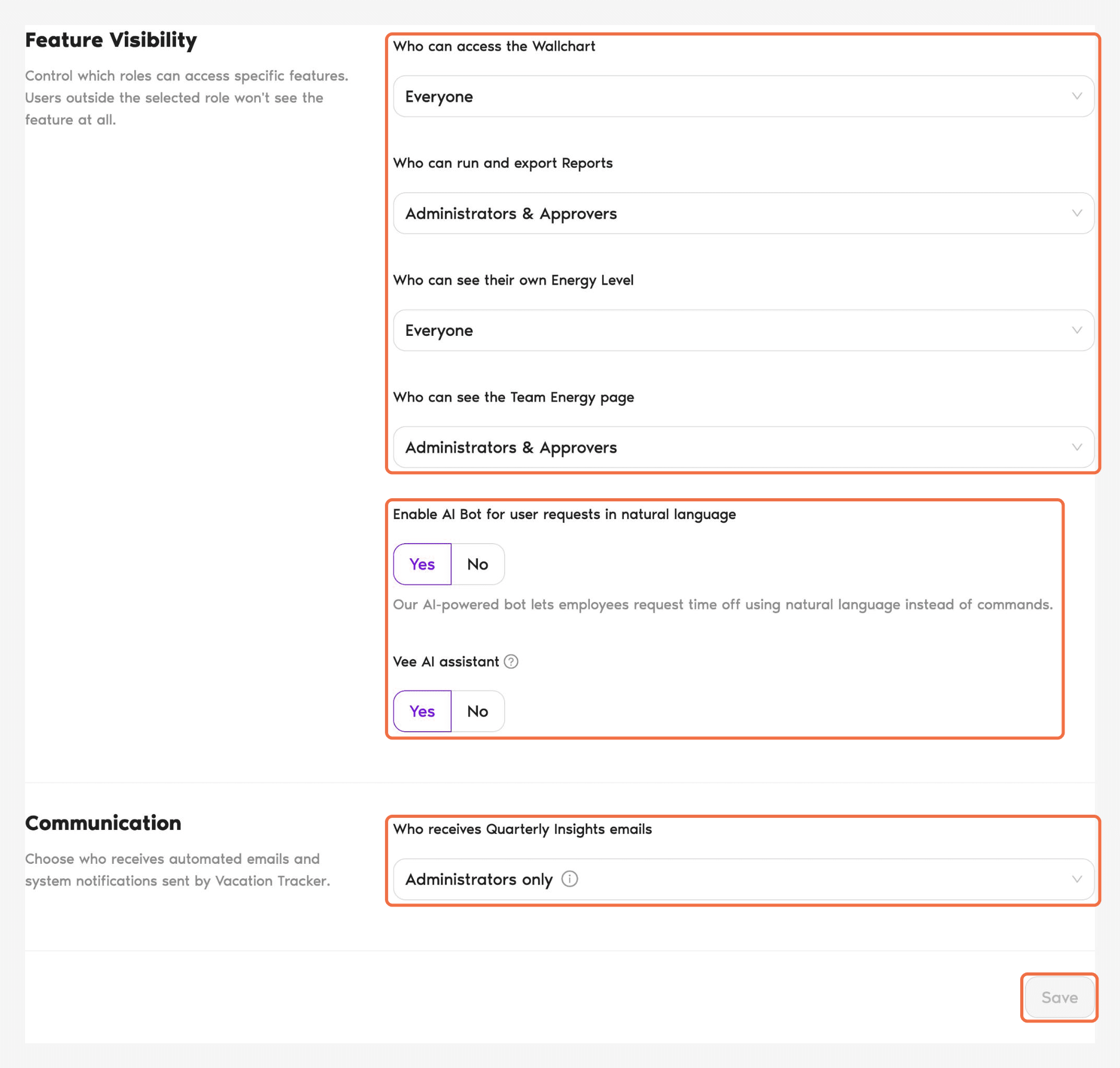
Features & Permissions controls which roles can see each feature. People outside the selected roles won't see it at all.
Decide First
Each setting can be Everyone, Administrators & Approvers or Administrators only.
If your Approvers need balance or leave reports for their teams, include them in Reports.
Change the Settings
- In the left-hand menu, under Workspace Settings, click Features & Permissions.
- Under Feature Visibility, choose who can access each feature.
- Turn Enable AI Bot for user requests in natural language and Vee AI assistant on or off.
- Under Communication, choose Who receives Quarterly Insights emails.
- Click Save.
Remember to save
The page doesn't save automatically. If you leave without clicking Save, your changes are lost.Check It Worked
Reload the page. Your choices are still selected.
You've Finished the Admin Training
Your workspace is set up. For reports, automations and plans, see Go Further in Admin Training 0: What You Do as an Admin (Microsoft Teams)
Common Questions
No. These settings decide which other roles can see a feature. Administrators can see all of them.
 Book a Call