



Last updated on October 23, 2026
Admin Training 3: Decide What Time Off People Get With Leave Types and Policies (Slack)
A Leave Type is a kind of leave, like Paid Time Off or Sick Day. A Leave Policy decides how that leave works in one Location. Create each type once, then give each Location its own policy.
Decide First
For each Leave Type in each Location, decide:
Start with quota, approval and smallest request. Turn on accruals or Brought Forward only if your leave policy has them.
Create the Leave Type
- In the left-hand menu, under Leave Setup, click Leave Types, then Create a Leave Type.
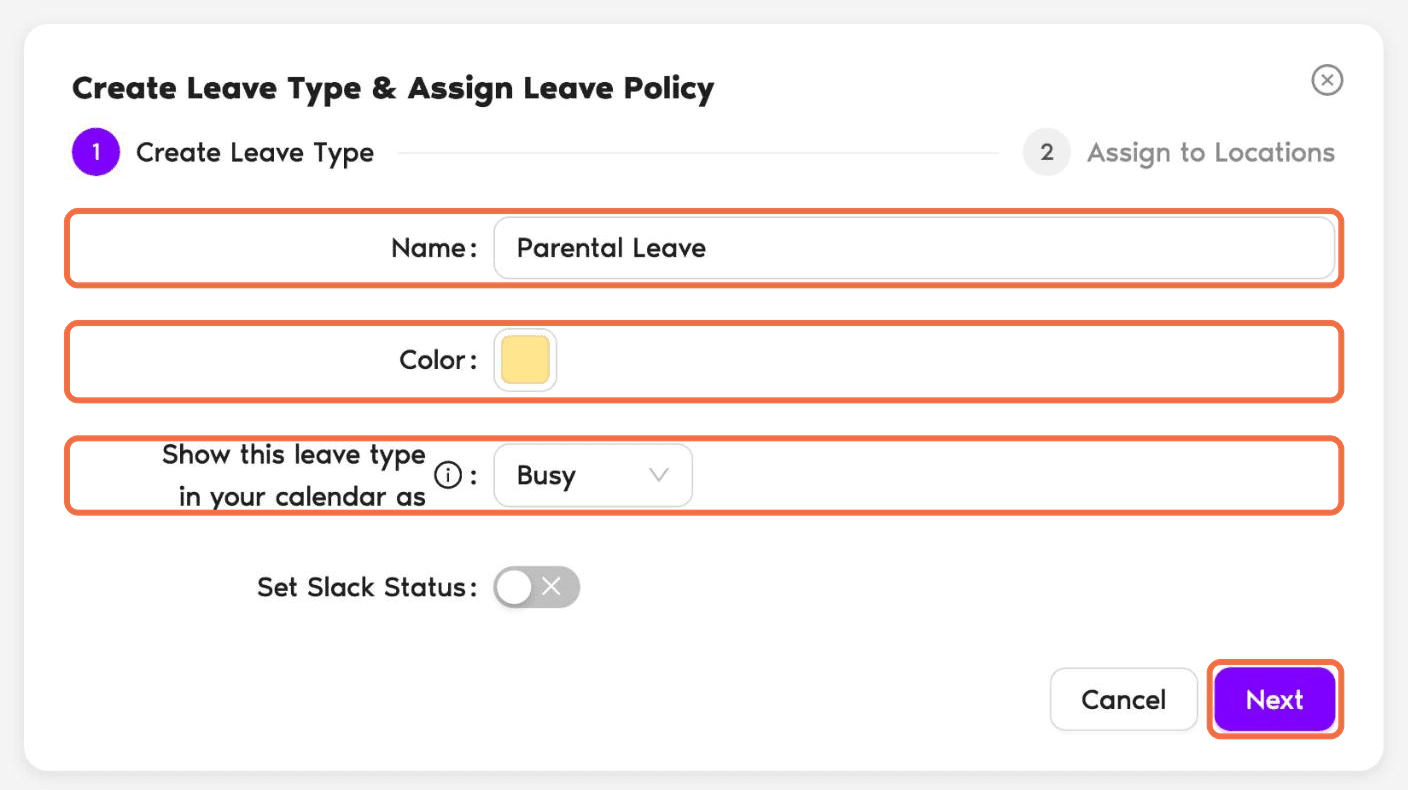
- Enter a Name, pick a Color, and choose how the leave shows in calendars (for example, Busy).
- Click Next. If a similar Leave Type already exists, Vacation Tracker suggests using it in more Locations instead. Click Yes, I want to create leave type only if you need a separate type.
- Under Assign to Locations, choose the Locations that offer this leave, fill in the Leave Policy (at least the Yearly Leave Quota) and click Create And Assign.
To add an existing Leave Type to another Location later, open the Location, go to Leave Policies, and click Assign Leave Policy.
Set the Policy
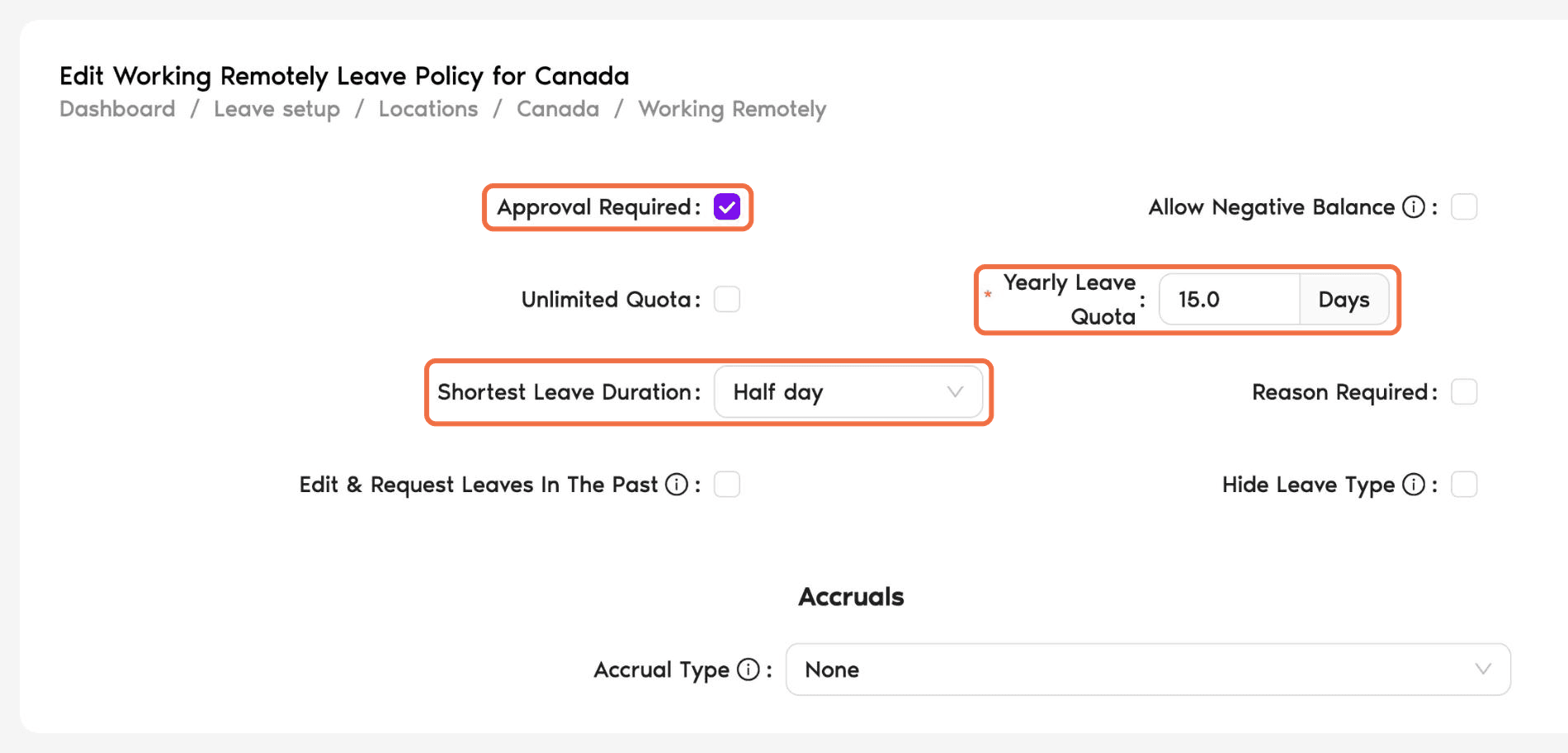
The main settings on a Leave Policy:
Check It Worked
Go to Leave Setup > Leave Policies and filter by Location. Every leave type that Location offers should be listed and switched on, with the right Yearly Leave Quota, Approval Required and Shortest Leave Duration.
Common Questions
Check that their Location has a Leave Policy for it and that the policy is switched on in Leave Policies.
Half-day leave is only available when the Location's workday is 8 hours.
 Book a Call