




Last updated on November 2, 2026
Approver Training 4: Add Leave for a Team Member Who Can't Request It (Slack)
Add leave for someone on your team when they can't request it themselves, for example when they call in sick. Leave you add is approved right away.
Add the Leave
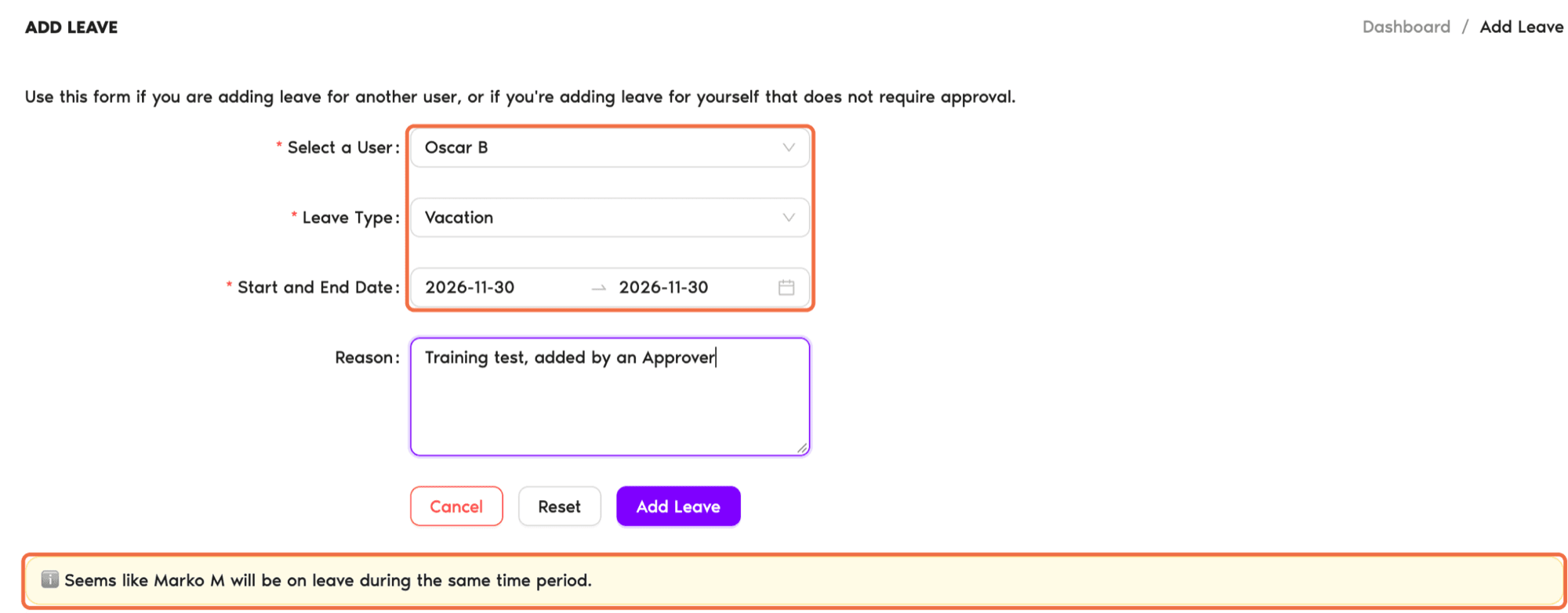
- Click Request Leave at the top of the menu and choose Add Leave.
- Choose the person under Select a User. You'll see the people in the Departments you approve for.
- Choose the Leave Type. The list depends on the person's Location.
- Choose the Start and End Date and add a Reason if needed.
- Check the line under the dates. It tells you if anyone else from the Department is on leave at the same time.
- Click Add Leave.
Enter submits the form
Pressing Enter adds the leave straight away. Fill in every field before you press it.Check It Worked
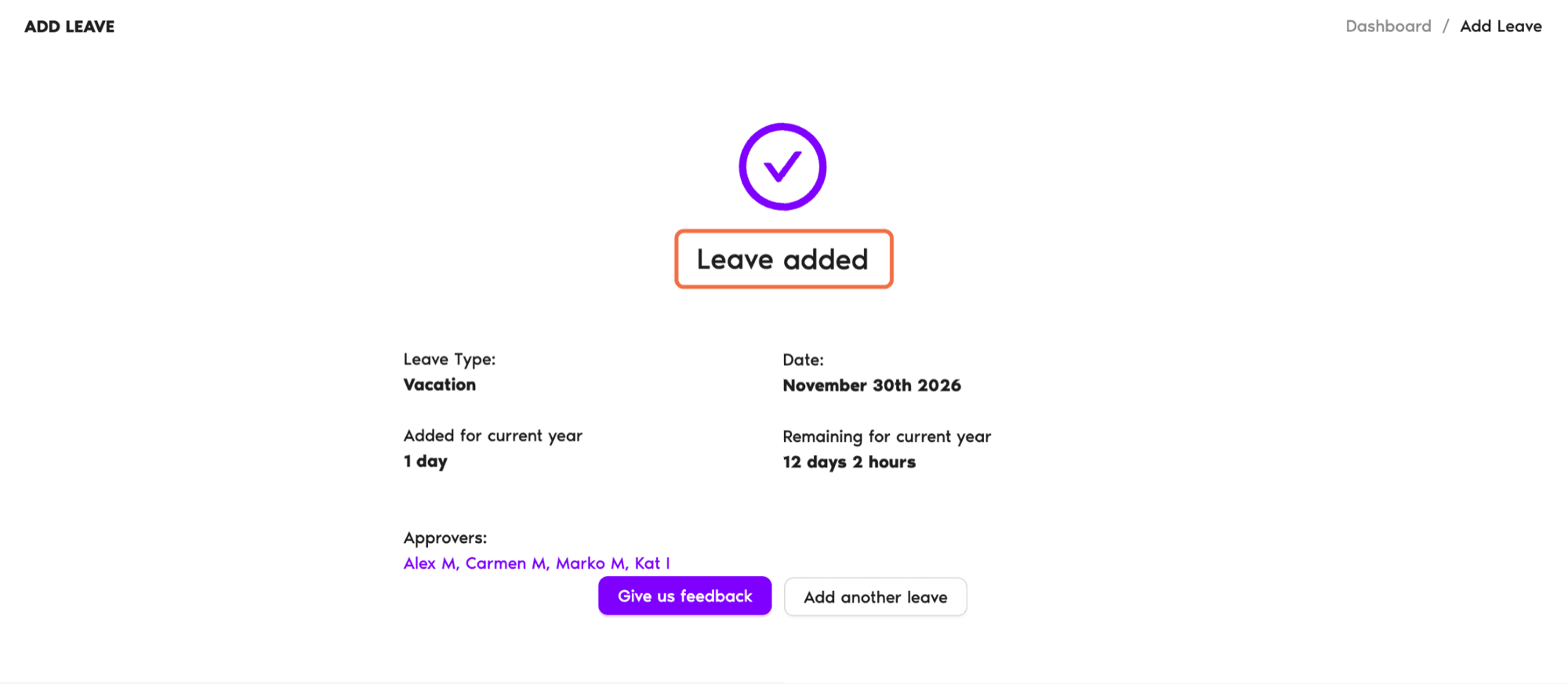
You see the Leave added page, and the leave shows on the Calendar and on the person's Leaves tab.
Common Questions
You can only add leave for people in the Departments you approve for. Ask your Administrator to add leave for anyone else.
Leave types come from the person's Location. If one is missing, that Location doesn't have it. Ask your Administrator.
What's Next?
Approver Training 5: Check Who's Off Before You Approve (Slack) Approver Training 3: Change a Leave Request or Cancel Approved Leave (Slack) Approver Training 2: Approve or Deny Leave Requests in the Dashboard (Slack)Need help?
Regular Users: If you have any questions, email us anytime at hello@vacationtracker.io.Admins and Approvers: You can reach us via live chat Monday to Friday, 9 AM – 5 PM EST, or email us anytime at hello@vacationtracker.io.
 Book a Call