



Last updated on October 23, 2026
Approver Training 5: Check Who's Off Before You Approve (Slack)
Check who's off before you approve a request, so your team stays covered.
In the Dashboard
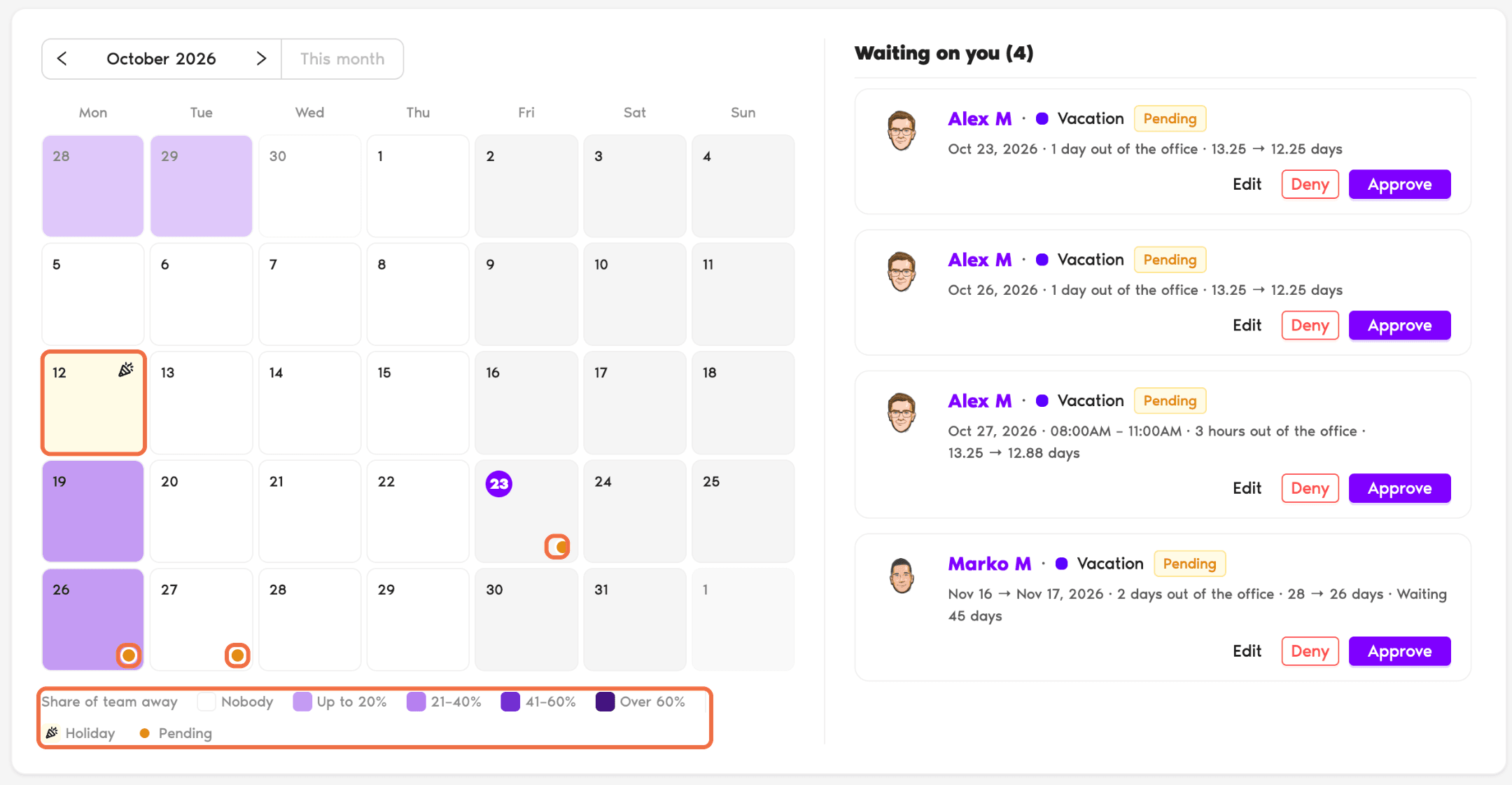
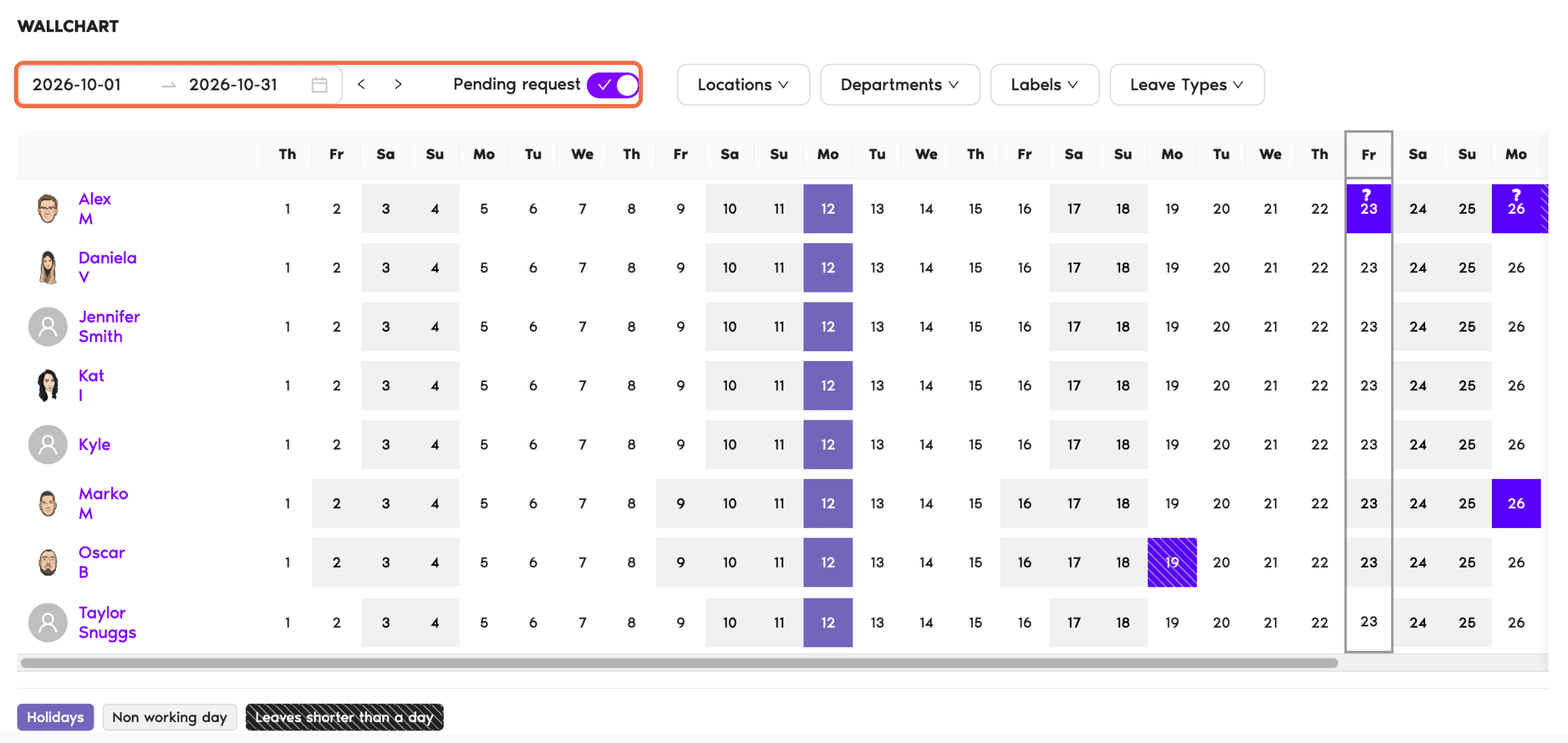
In Slack
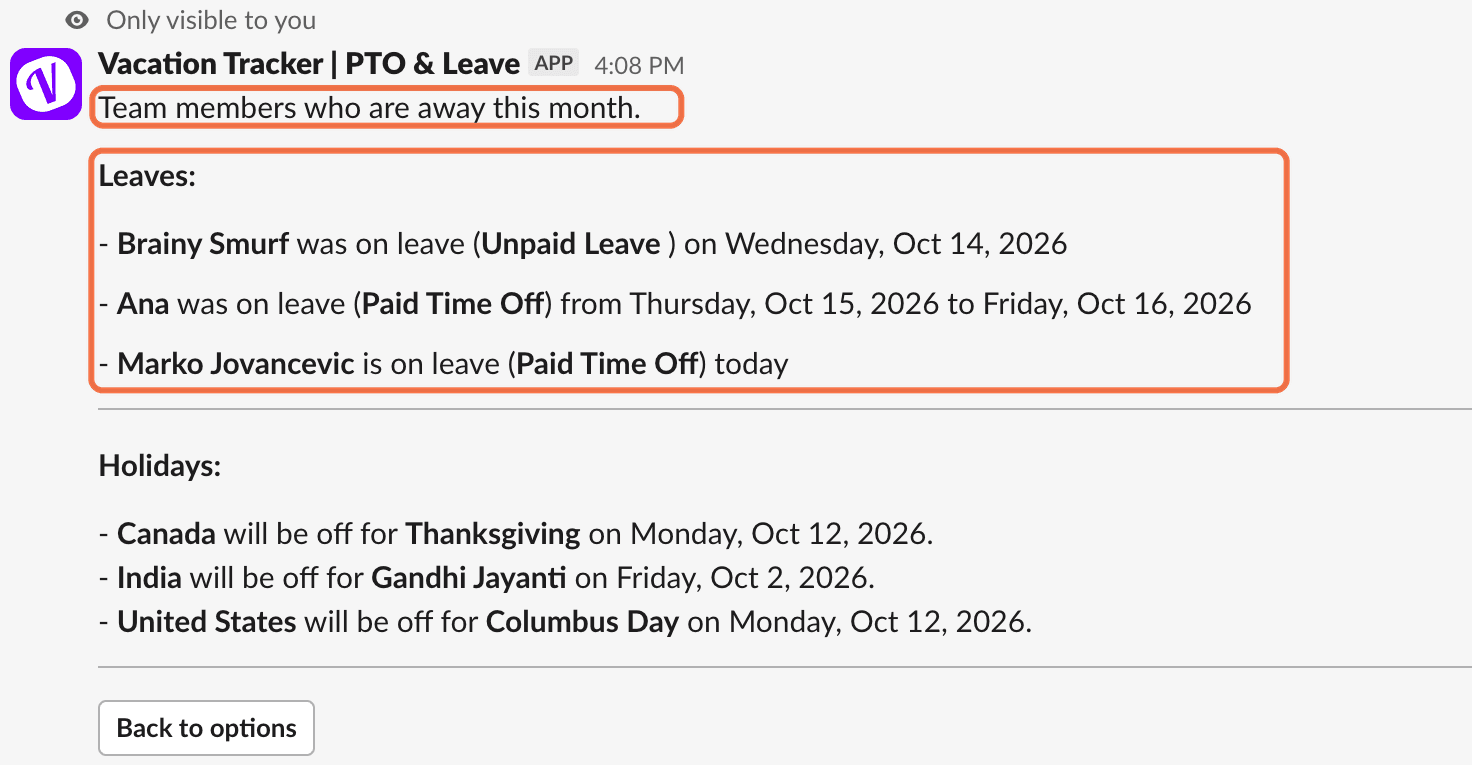
- Type /vacation in Slack and choose See more options.
- Choose See which team members are away.
- Pick Today, This week, Next week, This month or Next month.
The list shows who's away and the holidays in that period. Each request message also has an Open Calendar button that opens the Calendar for those dates.
Check It Worked
You can see who's off on the dates you're checking, before you approve.
Common Questions
Your Administrator decides which roles can see the Wallchart. Ask them to give Approvers access.
Open Holidays in the left-hand menu. It lists the holidays for each Location. You can view them, but not change them.
 Book a Call