



Last updated on October 23, 2026
Approver Training 3: Change a Leave Request or Cancel Approved Leave (Slack)
Change a request before you answer it, or cancel leave that's already approved.
Edit a Request Before You Answer
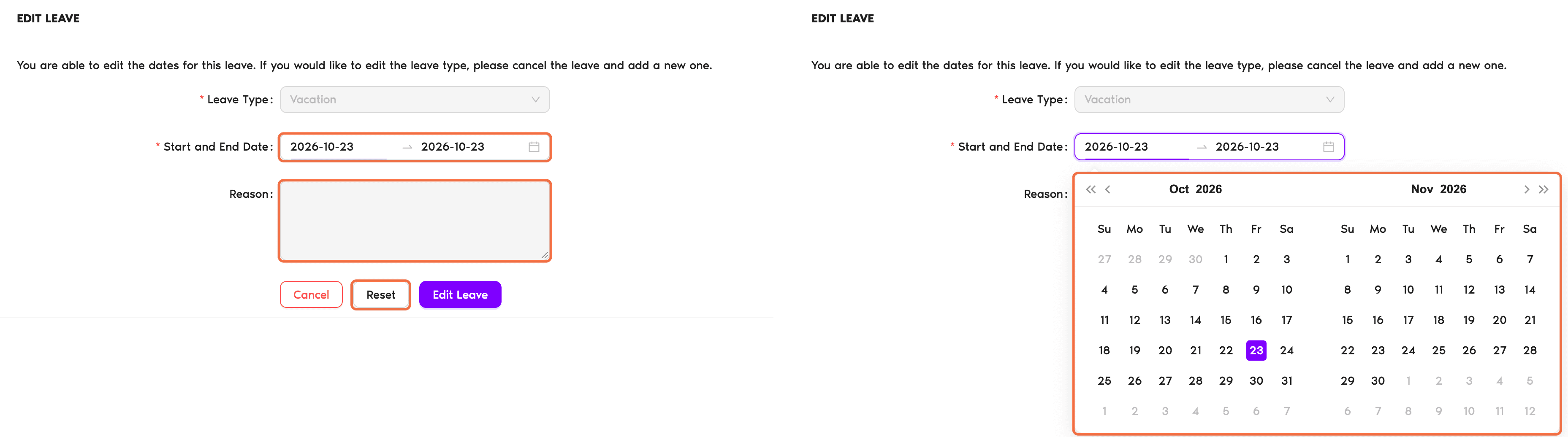
- On Home, under Waiting on you, click Edit on the request. You can also click Edit in the Leave request panel.
- Change the dates or the reason. Click Reset to go back to the original request. The leave type can't be changed here. To change it, cancel the leave and add a new one.
- Click Edit Leave.
- Approve or deny the request as usual.
Cancel Approved Leave
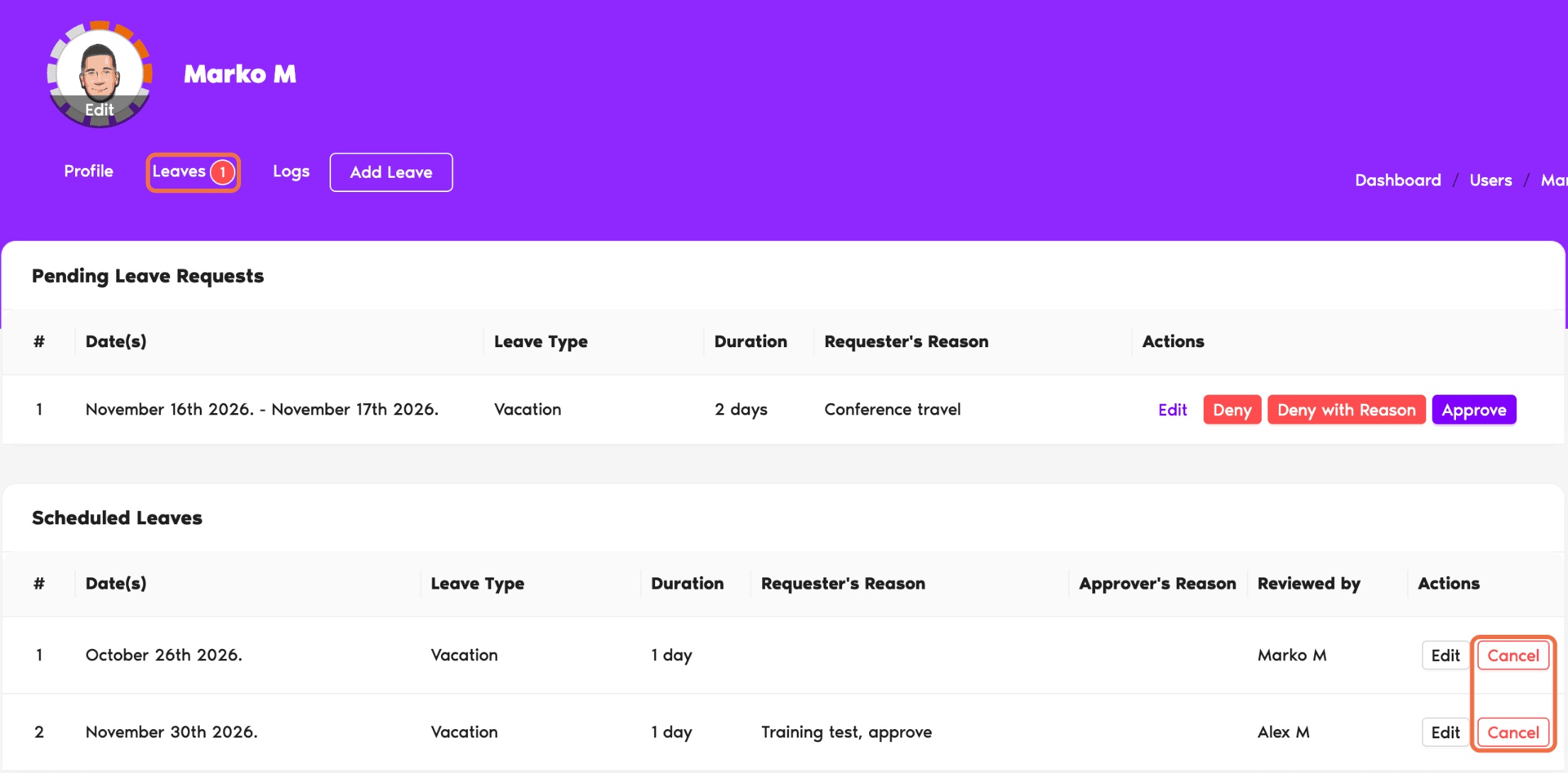
- Go to Users and open the person's profile.
- Go to the Leaves tab.
- Find the leave under scheduled leave and click Cancel.
Delete Past Leave
On the same Leaves tab, past leave is listed under history. Click Delete to remove it.
Check It Worked
The person's Leaves tab shows the new dates, or the leave is gone. An edited request is marked Edited.
Common Questions
Approved leave that hasn't happened yet can be canceled from the person's Leaves tab. Ask them to request it again with the right dates.
 Book a Call