






Last updated on September 14, 2026
How Can I Update User Avatars (Profile Pictures)?
Want to update your users' profile pictures in Vacation Tracker? Admins will be happy to know that this can be done with a few simple clicks. Since Vacation Tracker integrates with Google Workspace, Microsoft Teams and Slack, as long as the avatars are updated in your workspace directory, they can be pulled into Vacation Tracker. Clients using the Email option can upload their own profile pictures.
Admins only (for integrations)
At this time, only Admins will be able to update the user avatars when using Vacation Tracker with one of our integrations.Google Workspace, Microsoft Teams, and Slack Integrations
- Go to app.vacationtracker.io/signin to log into your online dashboard.
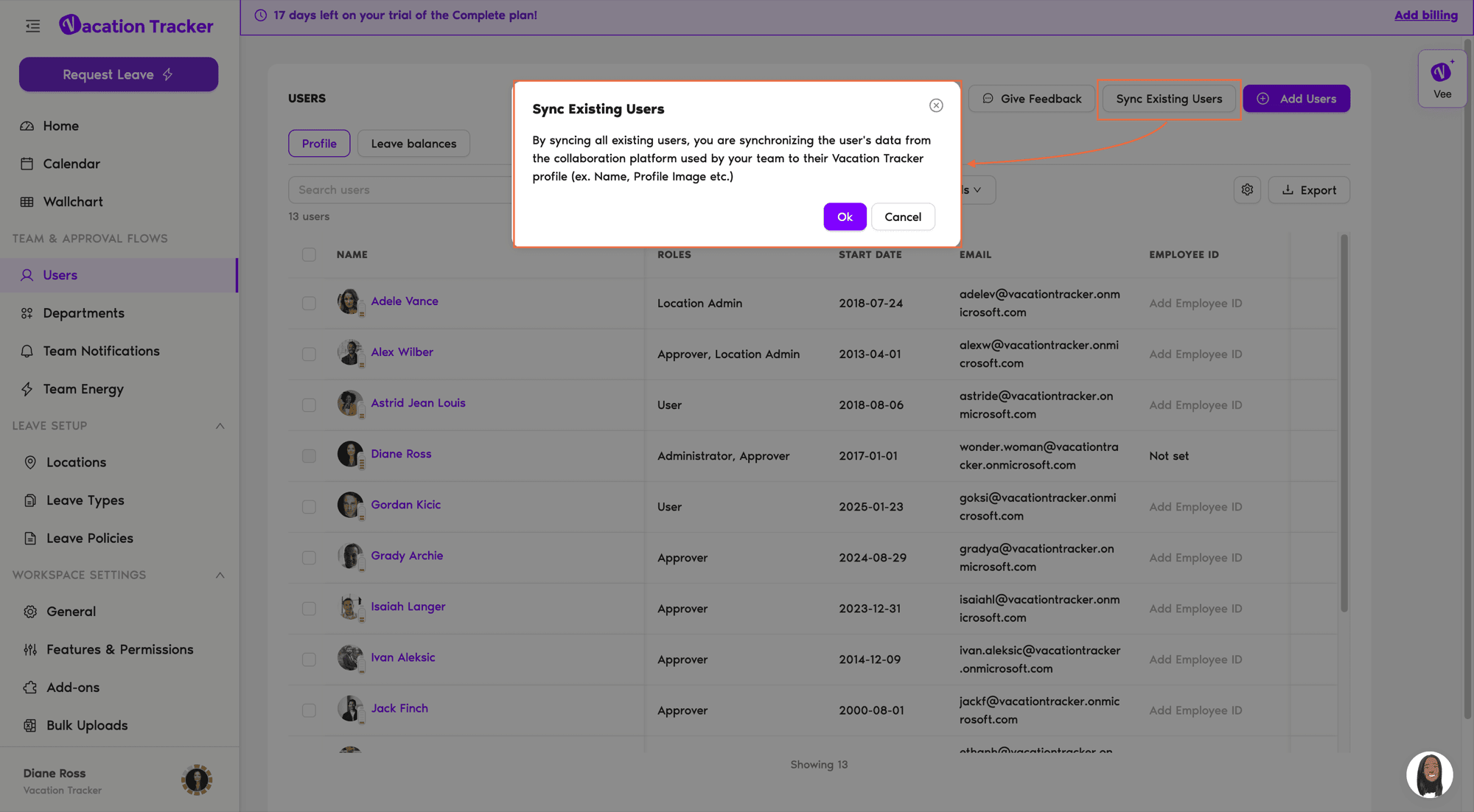
- In the left-hand menu, under Team & Approval Flows, click Users.
- In the page header, to the right of the USERS title, click Sync Existing Users. It sits between Give Feedback and Add Users.
- A confirmation window opens explaining that syncing pulls each user's data from the collaboration platform your team uses into their Vacation Tracker profile, such as name and profile image. Click Ok to proceed.
- For clients using the Google Workspace integration, you may be asked to log into Google again before the updates can be pulled into Vacation Tracker from your directory.
- Once the sync is complete, the user profile pictures should be updated.
Email Sign-In
Users can upload their own avatars on their profile pages:
- Log in to your online dashboard at app.vacationtracker.io/signin.
- Click on the My Profile link.
- Click on the Edit option on the avatar space.
- A new window will pop up — click on the small window to upload your picture/avatar.
- Select the picture you'd like to use from your documents / downloads.
- Once selected, you can make changes to the picture and select OK.
- Click Update to save the changes — you're all set!
My Profile page with the Edit option on the avatar and the upload pop-up window
Try requesting a leave
Now that your profile has been updated, why not request a leave? See How Do I Request a Leave?What's Next?
How Do I Edit User's General Information? How Do I Choose My View Preferences? How Do I Request a Leave?Need help?
Regular Users: If you have any questions, email us anytime at hello@vacationtracker.io.Admins and Approvers: You can reach us via live chat Monday to Friday, 9 AM – 5 PM EST, or email us anytime at hello@vacationtracker.io.
 Book a Call