





Last updated on October 7, 2026
How to Adjust the Length of Workdays
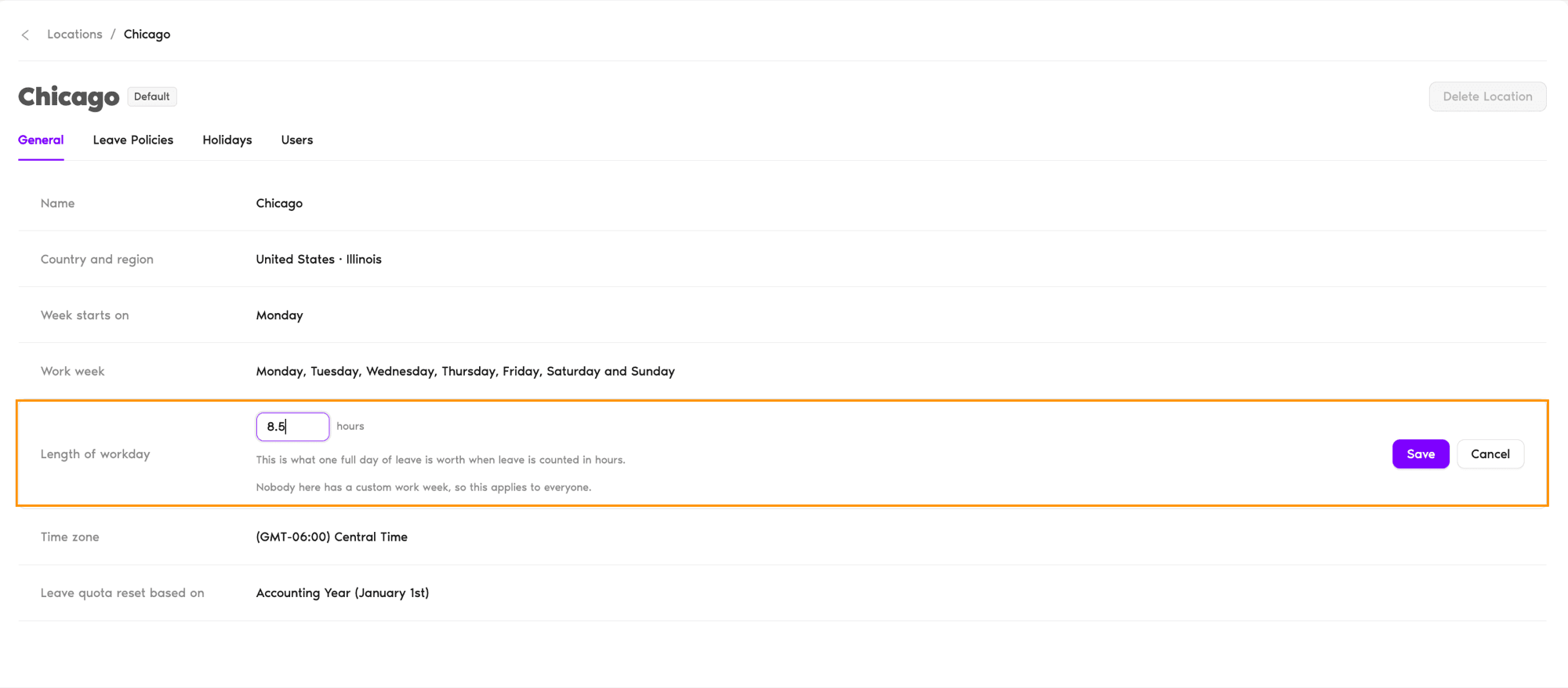
Set how many hours count as a standard workday for everyone in a Location. The setting is on the Location's General tab, defaults to 8 hours, and accepts 1 to 23 hours in half-hour steps.
Steps
- Sign in at app.vacationtracker.io as an Administrator.
- In the left-hand menu, expand Leave Setup and click Locations.
- Click the card of the Location you want to change. It opens on the General tab.
- Hover over Length of workday and click the pencil icon next to it.
- Enter the number of hours. Type the value directly or use the stepper arrows to move in half-hour increments.
- If some users in the Location have a custom work week, choose who the change applies to under Apply to.
- Click Save.
What You Can Enter
Length of Workday
Every Location starts at 8 hours. This is what one full day of leave is worth when leave is counted in hours. You can set anything from 1 to 23 hours, moving in half-hour steps, so 7.5 and 8.5 are both valid but 7 hours 20 minutes is not. The field displays one decimal place, for example 8.0.
Apply to
Only shown when at least one user in the Location has a custom work week on their profile. People without a custom work week (default) leaves those users on their own days and length of workday. Everyone removes their custom work week and switches them to the Location's settings. See How Do I Edit a Location? for more on this option.
Where to Check the Current Value
The Location's General tab shows the current value next to Length of workday in hours, for example 8h. After you save a change, the new value appears there with a "Length of workday saved" confirmation.
Common Questions
Yes. The Location setting covers everyone in that Location, but you can set an individual value from the user's own profile instead. See How to Adjust a User's Workday Length.
The setting is available on the Complete plan. If your workspace is on the Core plan, the workday stays at 8 hours. You'll also need Administrator rights to edit a Location's settings at all.
No. Work week and Length of workday are separate settings on the General tab and are saved independently. Work week controls which days count as working days; Length of workday controls how many hours each of those days is worth. Change either one on its own.
Admins and Approvers: You can reach us via live chat Monday to Friday, 9 AM – 5 PM EST, or email us anytime at hello@vacationtracker.io.
 Book a Call