



Last updated on October 23, 2026
Location Admin Training 1: Set Holidays and the Workweek for Your Location (Google Workspace)
Your Location decides which days people in it have off. Keep its holidays and workweek right, so leave is counted correctly.
Open Your Location
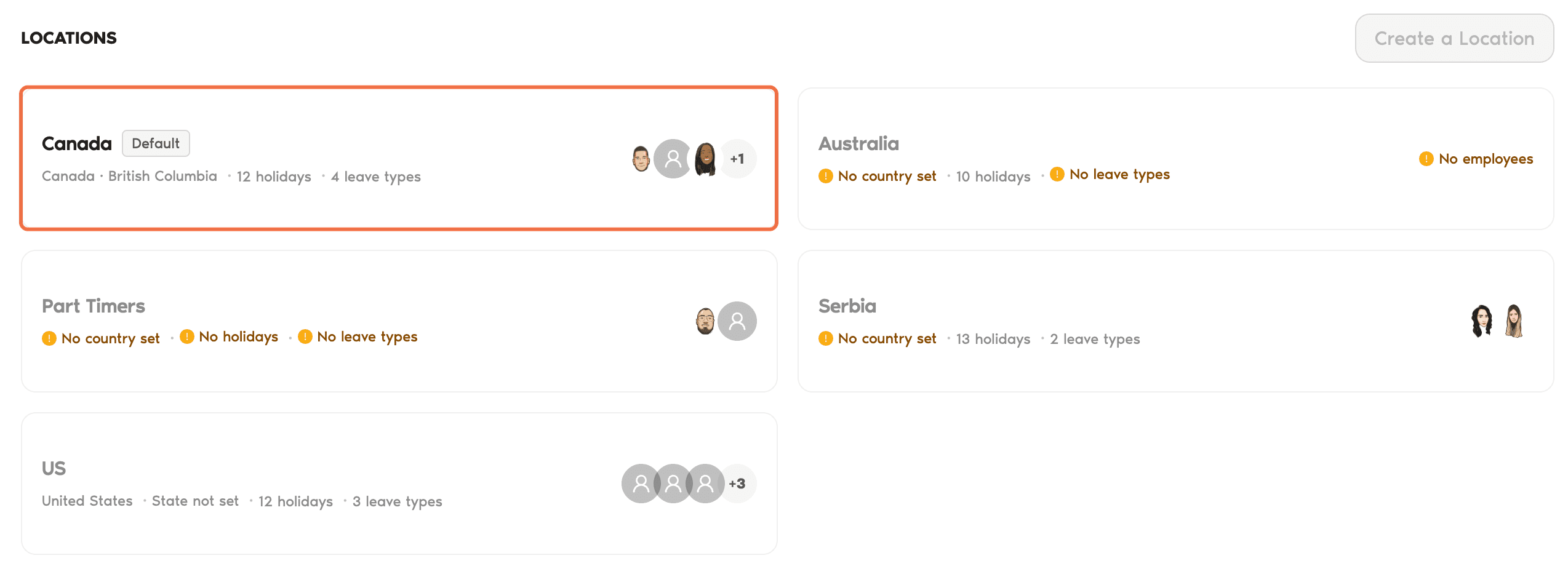
- In the left-hand menu, under Leave Setup, click Locations.
- Click the name of your Location. Locations you don't manage are greyed out.
Change the Workweek and Workday
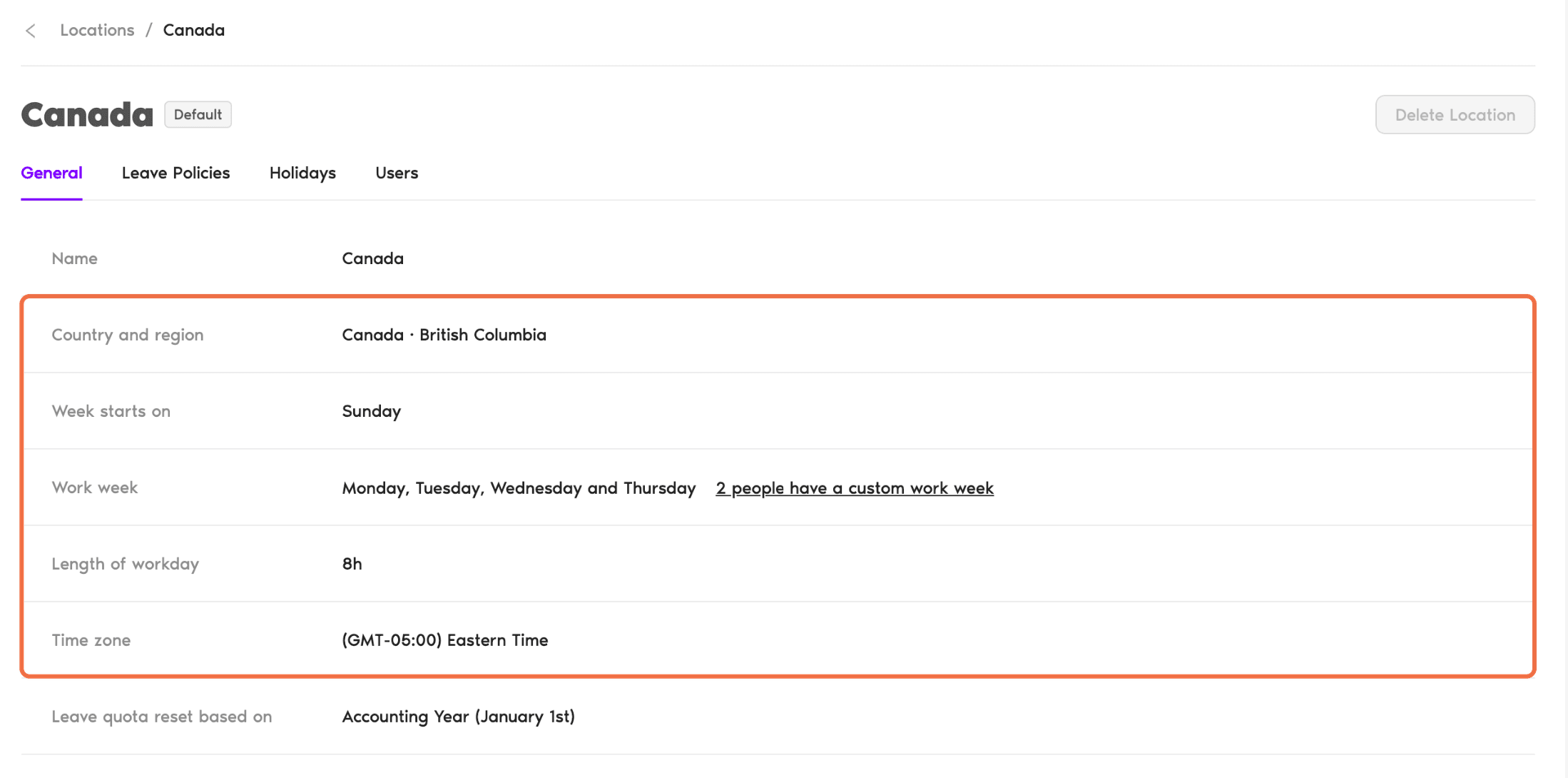
The General tab lists the Location's settings. Click a setting to change it:
If some people have a custom work week, the Work week row shows how many. Click it to see who.
Add or Import Holidays
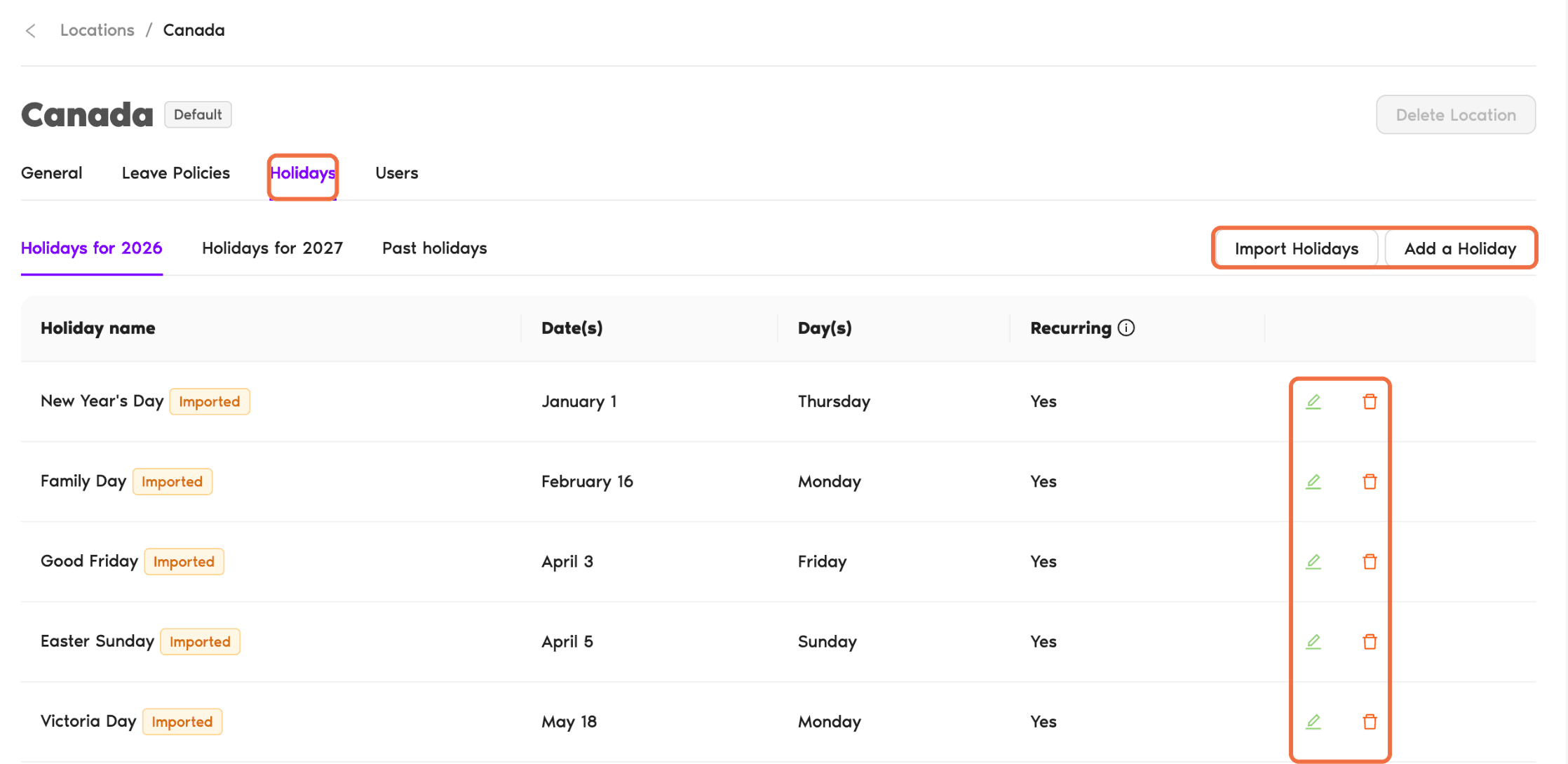
- Go to the Holidays tab.
- Choose the year: Holidays for this year, next year, or Past holidays.
- Click Import Holidays to add public holidays, or Add a Holiday for a company day off.
- To change or remove a holiday, use the edit or delete icon on its row.
Each holiday shows whether it was Imported or is Custom, and whether it recurs every year.
Check It Worked
The Holidays tab lists the right days for this year and next year, and the General tab shows the right workweek and workday.
Common Questions
Only Administrators can create, delete or change the default Location.
Yes. Set a custom workweek on their profile, under Working Days. The next articles cover this.
Half-day leave is only available when the Location's workday is 8 hours.
 Book a Call