



Last updated on October 23, 2026
Location Admin Training 2: Decide What Time Off Your Location Gets With Leave Policies (Microsoft Teams)
A Leave Policy decides how a leave type works in your Location, for example how many days people get and whether requests need approval.
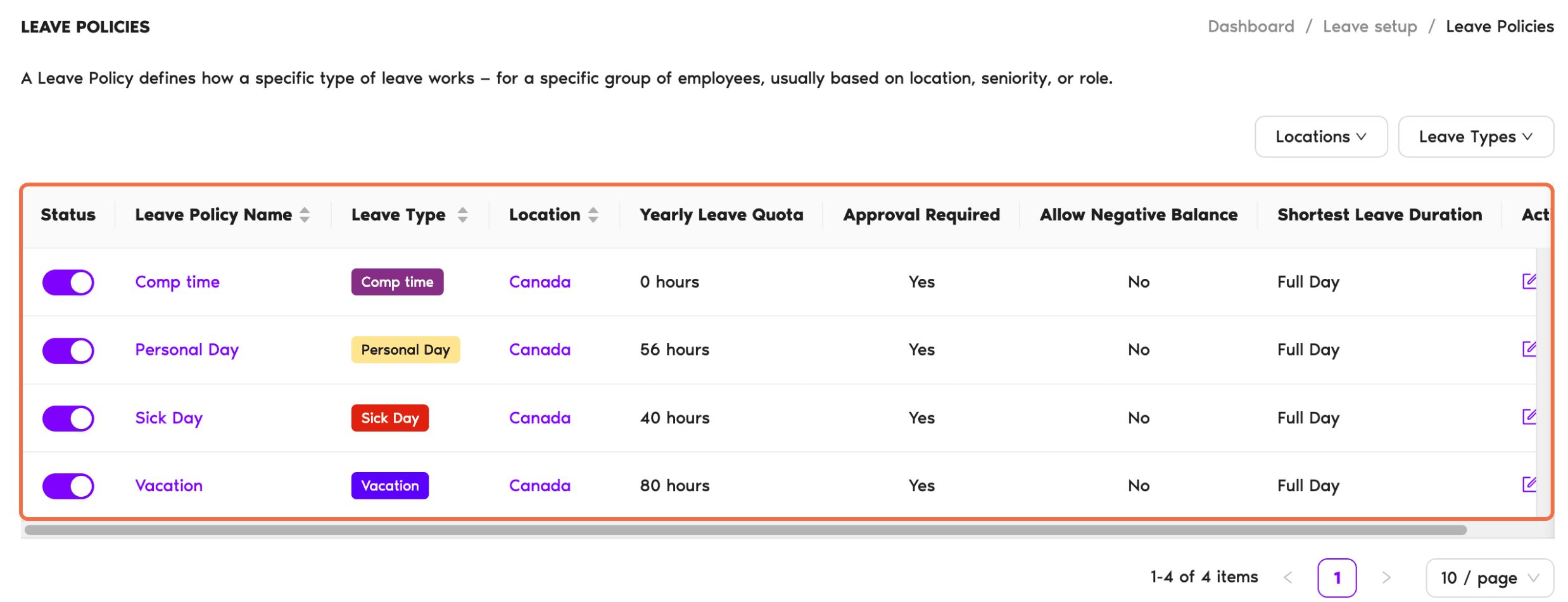
See Your Location's Policies
In the left-hand menu, under Leave Setup, click Leave Policies. You'll see the policies for your Managed Locations, with the quota, approval, negative balance and shortest leave duration for each one.
Add a Leave Type to Your Location
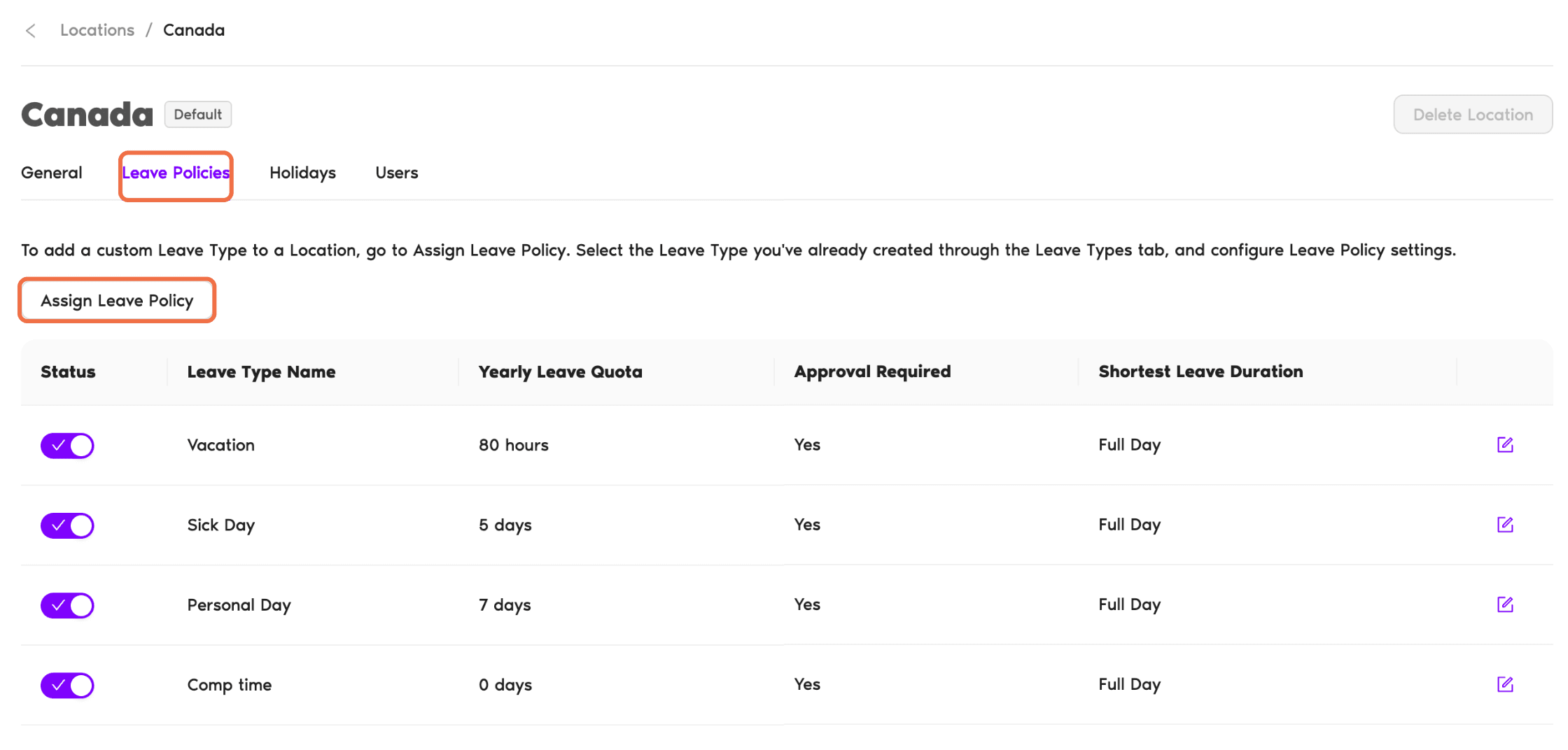
- Go to Locations, open your Location and go to the Leave Policies tab.
- Click Assign Leave Policy.
- Choose a Leave Type. You can only pick leave types your Administrator has already created.
- Fill in the policy, at least the Yearly Leave Quota, and save it.
Change a Policy
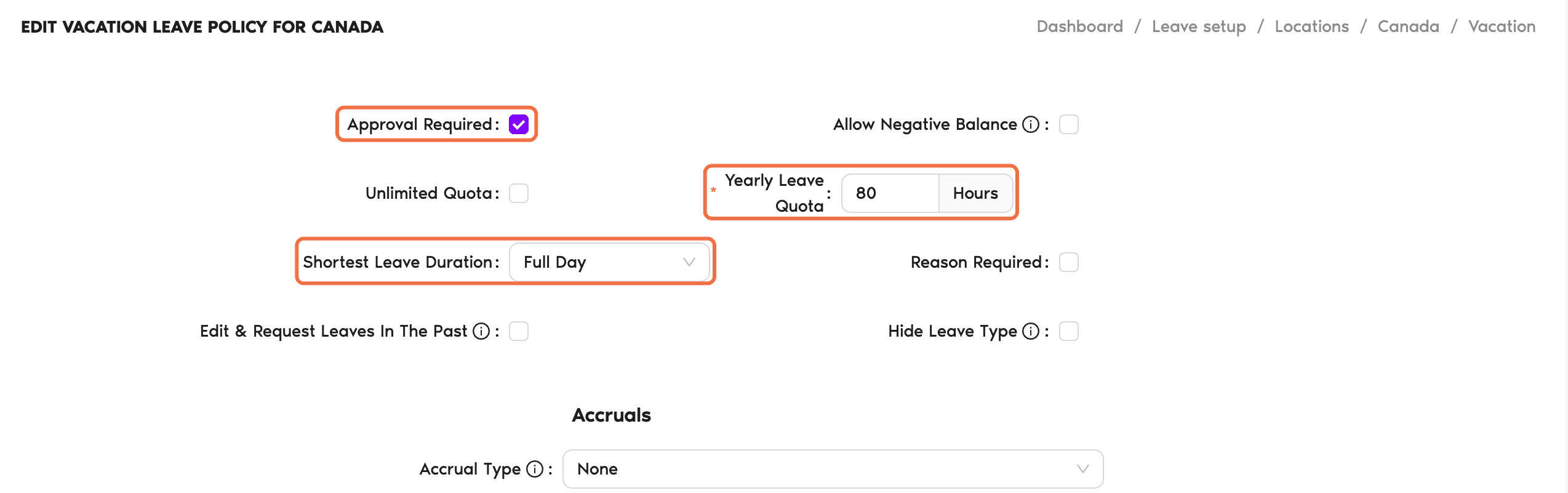
On the same tab, click the edit icon on a policy. The main settings are:
Use the switch in the Status column to turn a policy on or off for your Location.
Check It Worked
On Leave Policies, every leave type your Location offers is listed and switched on, with the right quota and approval setting.
Common Questions
Leave Types are workspace-wide, so only Administrators create them. Once one exists, you can assign it to your Location.
No. Each Location has its own policy for the same leave type.
 Book a Call