




Last updated on November 6, 2026
Location Admin Training 1: Set Holidays and the Workweek for Your Location (Microsoft Teams)
Your Location decides which days people in it have off. Keep its holidays and workweek right, so leave is counted correctly.
Open Your Location
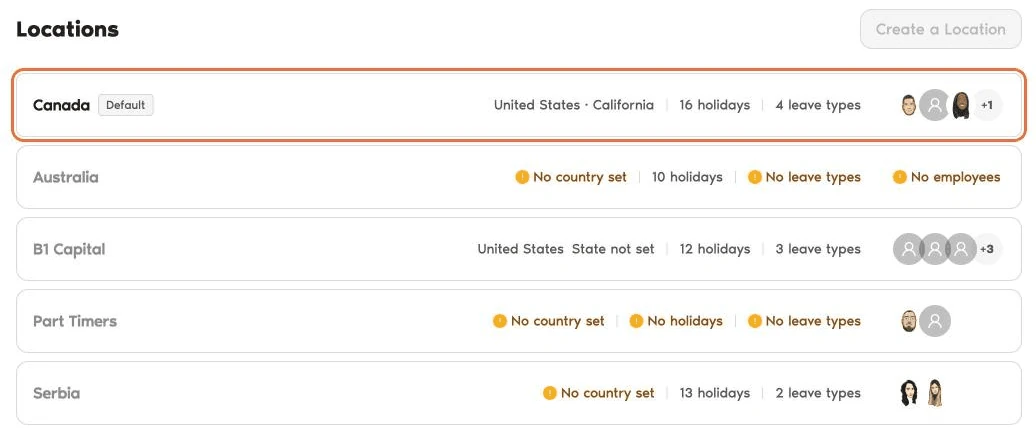
- In the left-hand menu, under Leave Setup, click Locations.
- Click the name of your Location. Locations you don't manage are greyed out.
Change the Workweek and Workday
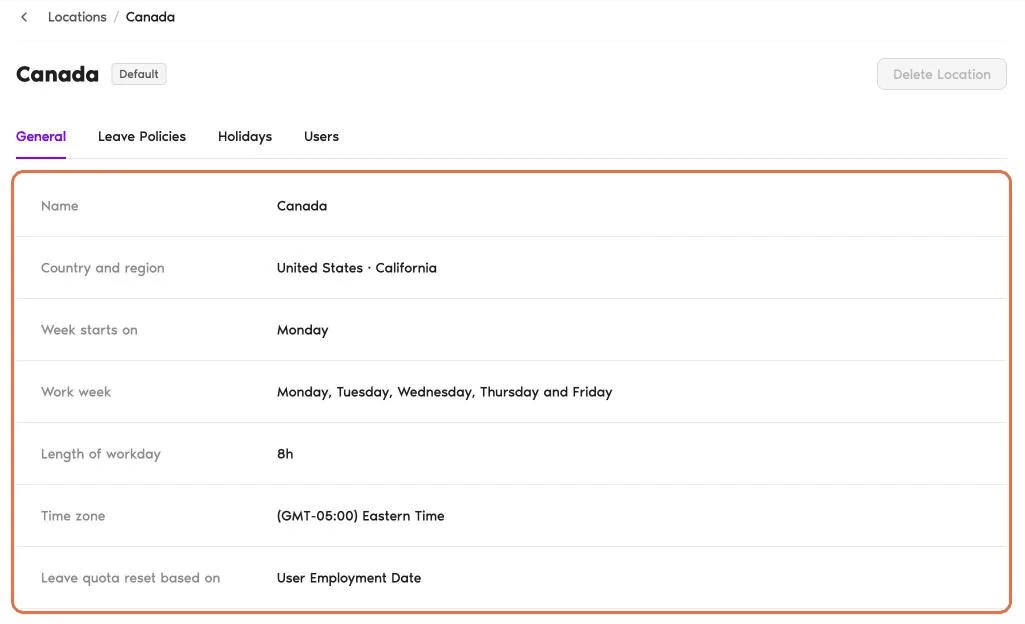
The General tab lists the Location's settings. Click a setting to change it:
Make your change, then click Save. Click Cancel to keep the setting as it was.
If some people have a custom work week, the Work week row shows how many. Click it to see who.
Add or Import Holidays
- Go to the Holidays tab.
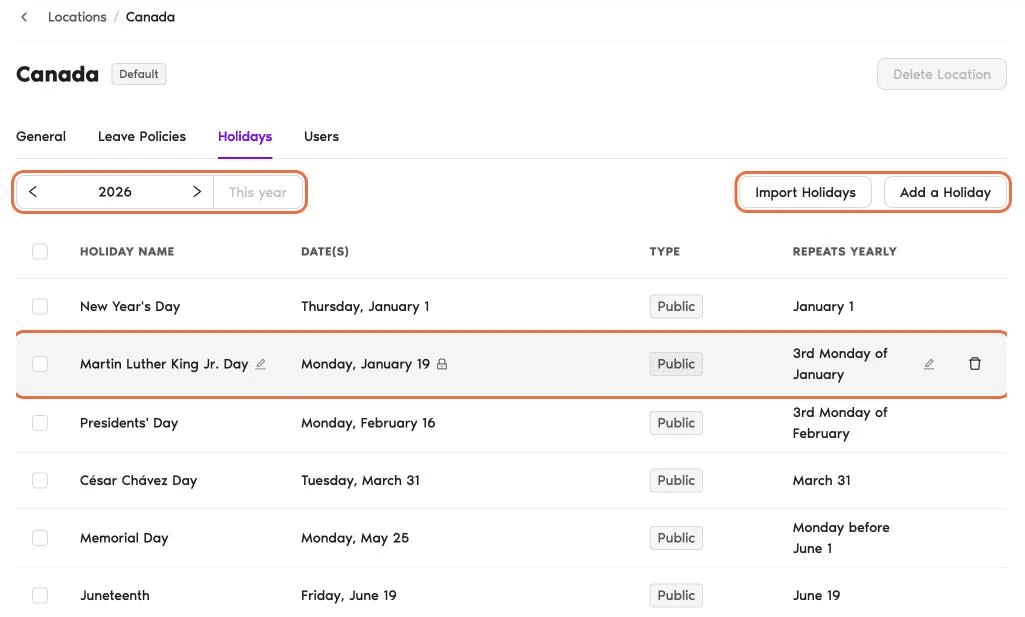
- Choose the year with the arrows next to the year at the top left. Click This year to jump back to the current year.
- Click Import Holidays to add public holidays, or Add a Holiday for a company day off.
- To change or remove a holiday, hover its row and click the pencil icon or the trash icon. The date of an imported holiday is locked.
The list has four columns: Holiday name, Date(s), Type and Repeats yearly. Imported holidays show the type from the holiday list, for example Public, Observance or Optional. Holidays you add yourself show Custom. Repeats yearly shows the rule, for example "3rd Monday of January".
Check It Worked
The Holidays tab lists the right days for this year and next year, and the General tab shows the right workweek and workday.
Common Questions
Only Administrators can create, delete or change the default Location. The Create a Location and Delete Location buttons are greyed out for you. Hover one and you'll see "You don't have permission for this action."
Yes. Set a custom workweek on their profile, under Working Days. The next articles cover this.
Half-day leave is only available when the Location's workday is 8 hours.
What's Next?
Location Admin Training 2: Decide What Time Off Your Location Gets With Leave Policies (Microsoft Teams) How Do I Set Holidays? Location Admin Training 0: What You Do as a Location Admin (Microsoft Teams)Admins and Approvers: You can reach us via live chat Monday to Friday, 9 AM – 5 PM EST, or email us anytime at hello@vacationtracker.io.
 Book a Call