



Last updated on October 23, 2026
User Training 4: Change or Cancel Your Leave (Email Only)
Plans change. Edit the dates or reason of a request, or cancel leave you no longer need.
Find Your Leave
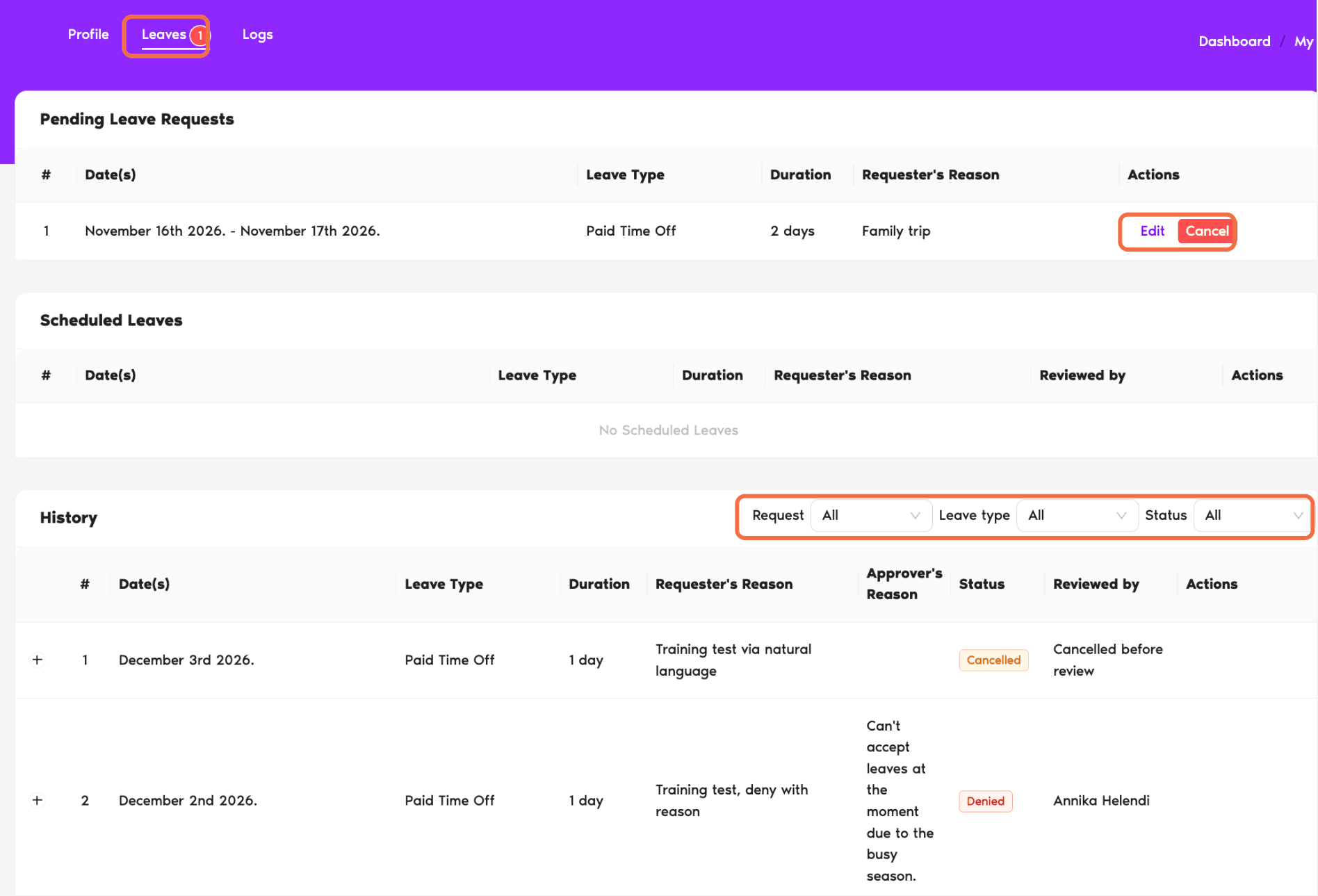
Go to My Profile and open the Leaves tab.
Change the Dates or Reason
- Click Edit next to the request.
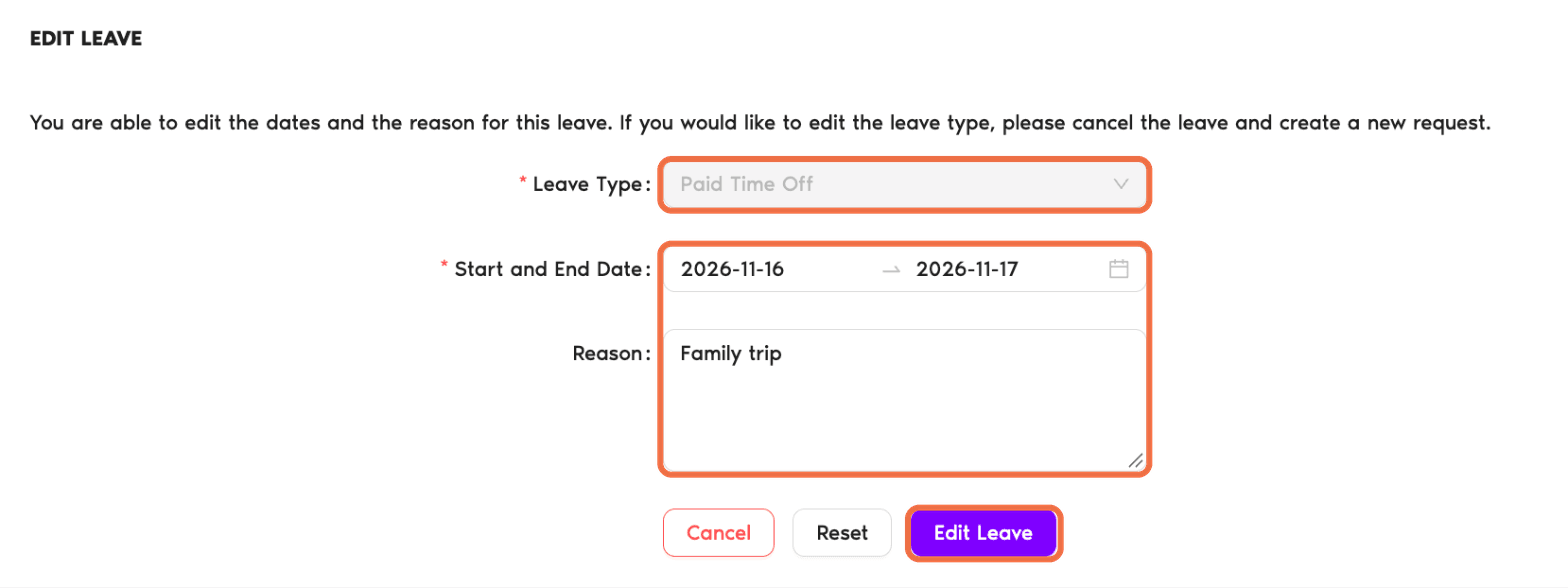
- Change the dates or the reason.
- Click Edit Leave.
You can't change the leave type. Cancel the request and send a new one instead.
Cancel Leave
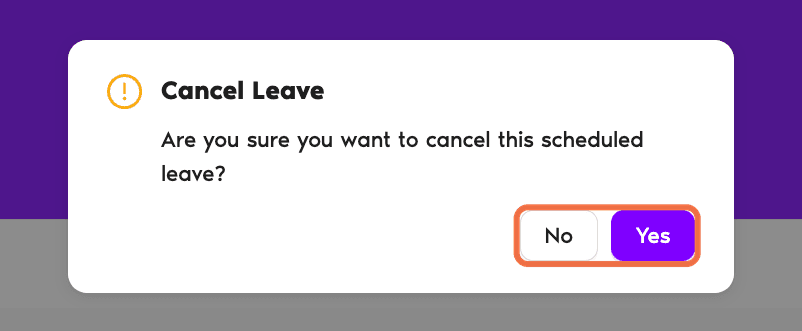
- Click Cancel next to the request.
- In Cancel Leave, click Yes.
You'll see Leave cancelled with the details and who your Approver(s) are.
Send an Expired Request Again
If nobody answered a request in time, it shows as Expired under History. Click Re-send request to send it again.
Check It Worked
The request shows the new dates, or it's listed under History as Cancelled.
Common Questions
No. Cancel the request and send a new one with the right leave type.
No. Vacation Tracker updates the request for them.
 Book a Call