



Last updated on October 23, 2026
User Training 5: Know When Your Leave Is Approved or Denied by Email (Email Only)
Vacation Tracker emails you at each step, so you know where your request stands.
Emails come from no-reply@vacationtrackerbot.com.
When You Send a Request
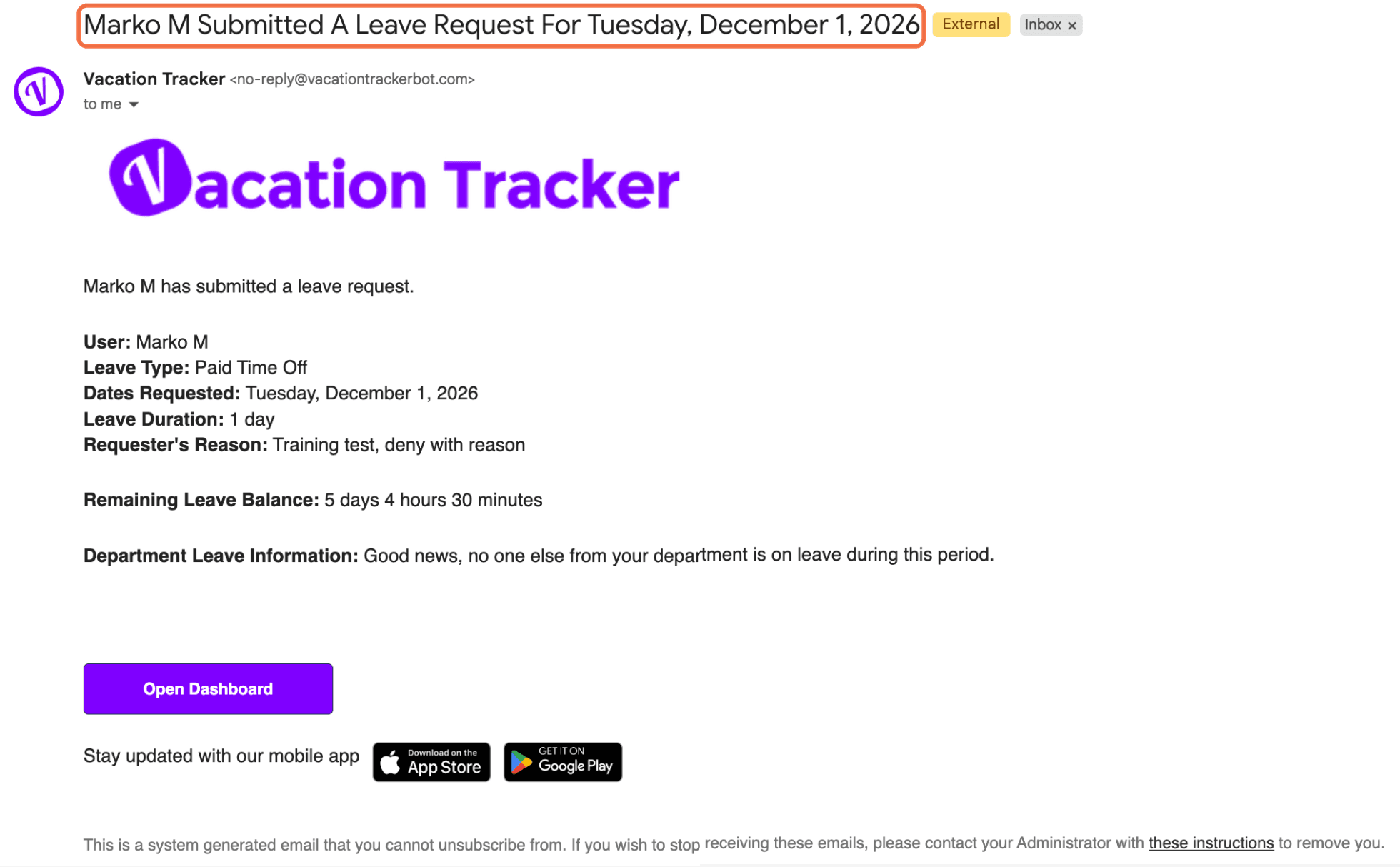
[Your name] Submitted A Leave Request For [dates]. It lists the leave type, dates, duration, your reason, your remaining balance and whether anyone in your Department is off. Click Open Dashboard to see it.
When It's Approved
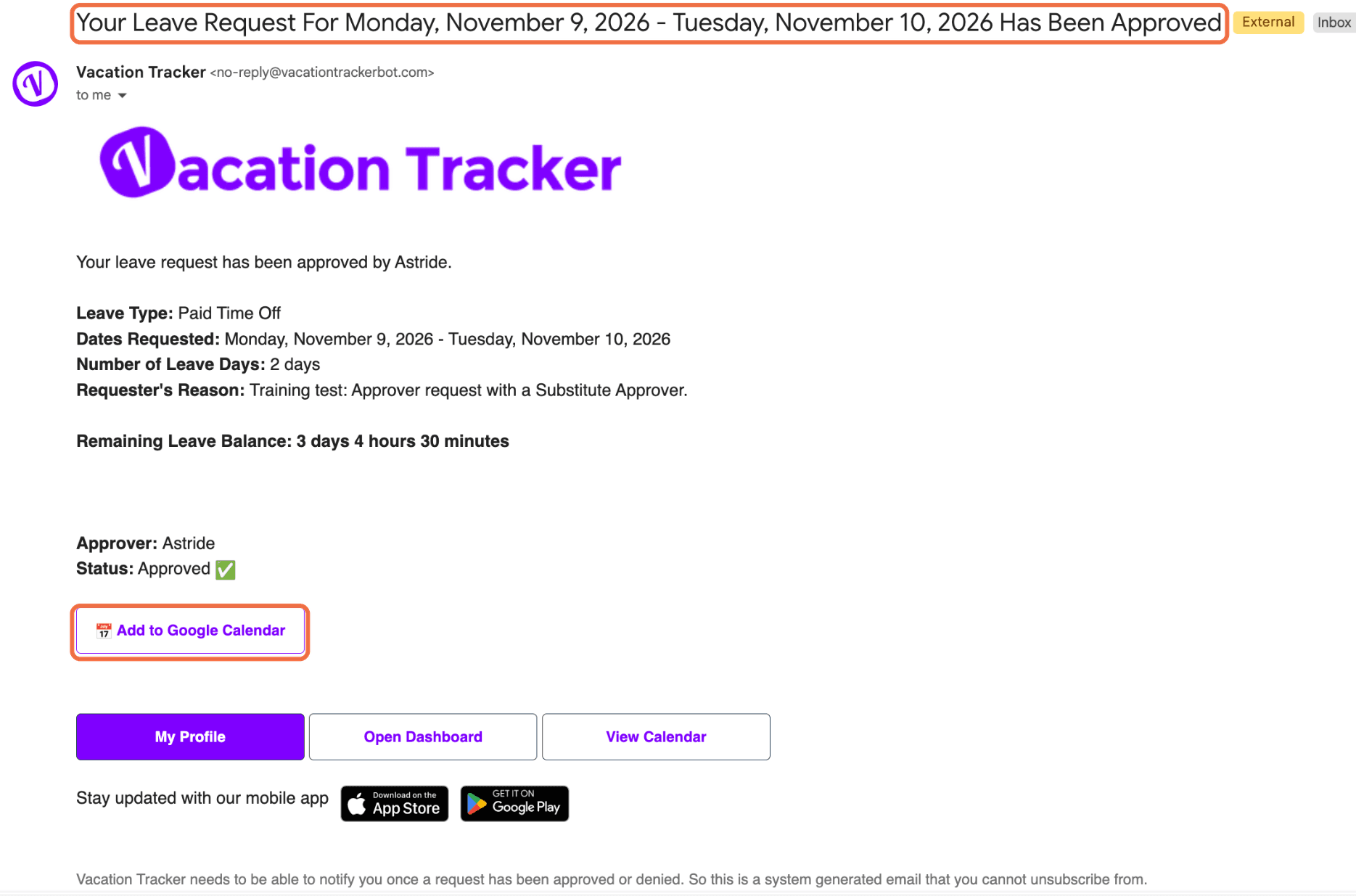
Your Leave Request For [dates] Has Been Approved, with the details, your Approver and Status: Approved. Click Add to Google Calendar or Add to Outlook Calendar to add it to your calendar.
When It's Denied
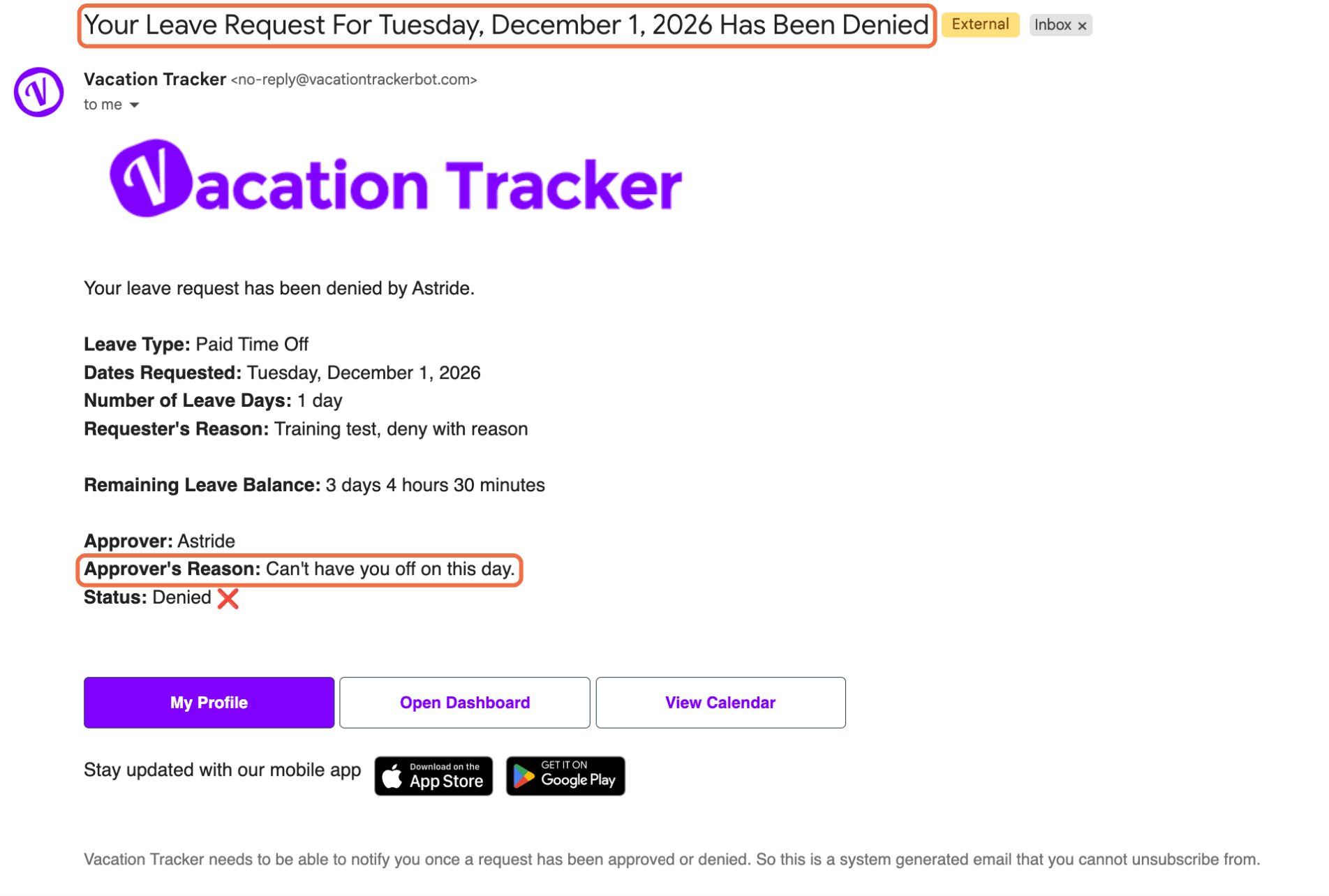
Your Leave Request For [dates] Has Been Denied, with Status: Denied. If your Approver gave a reason, it's under Approver's Reason.
When Nobody Answers
Your leave request has expired. Send it again from My Profile > Leaves with Re-send request.
Every email has My Profile, Open Dashboard and View Calendar buttons.
Check It Worked
You get an email at each step of your request.
Common Questions
No. Vacation Tracker always lets you know when a request is approved or denied.
Check your spam folder for no-reply@vacationtrackerbot.com. Your request is always visible on the dashboard too.
 Book a Call