



Last updated on October 23, 2026
User Training 1: Sign In and Keep Your Account Secure (Email Only)
With Email Only, you sign in with your email address and a password. Here's how to keep your account secure and up to date.
Sign In
Go to app.vacationtracker.io and sign in with the email address your company added you with and your password.
Change Your Password
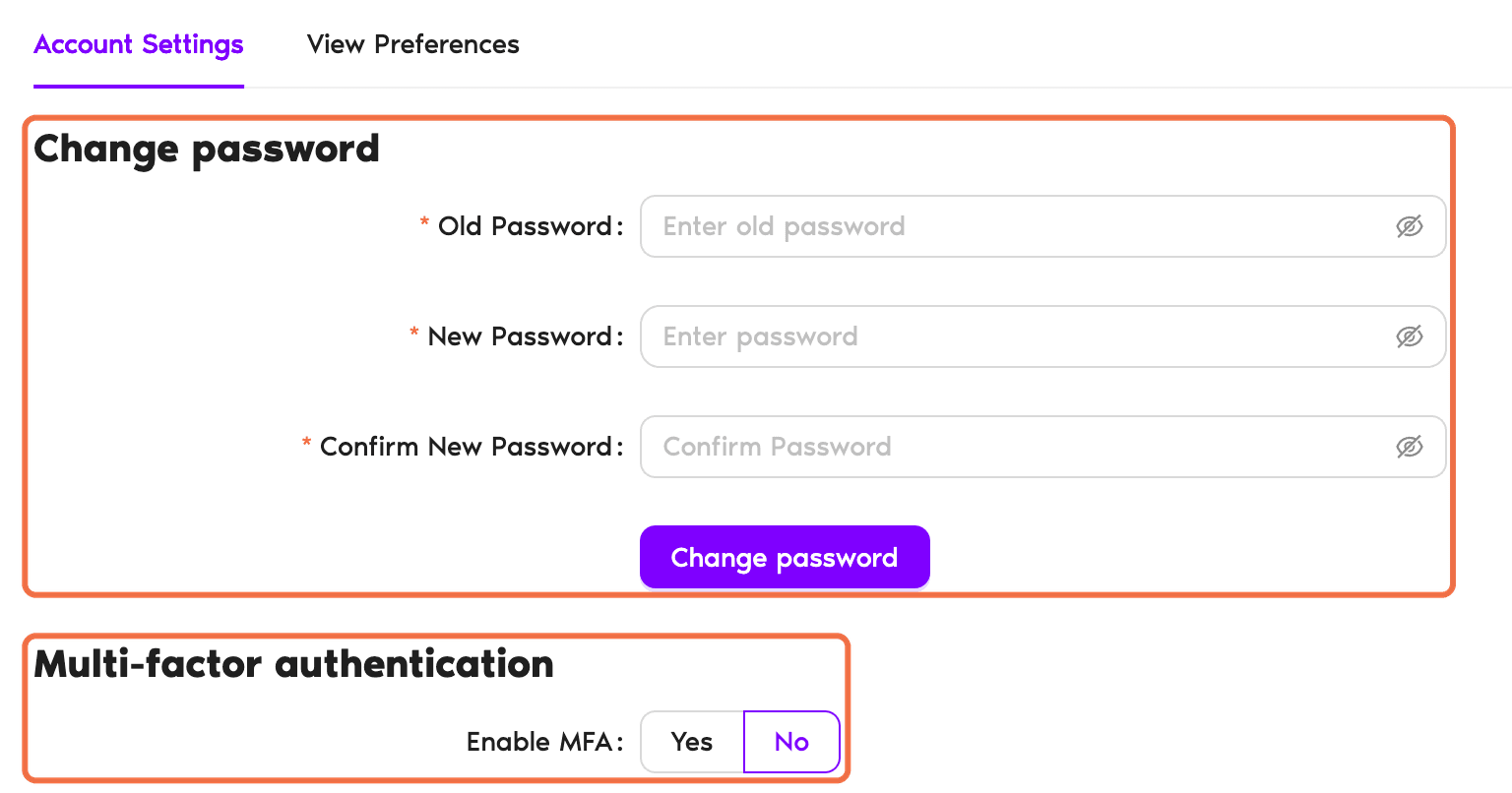
- Click your name at the bottom of the left-hand menu and choose Account Settings.
- Under Change password, enter your Old Password, your New Password and Confirm New Password.
- Click Change password.
Turn On Multi-Factor Authentication
Under Multi-factor authentication, set Enable MFA to Yes. For the full setup, see How Do I Turn On/Off MFA (Multi-Factor Authentication) in Vacation Tracker?
Update Your Name and Photo
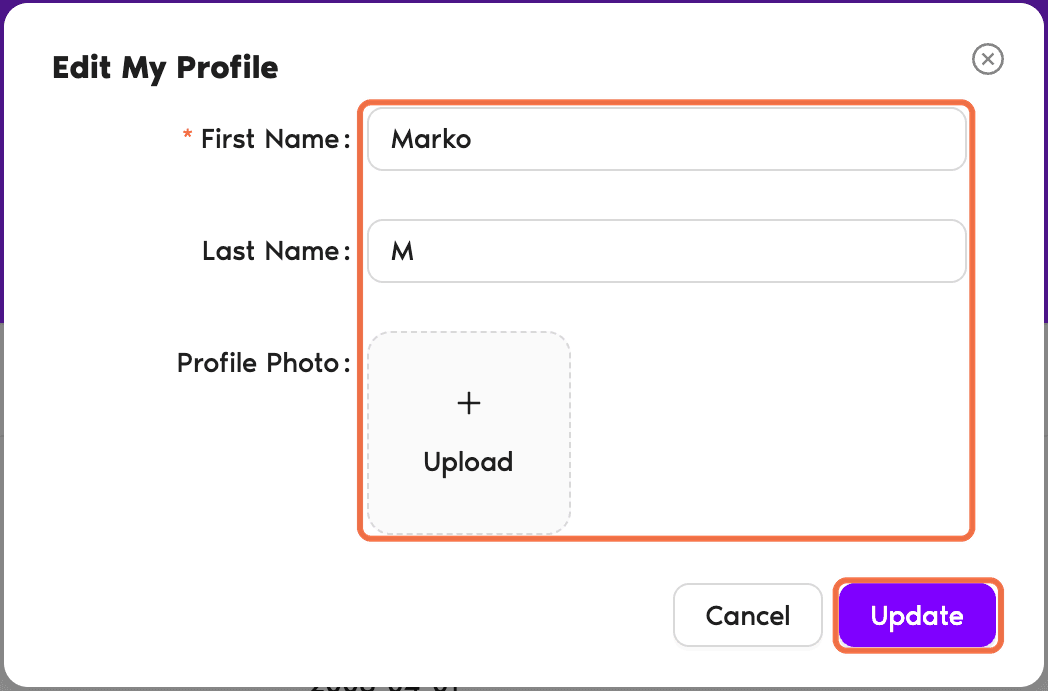
- Go to My Profile.
- Click Edit next to your name.
- Change your First Name or Last Name, or upload a Profile Photo.
- Click Update.
Check It Worked
You can sign in with your new password, and your profile shows your updated name and photo.
Common Questions
No. Ask your Administrator.
No. Your Administrator manages these.
 Book a Call