



Last updated on October 23, 2026
User Training 7: Ask the Vacation Tracker Bot in Plain Language in Slack
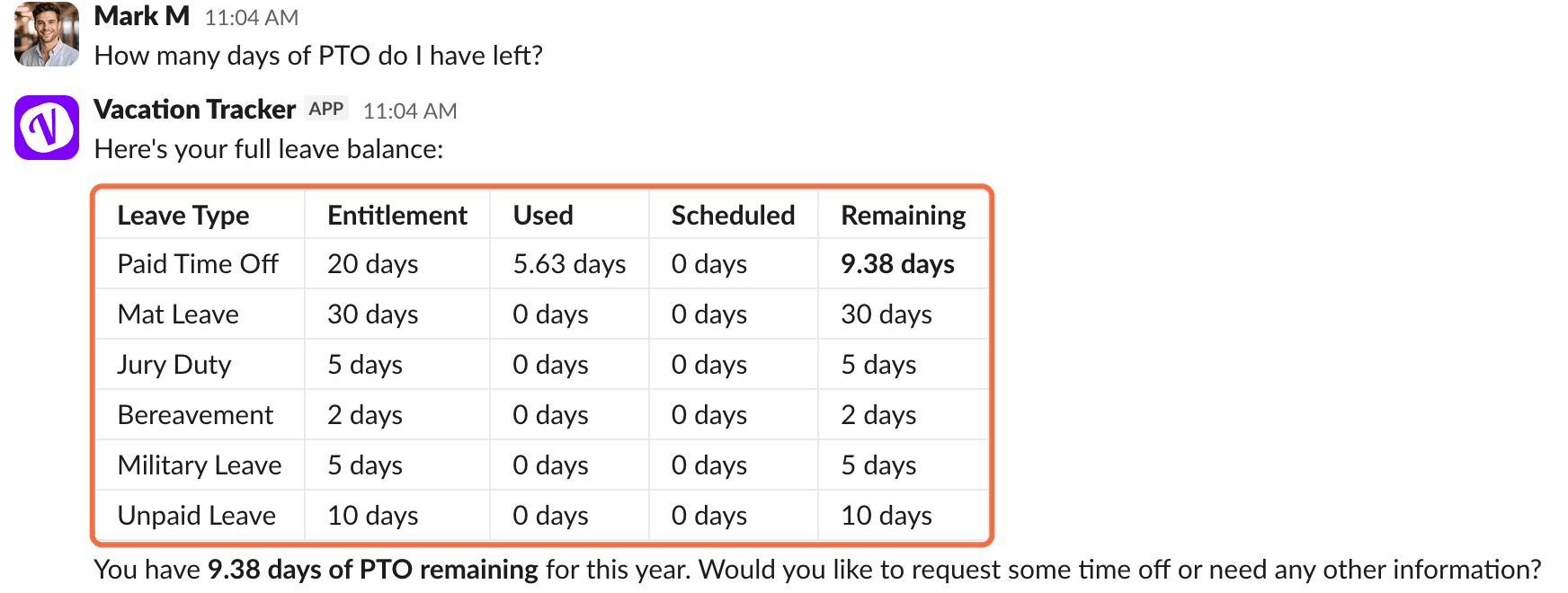
Chat with Vacation Tracker in Slack like you would with a colleague. Ask about your balance, who's off or holidays, or request leave.
Ask a Question
Open the Vacation Tracker app in your Slack direct messages and type your question. For example:
Request Leave by Chatting
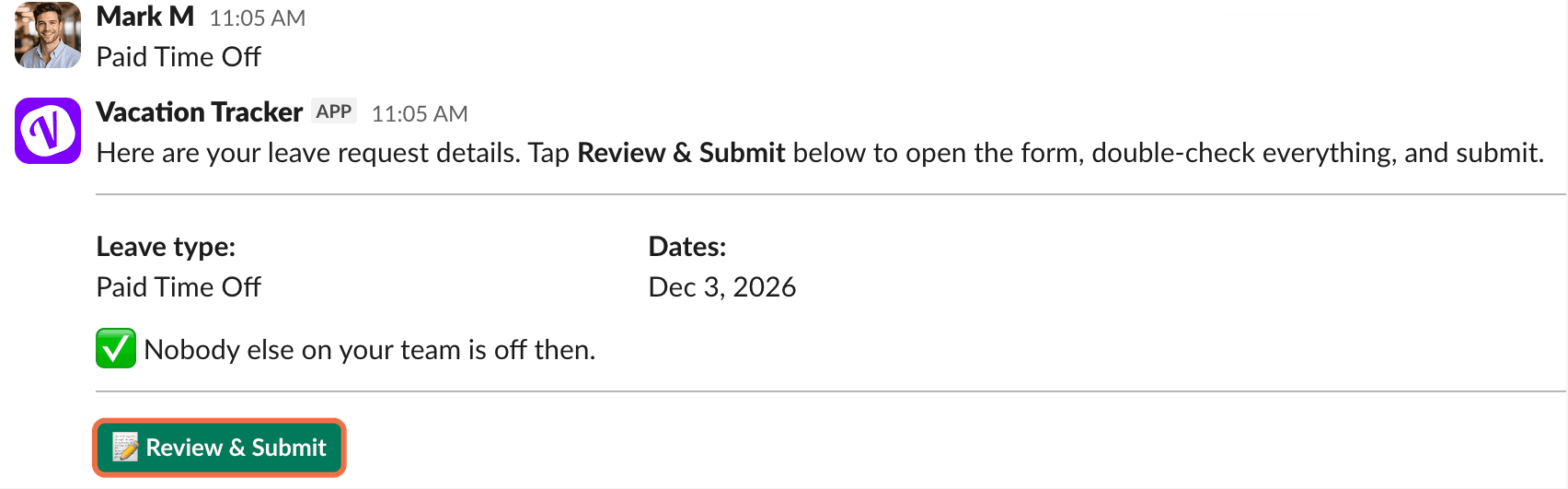
- Type what you need, for example I need a day off on December 3.
- The bot asks which leave type to use. Reply with the name, for example Paid Time Off.
- The bot shows the details and whether anyone else on your team is off. Click Review & Submit.
- The Request a leave form opens with your details filled in. Check them and click Send request.
Cancel Leave by Chatting
Type, for example, Please cancel my December 3 request. The bot shows the request and asks you to Confirm. It then replies that the request has been cancelled.
Check It Worked
The bot answers your question in plain language, and requests you send show on your dashboard.
Common Questions
No. You always check the form and click Send request, and you confirm before anything is cancelled.
No. It only shows what you can see in Vacation Tracker.
 Book a Call