



Last updated on October 23, 2026
Admin Training 7: Approve, Change or Add Leave for Anyone (Google Workspace)
As an Administrator, you can respond to leave requests, change leave that's already booked, and add leave for anyone.
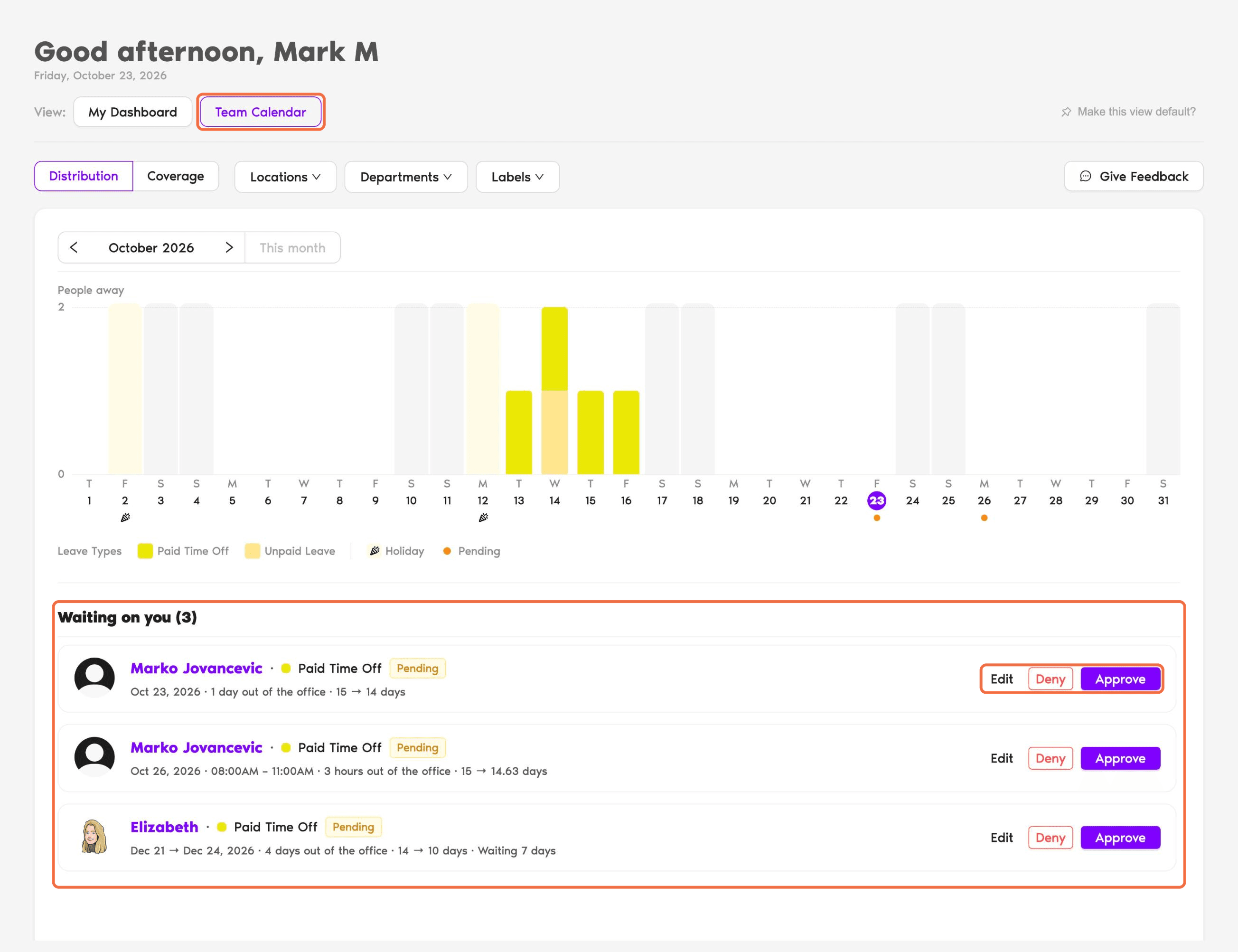
Respond to Requests Waiting on You
- Go to Home and switch the view to Team Calendar.
- Under Waiting on you, review each request.
- Click Approve, Deny or Edit.
Manage One Person's Leave
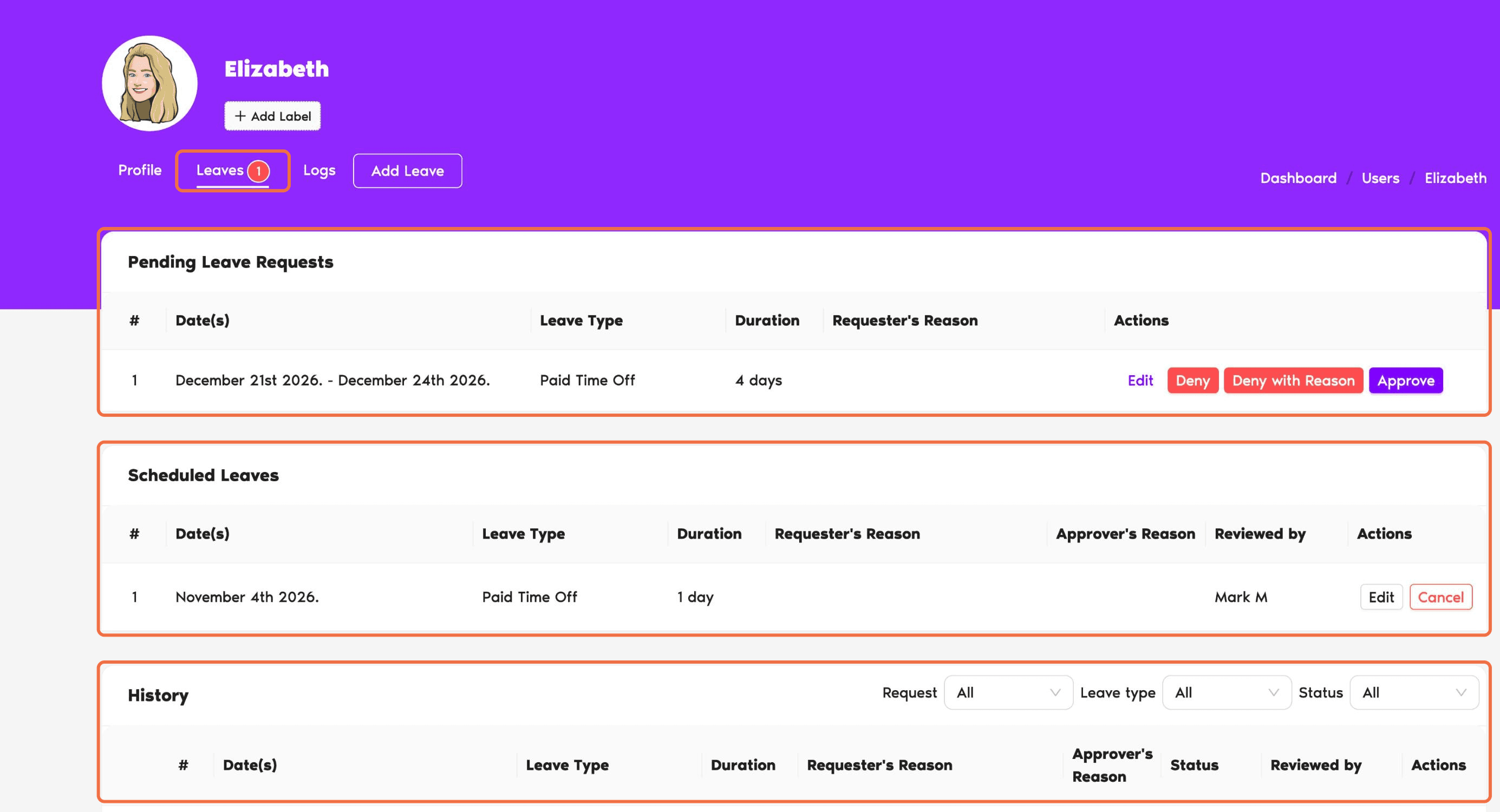
Open the user's profile and go to the Leaves tab:
Add Leave for Someone
Use this when someone can't request leave themselves, for example when they call in sick.
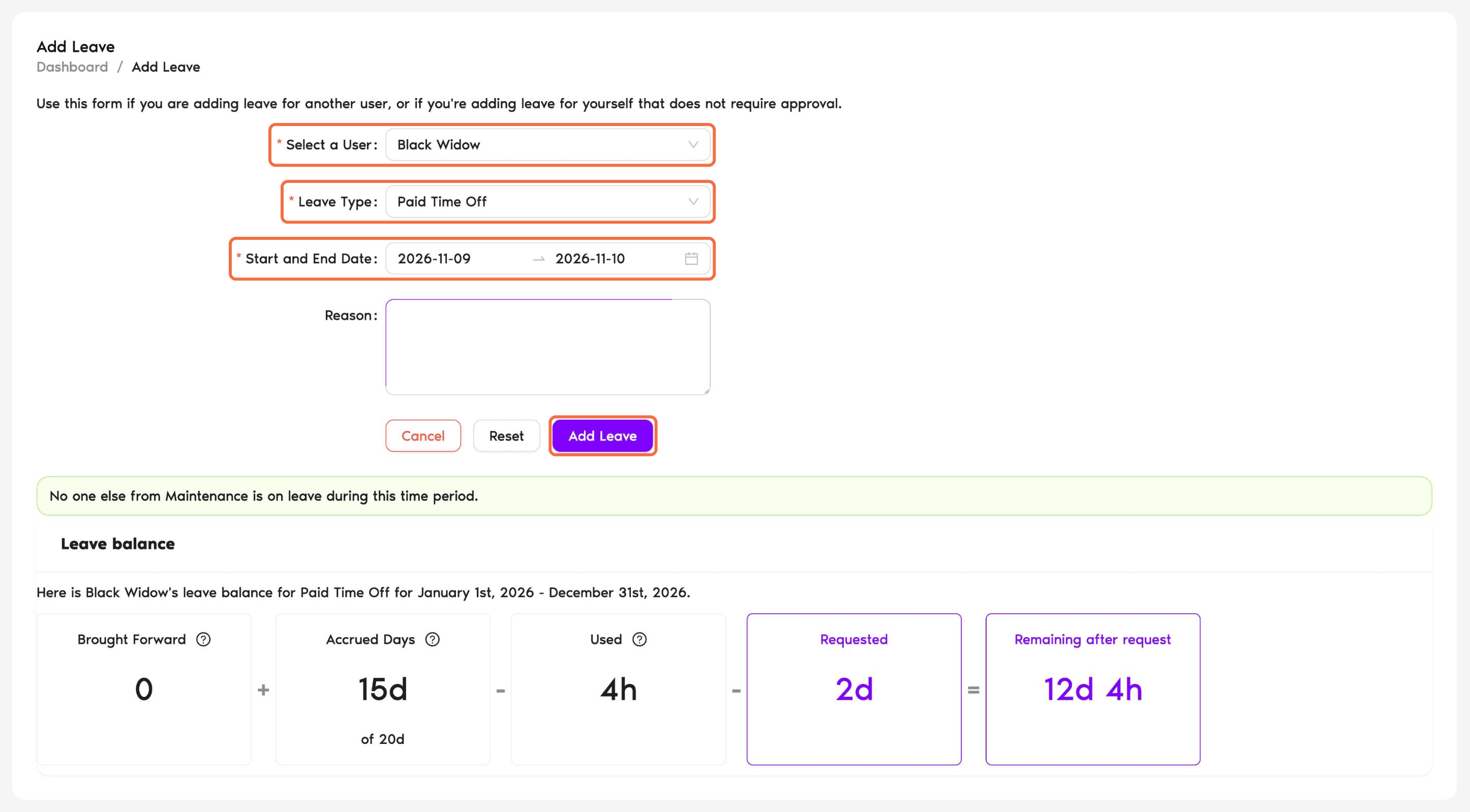
- Click Request Leave at the top of the menu and choose Add Leave.
- Choose the user under Select a User.
- Choose the Leave Type and the Start and End Date, and add a Reason if needed.
- Click Add Leave.
You can also click Add Leave on a user's profile.
Check It Worked
On the user's Leaves tab, the leave shows the right status and dates, and their balance under Leave quotas has changed.
Common Questions
Open the user's profile and go to the Leaves tab. Pending Leave Requests are listed at the top.
See How Do I Add TOIL for a User? in the links below.
 Book a Call