



Last updated on October 23, 2026
Approver Training 1: Approve or Deny Leave Requests in Slack
When someone in your Department requests leave, the Vacation Tracker app sends you a direct message in Slack. You can answer right there.
What the Message Shows
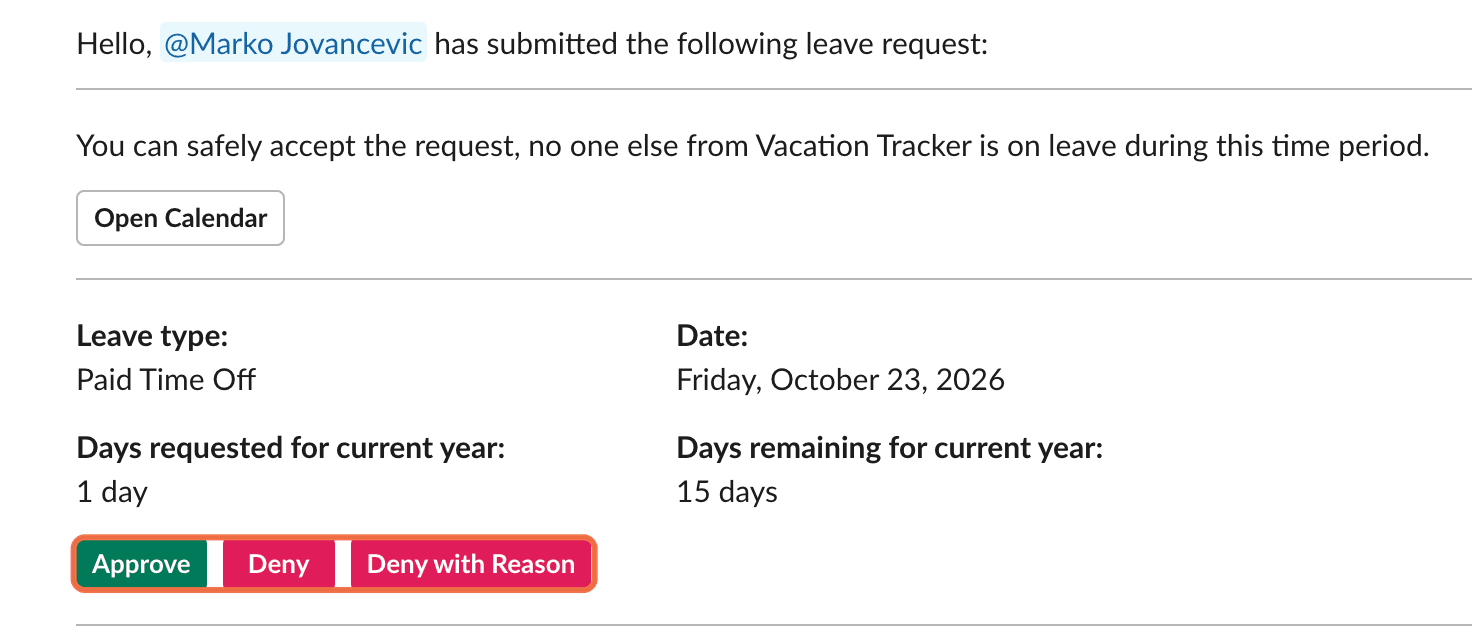
The message starts with Hello, @Name has submitted the following leave request: and shows:
Answer the Request
- In Slack, open the Vacation Tracker app from your direct messages.
- Check the dates, the balance and who else is away.
- Click Approve or Deny. Both act straight away.
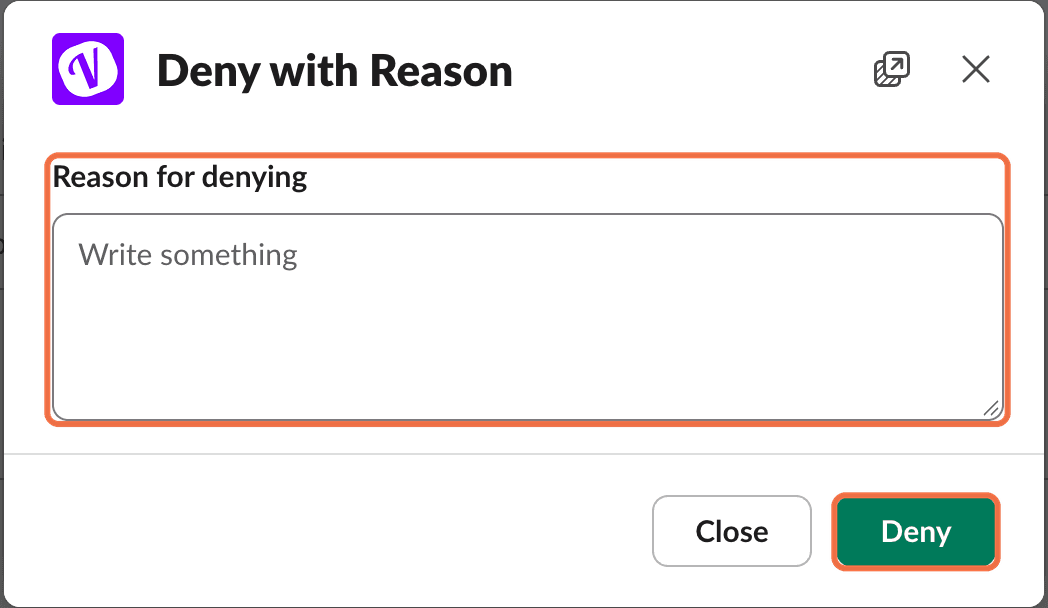
- To explain a decision, click Deny with Reason, type in Reason for denying and click Deny.
After You Answer
Check It Worked
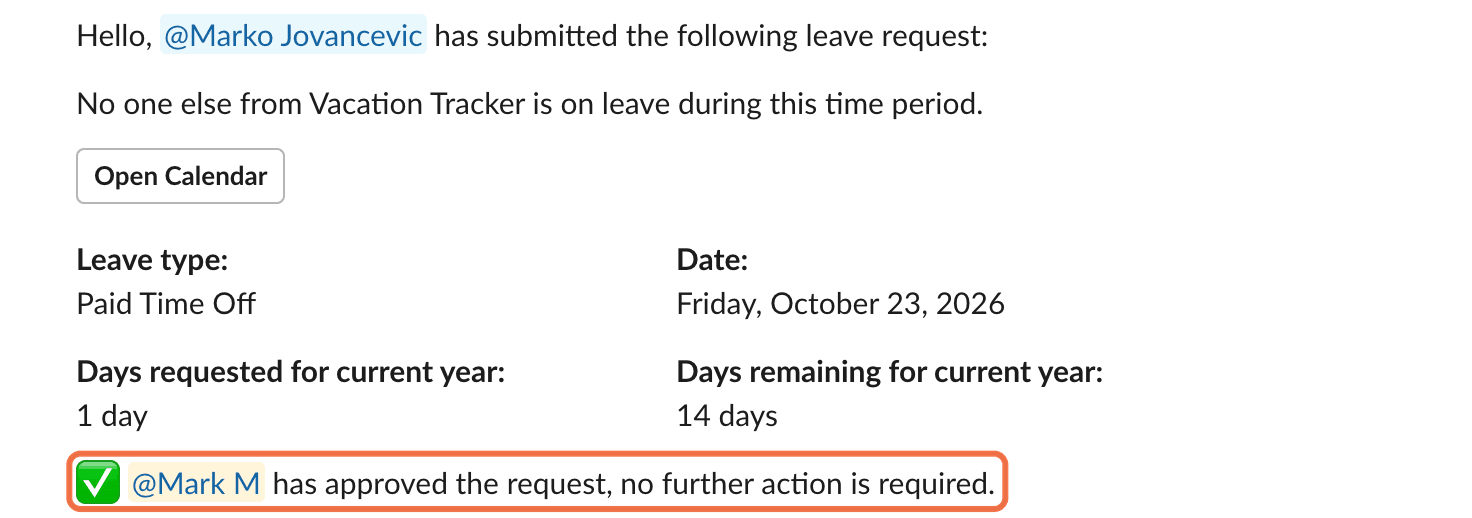
The Slack message shows your answer, and the request is no longer under Waiting on you on your Home page in the dashboard.
Common Questions
No. Deny acts straight away. Use Deny with Reason when you want to tell the person why.
It depends on how your Administrator set up your Department. The request either stays open, or it expires after 7 working days or when the leave end date passes.
Type /vacation to request your own leave, check your status, see who's away or open the dashboard.
 Book a Call