





Last updated on February 18, 2026
How Do I Connect My Personal Calendar to Vacation Tracker?
Vacation Tracker can connect to your Google or Outlook calendar so leaves you book are automatically added there. When you request a leave, you will show as either available or busy in your calendar — the setting to mark a leave type as busy or free is set by your Admin in the leave type settings.
How to Connect Your Calendar
- Log in to your dashboard at app.vacationtracker.io. (If you have Vacation Tracker integrated into Slack, Teams or Google Workspace, simply click Open Dashboard.)
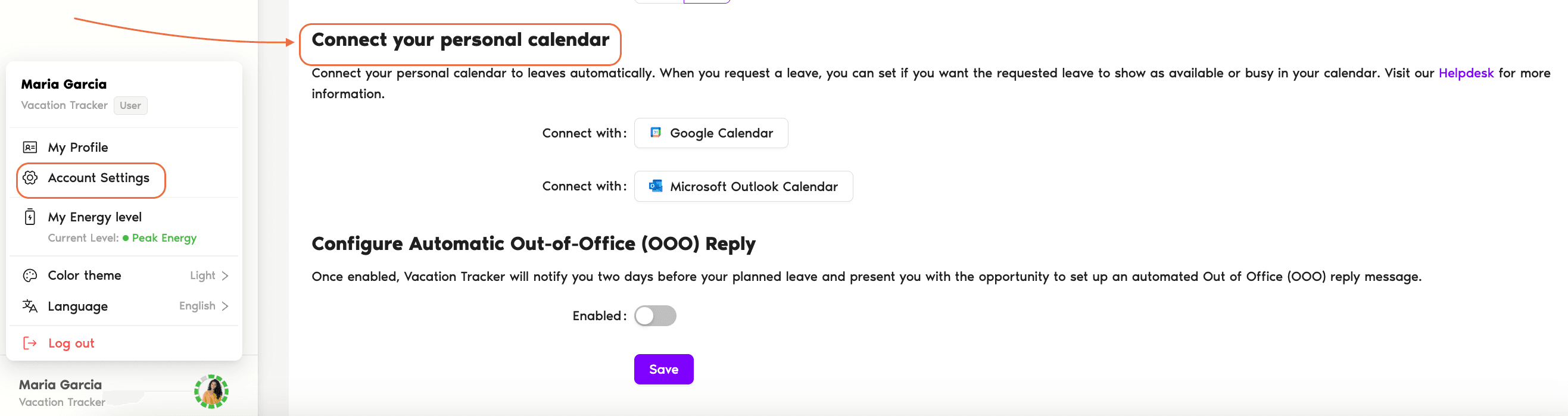
- Click on your name on the bottom-left corner, and in the pop-up menu click Account Settings.
- On the Account Settings tab, find the Connect your personal calendar section. Click the calendar you'd like to connect.
Connect both at once
You can connect both your Google Calendar and Microsoft Outlook Calendar at the same time.If Using Google Calendar
- Click Google Calendar and sign into the account that has the calendar you'd like to connect to.
- You'll be asked to add permissions for Vacation Tracker to connect to your calendar — accept and continue.
- After connecting to your Google Account, select from the dropdown list the calendar you'd like to connect to, then click OK.
- After you connect your calendar, Vacation Tracker will add, edit or cancel your leaves into the chosen calendar.
If Using Outlook
- Click Microsoft Outlook Calendar and log in to the account that has the calendar you'd like to connect to.
- You'll be asked to add permissions for Vacation Tracker to connect to your calendar — accept and continue.
- After connecting to your Outlook account, click OK.
- After you connect your calendar, Vacation Tracker will add, edit or cancel your leaves into your default calendar.
Calendar sync deep dive
For more information on our calendar connections, see the helpdesk: Guide: How Do I Sync My Calendar with Vacation Tracker?What's Next?
Adding a New Calendar Using iCal Connection Connecting to a Shared Existing Calendar How do I enable the OOO autoreply feature?Need help?
Regular Users: If you have any questions, email us anytime at hello@vacationtracker.io.Admins and Approvers: You can reach us via live chat Monday to Friday, 9 AM – 5 PM EST, or email us anytime at hello@vacationtracker.io.
 Book a Call