




Last updated on November 2, 2026
Location Admin Training 8: Export Leave and Balance Reports for Your Location (Google Workspace)
Export who took what leave and how much is left, for the people in your Location.
Pick a Report
In the left-hand menu, expand Reports and click Reports.
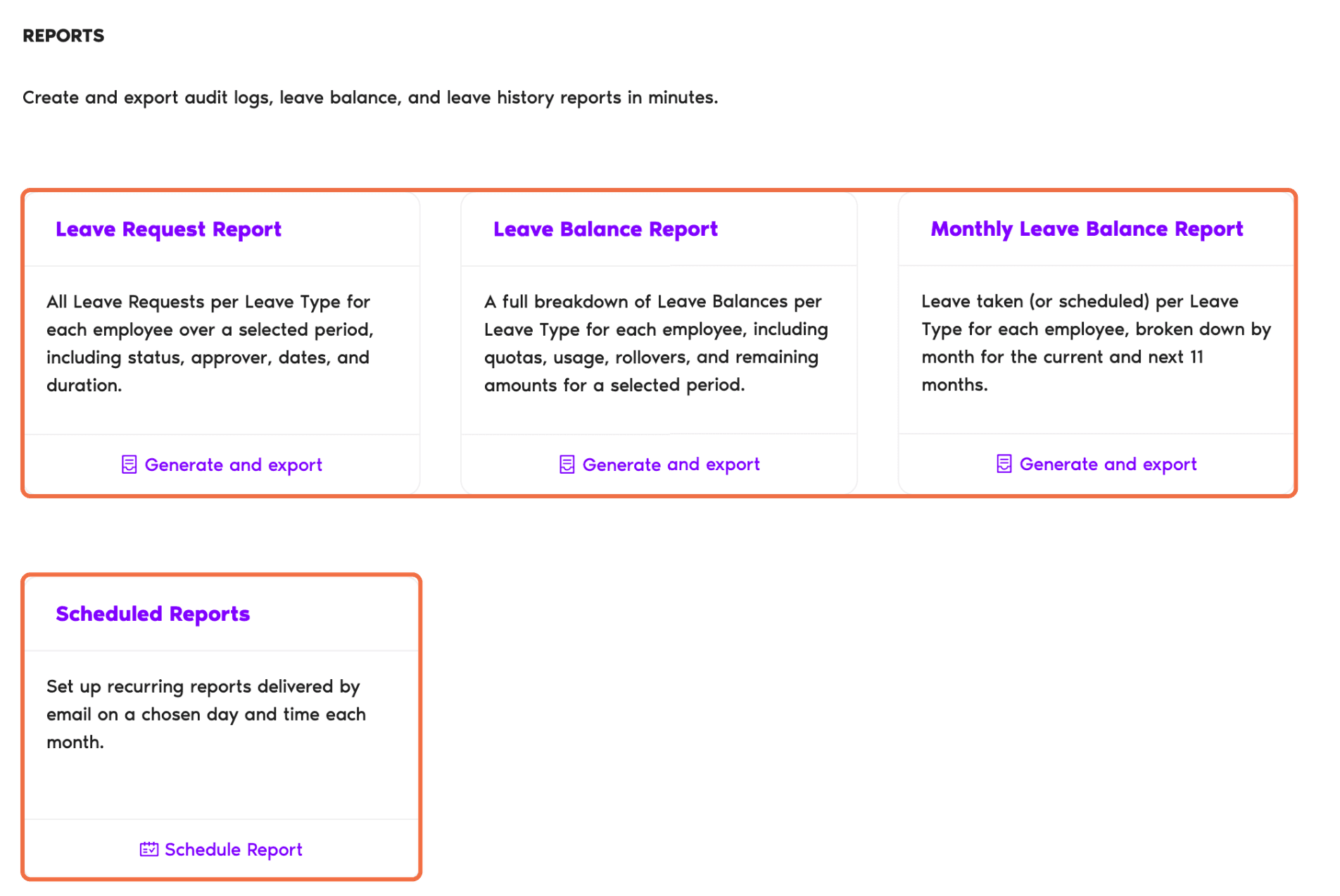
Export It
- Click Generate and export on the report you need.
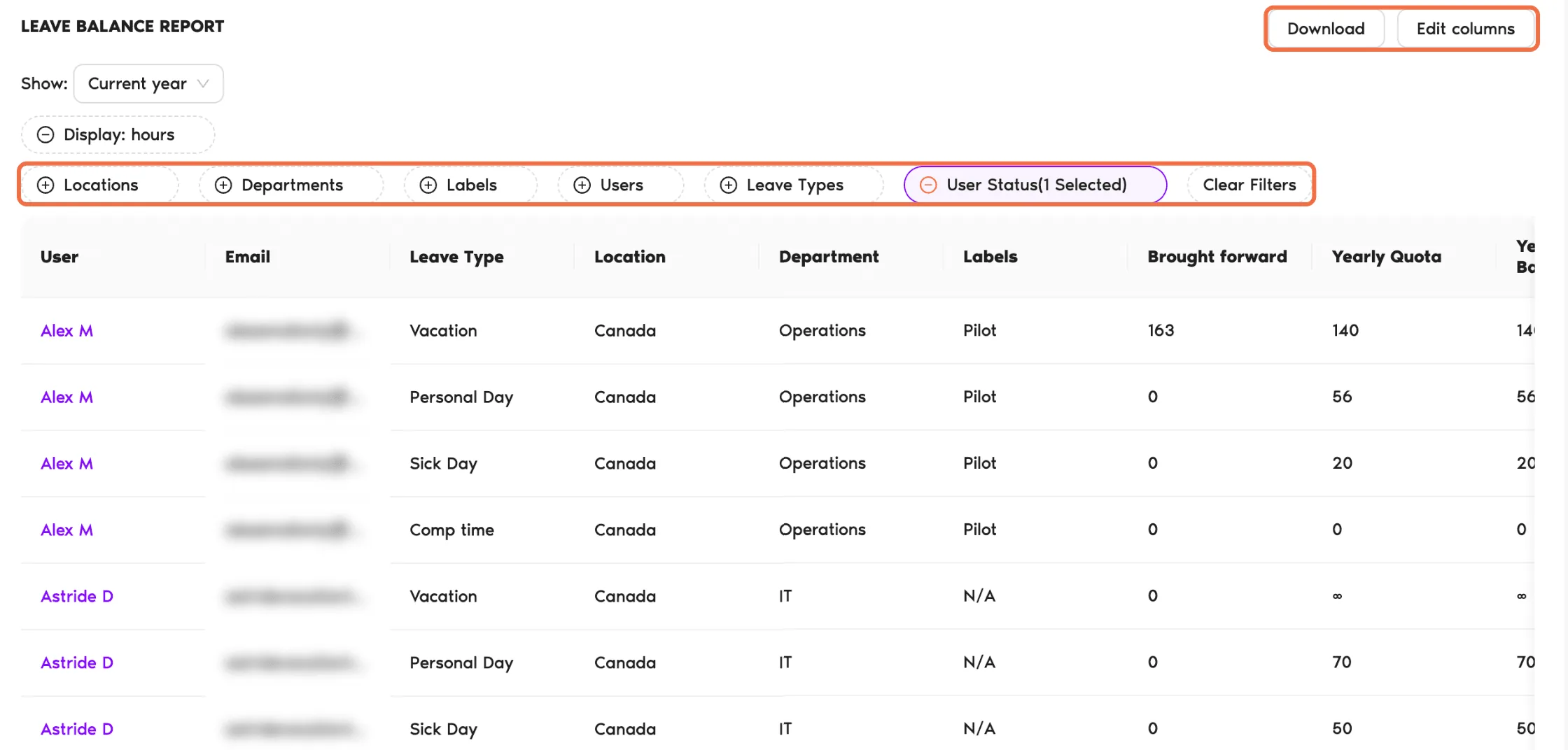
- Set the filters at the top, for example the period, Display in days or hours, and Locations.
- Optionally, click Edit columns to show or hide fields.
- Click Download and choose CSV or Excel.
Schedule a Monthly Report
Under Scheduled Reports, click Schedule Report to have a report emailed on a day and time you choose each month.
Check It Worked
The downloaded file lists the people and leave types you filtered for.
Common Questions
The Leave Balance Report. Use the Leave Request Report for leave history.
Yes. Change the User Status filter to include inactive and deleted users.
What's Next?
Location Admin Training 0: What You Do as a Location Admin (Google Workspace) How Do I Export Employee Leave Balances? How Do I Export a Leave Request Report (Leave History)?Need help?
Regular Users: If you have any questions, email us anytime at hello@vacationtracker.io.Admins and Approvers: You can reach us via live chat Monday to Friday, 9 AM – 5 PM EST, or email us anytime at hello@vacationtracker.io.
 Book a Call