



Last updated on October 23, 2026
Admin Training 5: Add Users and Assign Their Location and Department (Google Workspace)
Bring your team into Vacation Tracker, then make sure each person is in the right Location and Department with the right balance.
Decide First
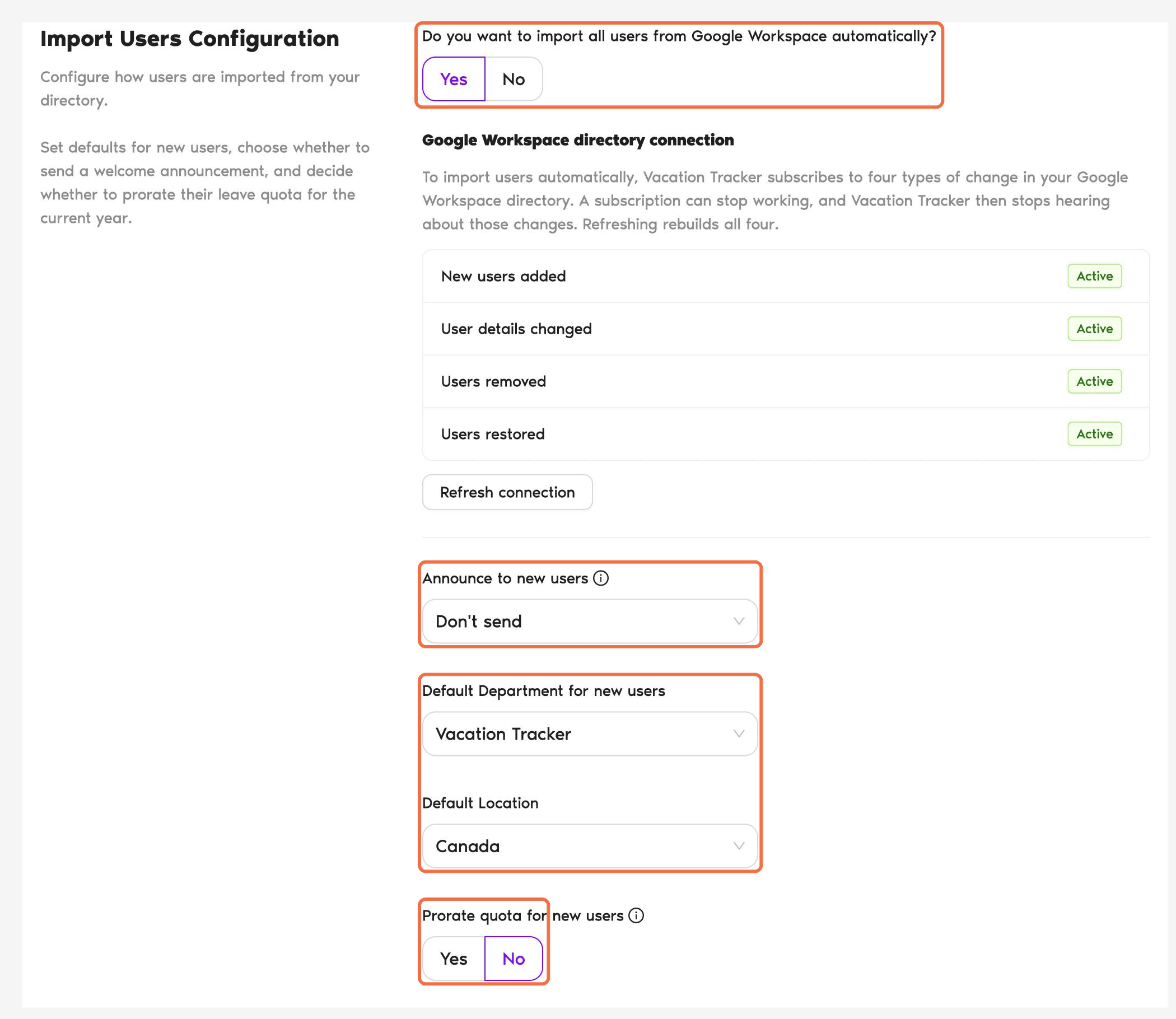
Go to Workspace Settings > General > Import Users Configuration and choose:
Click Save.
Add Users
- In the left-hand menu, under Team & Approval Flows, click Users, then Add Users.
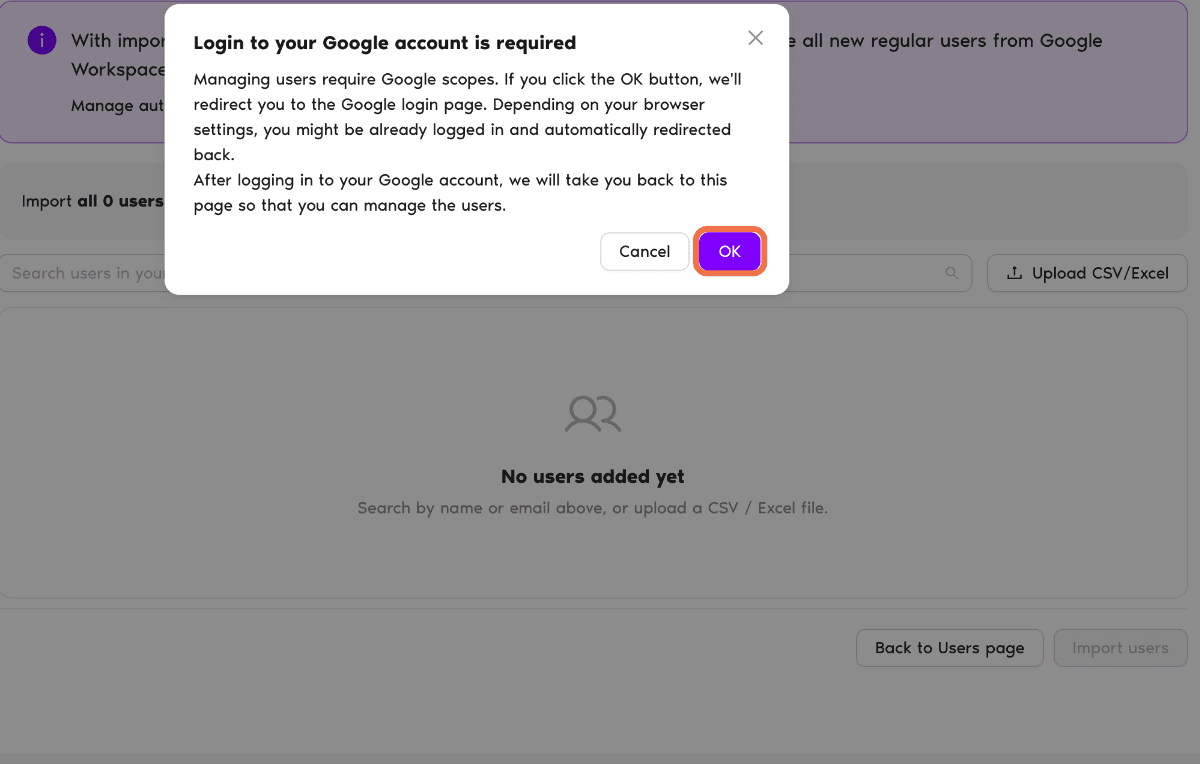
- Choose Yes, import all to import everyone from your Google Workspace directory, or No, I'll select users and search for people by name or email. You can also click Upload CSV/Excel.
- Click Import users.
Put Each Person in the Right Place
- Open a user from the Users page.
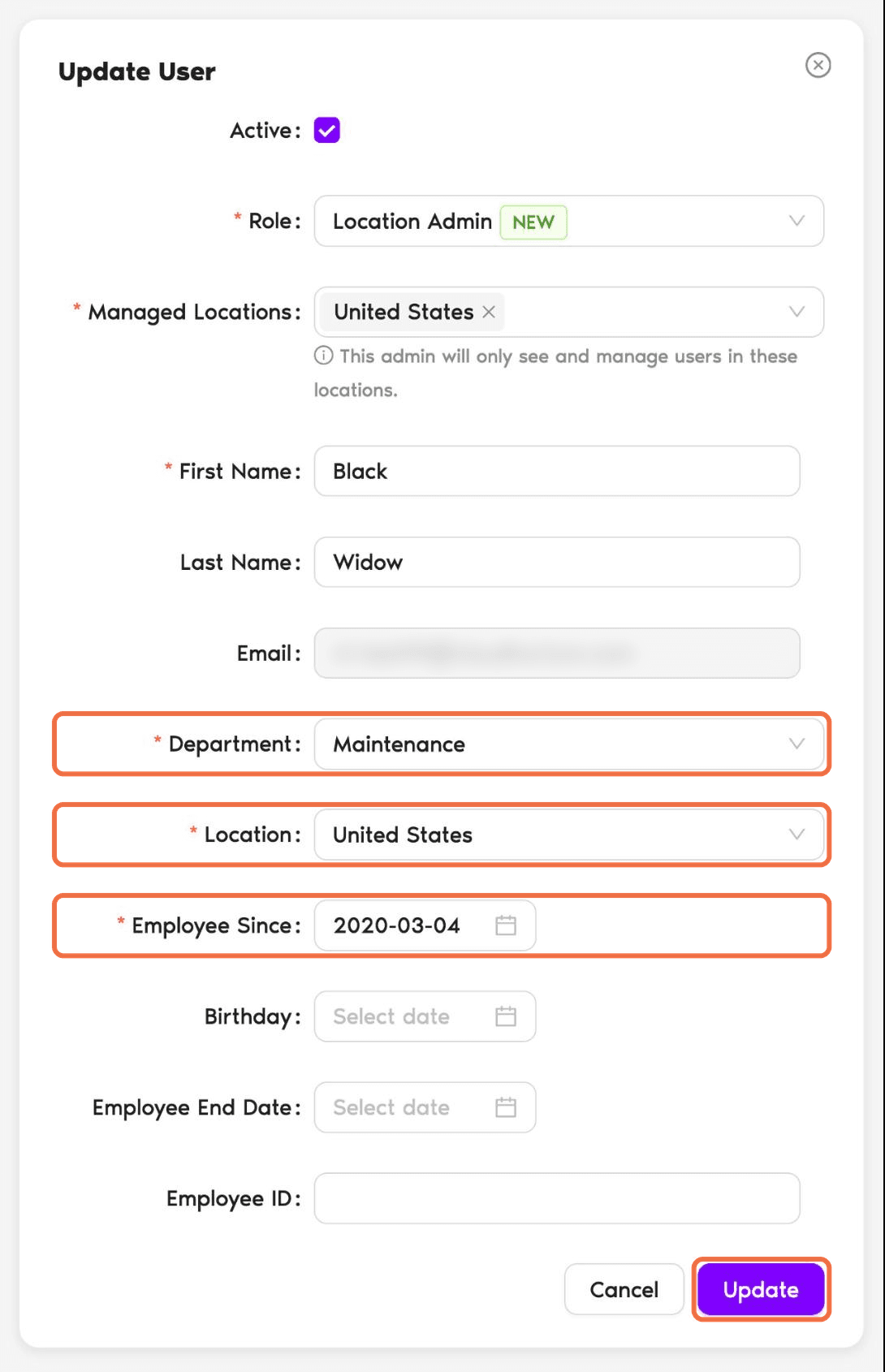
- Under User Profile, click Edit.
- Set the Department, Location and Employee Since date, then click Update.
Check Starting Balances
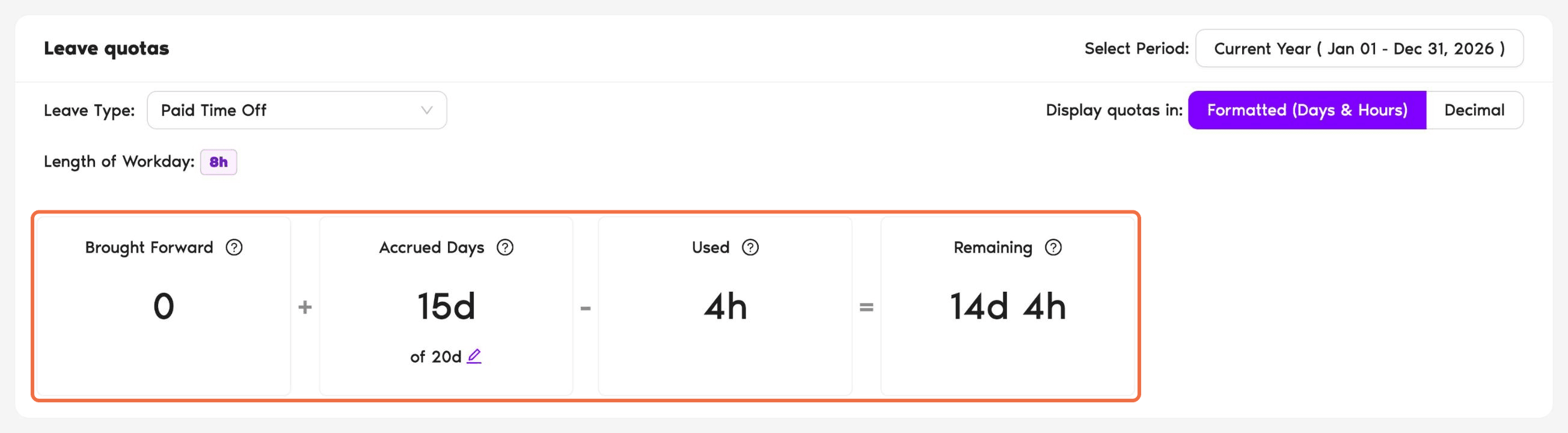
On the user's profile, Leave quotas shows Brought Forward + Quota - Used = Remaining for each Leave Type. To add balances people bring from a previous system, use Workspace Settings > Bulk Uploads > Initial Brought Forward.
Check It Worked
Common Questions
To the default Department and default Location set under Import Users Configuration, until you move them.
Yes. On the Users page, select the users, then choose Change department or Change location.
 Book a Call