



Last updated on October 23, 2026
Admin Training 2: Set Up Locations, Holidays and Workweek (Microsoft Teams)
A Location holds the rules for a group of people: their public holidays, workweek, length of workday, time zone, and when their leave year starts. Create one for each group with different rules.
Decide First
Create the Location
- In the left-hand menu, under Leave Setup, click Locations, then Create a Location.
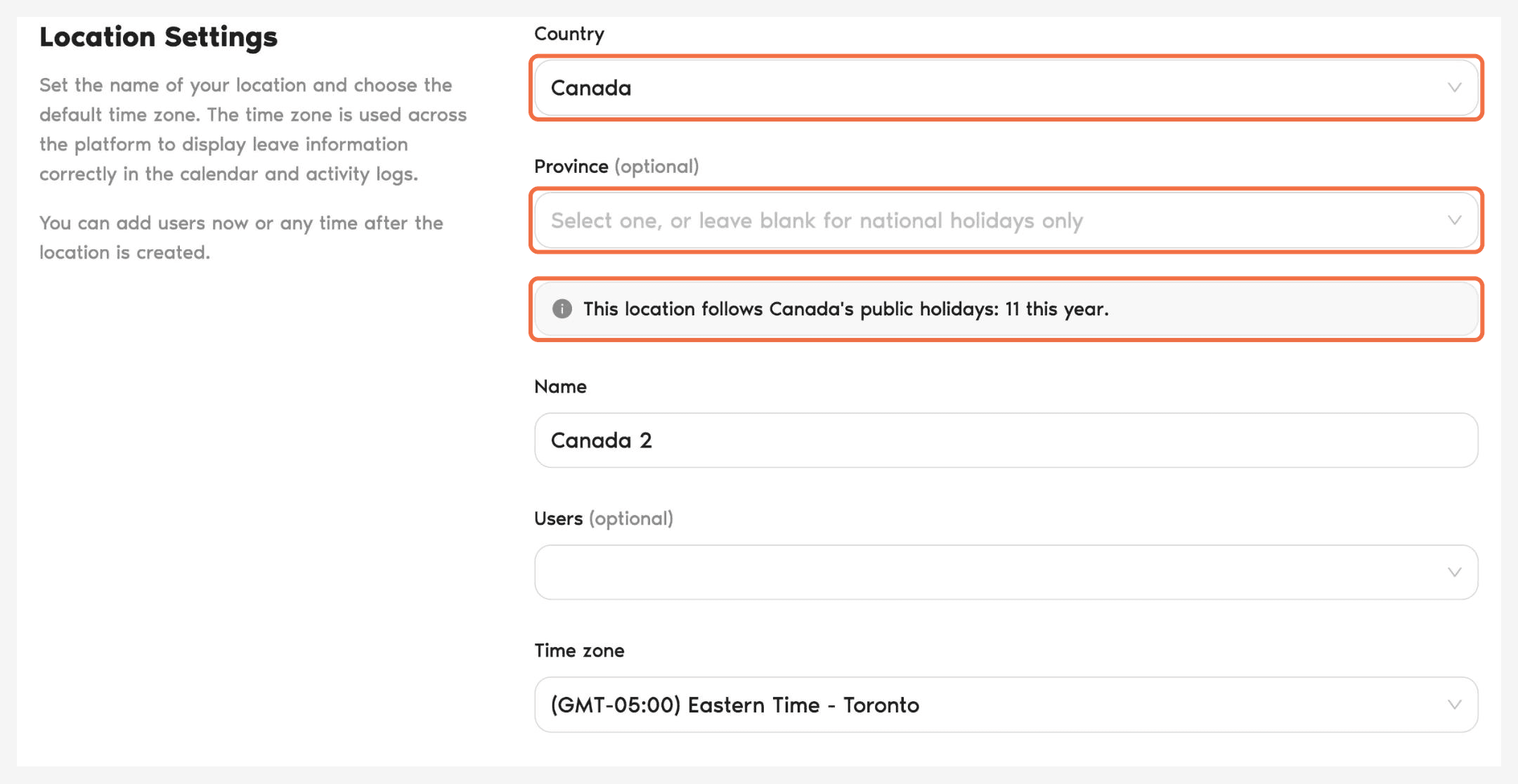
- Select the Country. If the country has regions, you can also pick a province, state or region, or leave it blank for national holidays only. Vacation Tracker shows how many public holidays the Location will follow.
- Check the Name and Time zone. They're filled in from the country, and you can change them.
- Optionally, add Users now. You can also do this later.
- Under Make This Location Default, choose Yes if all new team members should be added to this Location automatically.
- Set the Workweek, Week Starts on and Length of Workday.
- Set Fiscal Year Start and Leave Quota Reset Based On.
- Click Create Location.
Check the Holidays
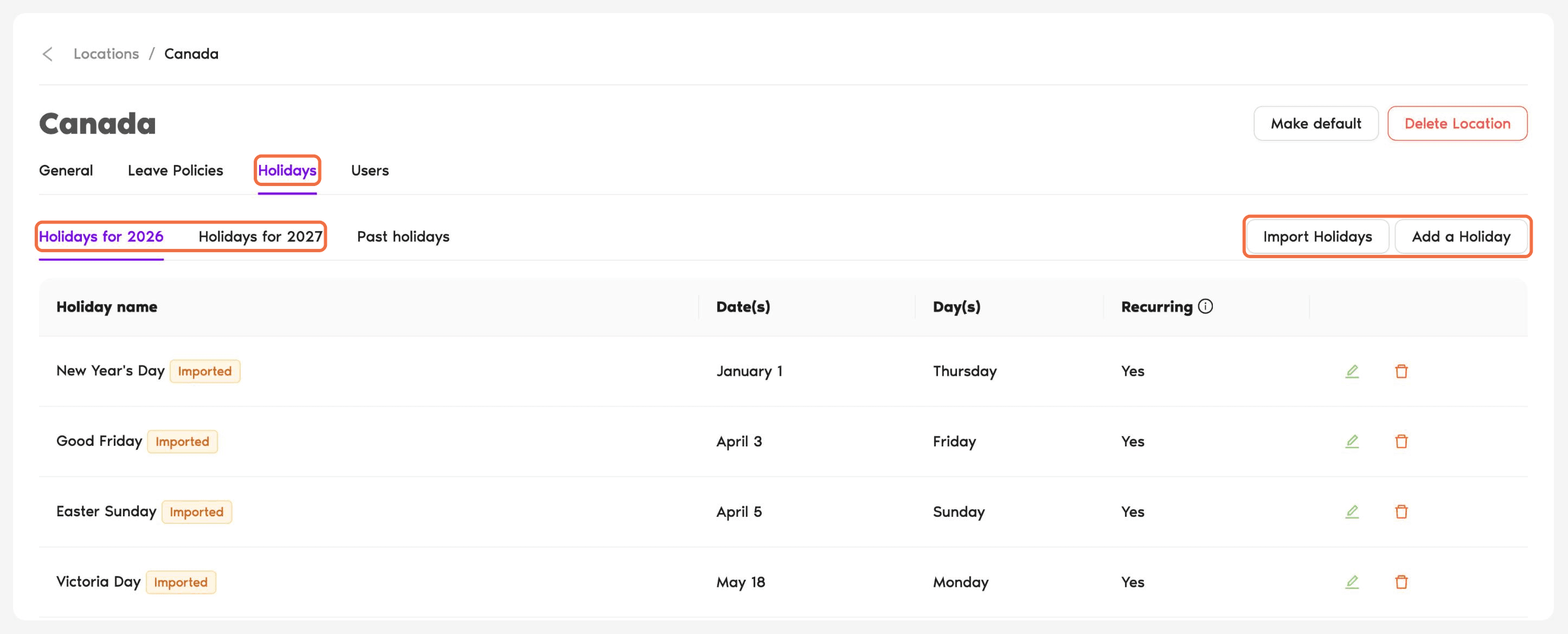
Open the Location and go to the Holidays tab. Check both the current year and next year. To add a day off that isn't on the list, use Add a Holiday. Import Holidays is also available on the same tab.
Check It Worked
Common Questions
All new team members are added to the default Location automatically. You can move them to another Location at any time.
Yes. Set a custom workweek on that user's profile, under Working Days. Use this for exceptions, not as a replacement for a separate Location.
 Book a Call