



Last updated on October 23, 2026
Approver Training 8: Set Leave Rules for Your Team With Automations (Google Workspace)
Automations set rules for leave requests in your Departments, so you don't have to check each one by hand.
Pick an Automation
Create It
- In the left-hand menu, click Add-ons.
- Click the card for the automation you need. Each card shows its status: Active, Setup required or Inactive.
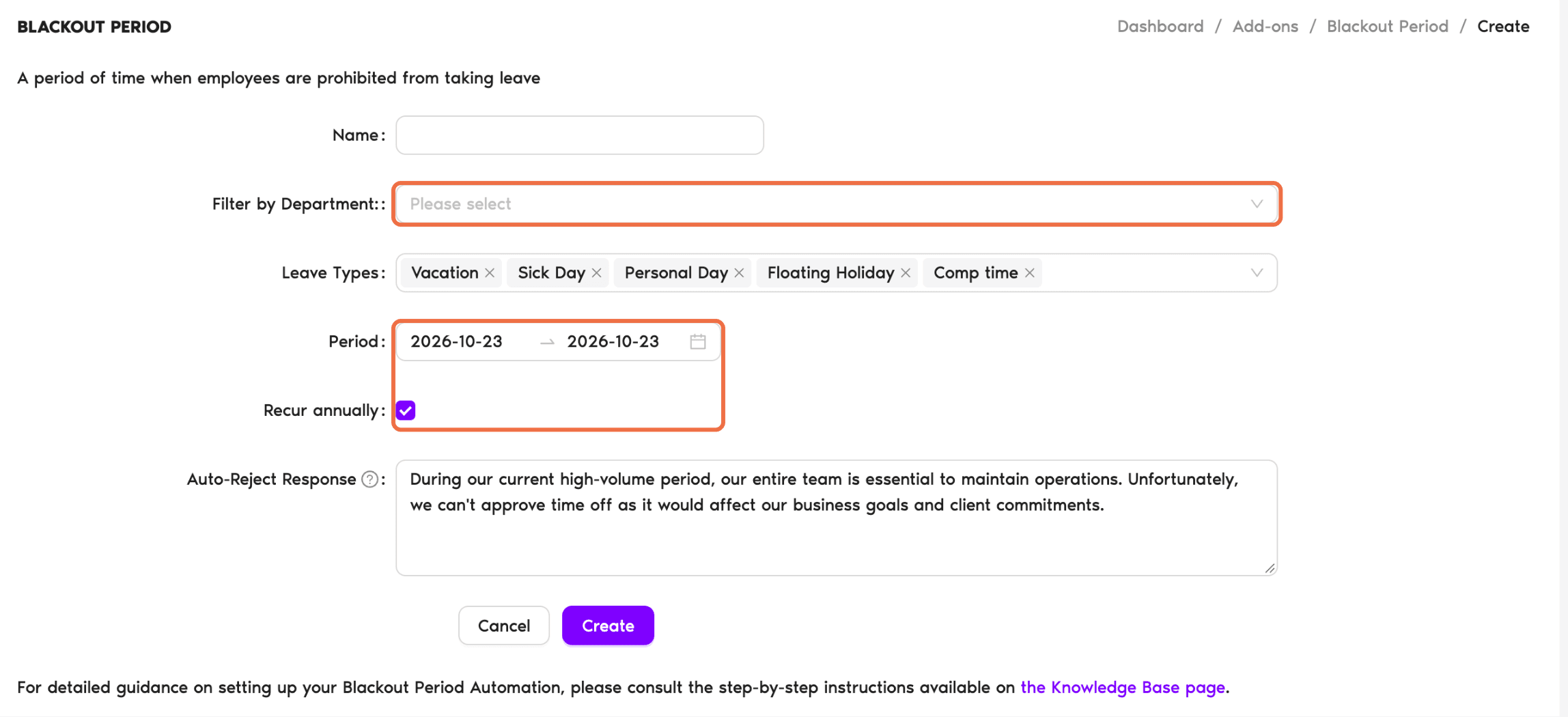
- Click Create automation or Create policy. The button name depends on the add-on, for example Create automation for Blackout Period and Probation Period, and Create policy for Maximum Users Away and Leave Duration Limit.
- Fill in the rule, for example the dates or the limit.
- Under Filter by Department, choose the Departments it applies to. You'll see only the Departments you approve for.
- Click Create.
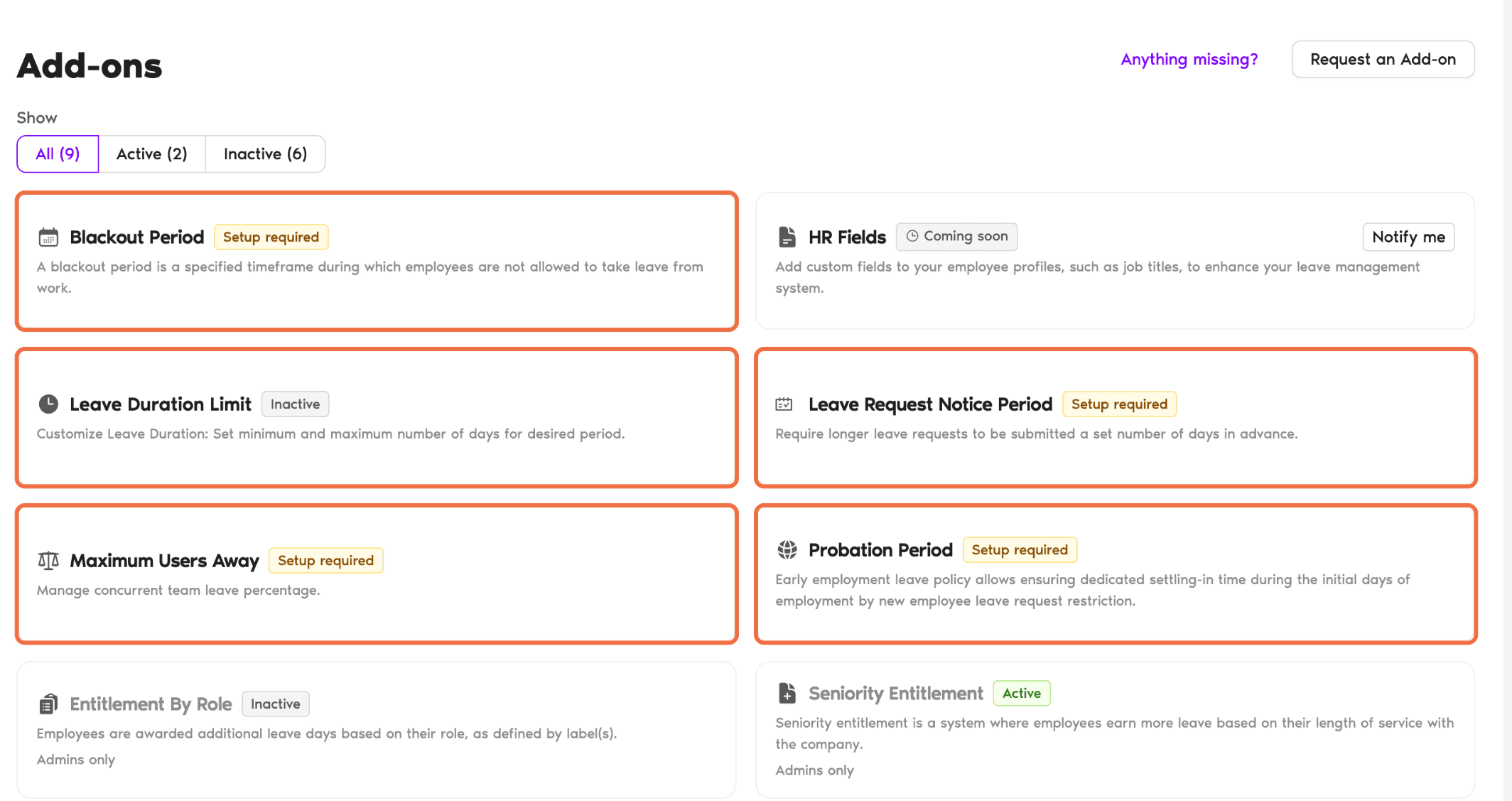
If a card is marked Inactive, the add-on isn't turned on for your workspace yet. Clicking it shows Only Admins Can Enable This Add-On. Ask your Administrator to turn it on.
Check It Worked
The automation is listed under Add-ons, and it applies to new requests from people in the Departments you chose.
Common Questions
No. You can only choose the Departments you approve for. Ask your Administrator for anything wider.
 Book a Call