






Last updated on October 7, 2026
Can I Reset the Leave Quota Based on the Employee Start Date?
Yes. Instead of resetting everyone's leave quota on the same Accounting Year date, Vacation Tracker can reset each user's quota on the anniversary of their start date. Set it once at the Location level and every user in that Location resets on their own clock.
When to Use Each Option
Accounting Year (default)
Everyone in the Location resets on the same date: the Fiscal Year Start you set on the Location (January 1 by default), shown as Year starts on when you edit the Location. Easier to administer, simpler accounting. Most companies use this.
User Employment Date
Each user's quota resets on the anniversary of their employment start date. A user who joined on March 15 gets fresh quota every March 15. Common in jurisdictions with strict labor-law-based accrual rules, or when company policy is to grant leave based on tenure from day one.
How to Switch to Employee Start Date Reset
- Sign in at app.vacationtracker.io.
- In the left-hand menu, expand Leave Setup and click Locations.
- Click the Location card. It opens on the General tab.
- Hover over Leave quota reset based on and click the pencil icon next to it.
- Under Based on, click User Employment Date.
- Read the warning that appears, then click Save.
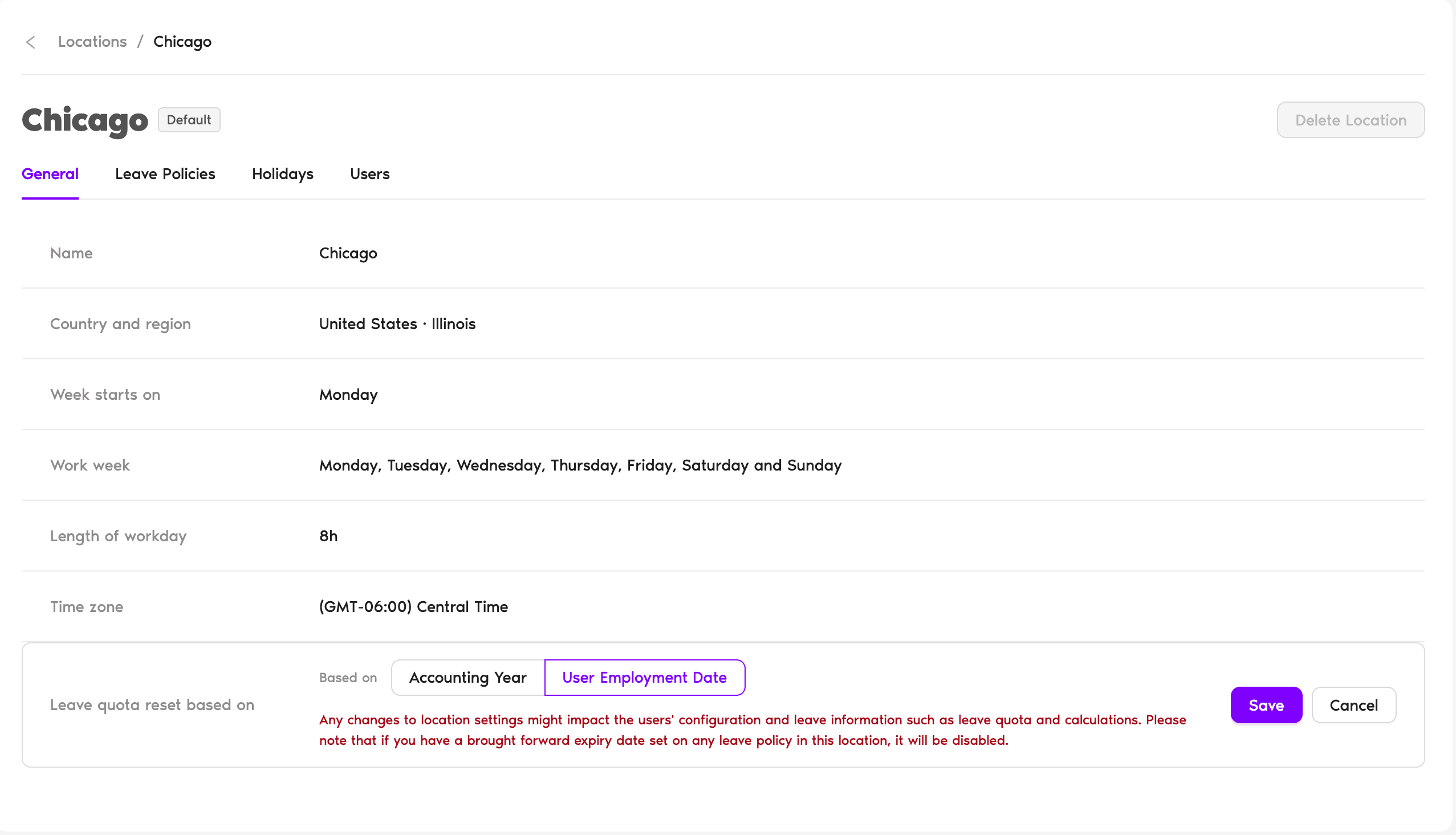
Making Sure Start Dates Are Accurate
User Employment Date reset relies on each user having a correct start date on their profile. Before switching a Location over, spot-check that the users' Employee since dates are right:
- Under Team & Approval Flows, click Users.
- Click into a user's profile.
- In the User Profile section, check the Employee since field.
- If it's wrong, click Edit on the User Profile section and fix it. See How Do I Edit User's General Information? for the full walkthrough.
What Changes After Switching
Common Questions
No. The reset basis is a Location-level setting, so it applies to every user in the Location. If you need different reset rules for different groups, split them into separate Locations.
The Employee since field needs to be populated for User Employment Date reset to work correctly. Make sure start dates are filled in before you switch a Location's reset basis over. The profile Edit flow lets you set it in seconds.
When you select User Employment Date, the Year starts on fields are hidden, because each user's reset date now comes from their start date. If you switch back to Accounting Year, they appear again so you can set the date everyone resets on.
What's Next?
How Do I Edit a Location? How Do I Create a Location? How Do I Edit User's General Information?Admins and Approvers: You can reach us via live chat Monday to Friday, 9 AM – 5 PM EST, or email us anytime at hello@vacationtracker.io.
 Book a Call