



Last updated on October 23, 2026
User Training 5: Know When Your Leave Is Approved or Denied in Microsoft Teams
Vacation Tracker messages you in Microsoft Teams at each step, so you don't have to keep checking the dashboard.
Messages come to the Chat tab of the Vacation Tracker app in Teams.
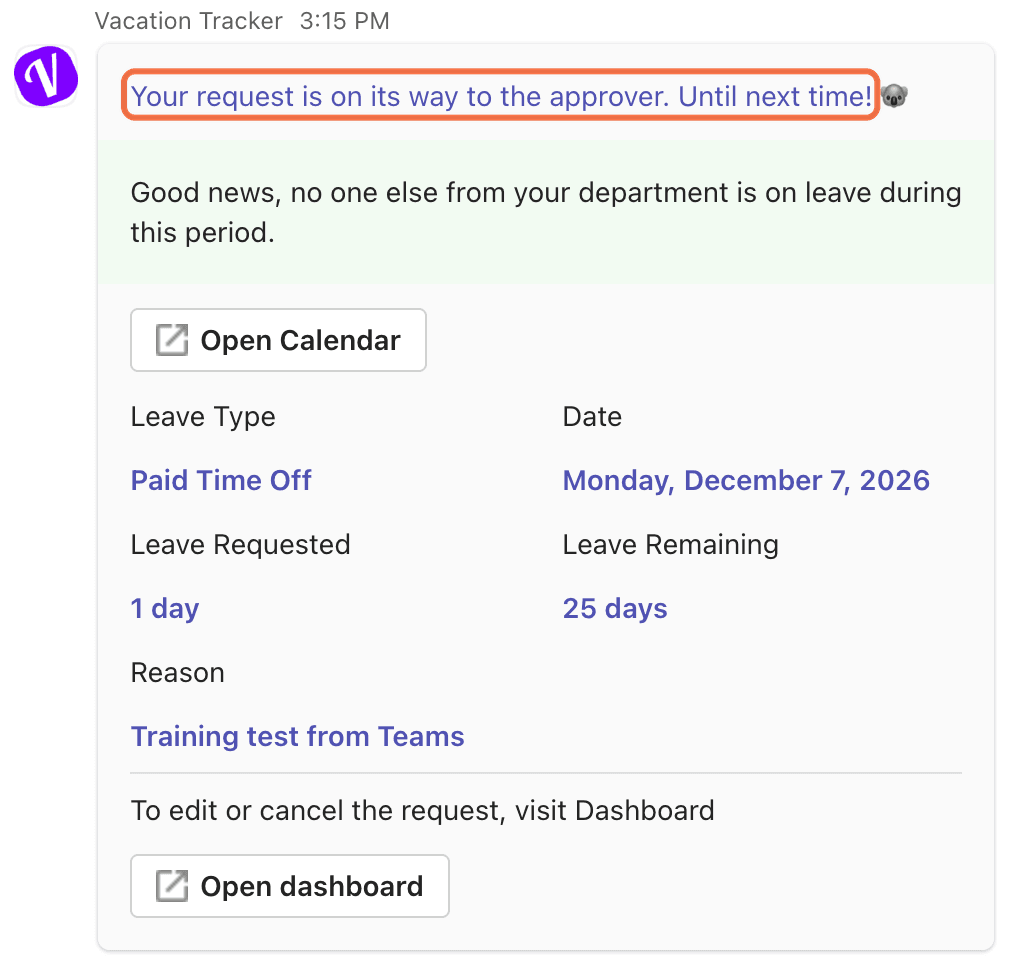
When You Send a Request
Your request is on its way to the approver. The card shows whether anyone else in your Department is off, Open Calendar, the leave type, date, leave requested, leave remaining and your reason. To edit or cancel, it points you to the dashboard with Open dashboard.
When It's Approved
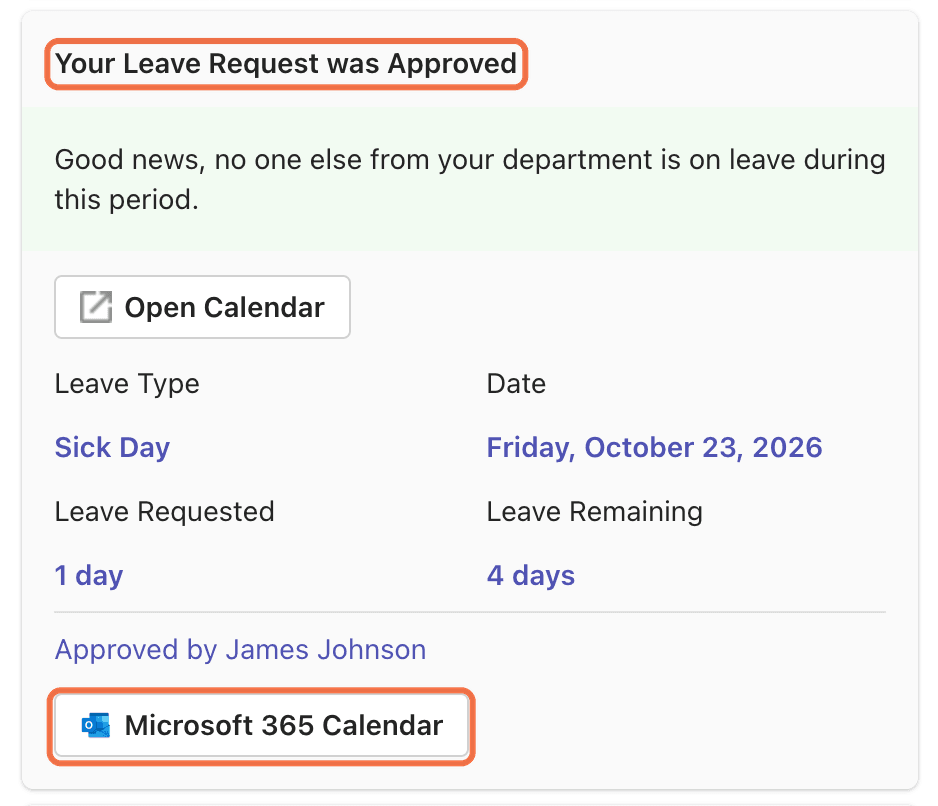
Your Leave Request was Approved, with the details and Approved by your Approver. Click Microsoft 365 Calendar to add it to your calendar.
When It's Denied
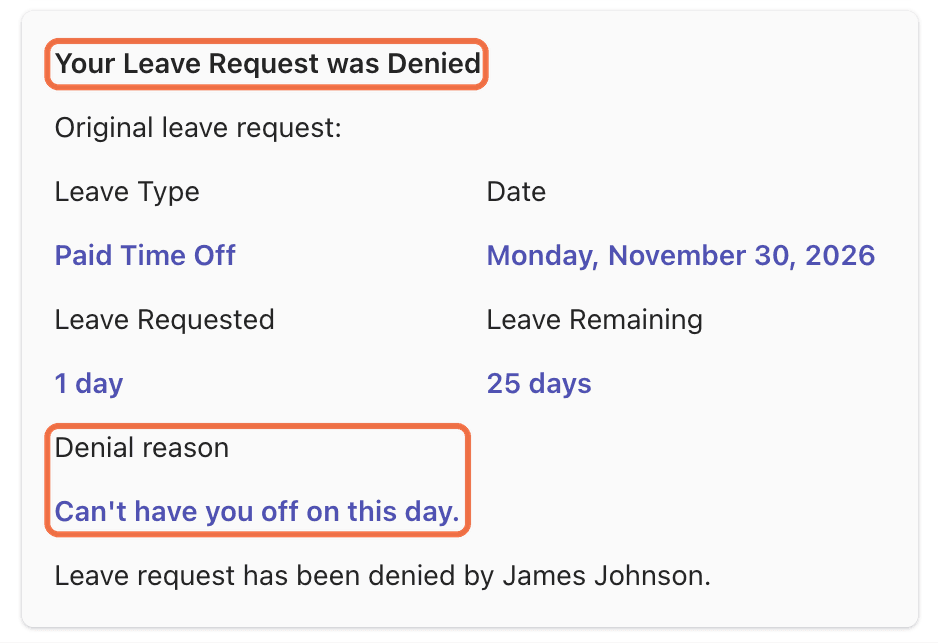
Your Leave Request was Denied, with the original request. If your Approver gave a reason, it's under Denial reason.
Out-of-Office Reminder
If automatic out-of-office replies are on, the bot asks before your leave starts whether to set one, with Set OOO message, Edit template and Don't ask me again.
Check It Worked
Each step of your request shows up in the Vacation Tracker chat in Teams.
Common Questions
Yes. Turn on Email notifications in Account Settings. Article 8 shows how.
Depending on your company's settings, the request can expire. You'll see it under History with Re-send request.
 Book a Call