

Last updated on October 16, 2026
Picture this: the day is finally here. You’re packed, logged out, and ready to disconnect. But there’s just one thing left on your checklist — setting your Slack Out of Office status.
It might seem like a small step, but skipping it can lead to a cluttered inbox and confused coworkers asking, “Are you around?” or “Can you hop on a quick call?” Setting an Out of Office status is more than a polite gesture — it’s how you protect your time off, keep your team informed, and actually unplug.
Whether you want to quickly set it up yourself or prefer a hands-off, automated option, there are a few easy ways to do it. Let’s walk through both the manual and automated approaches to setting your Slack Out of Office status, so you can leave work behind and enjoy your time off stress-free.

out of time off
 tracking.
Know exactly who's off and when—no spreadsheets, no surprises.
Get started No credit card required.
How do you set an out of office status in Slack?
Open your profile menu, select Update your status, then enter your message and emoji. Choose when the status clears and save it. Include your return date so colleagues know when to expect a reply. Follow the desktop steps below, or use the mobile instructions in the FAQ.
-
Click your profile picture in the sidebar. In older versions of Slack, like this screenshot, it sat in the top right corner.

-
Click Update your status.

-
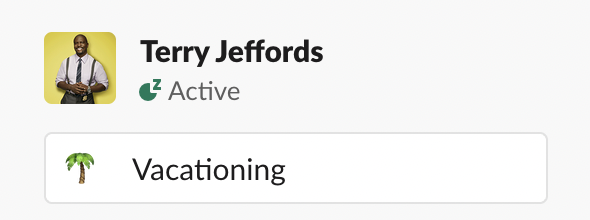
Type your status and pick an emoji, or choose one of Slack’s suggested statuses.

-
Click Remove status after… and choose when the status clears, from 30 minutes to a custom date and time. To silence Slack too, check Pause notifications, which turns notifications off until the status clears.

-
Click Save.
How do you schedule a Slack status in advance?
Click your profile picture > Update your status, then enter your message and emoji. Open Duration > Choose a start and end time, select the dates and click Save. Slack activates the status at the start time and clears it at the end, so you can prepare it before you leave.
We’d schedule upcoming PTO in Slack as soon as the leave is approved. You can schedule up to five statuses at a time. To change or cancel one before it starts, click your profile picture and open it under Scheduled.
How do you pause Slack notifications (Do Not Disturb) while you’re away?
Click your profile picture in the sidebar, hover over Notifications and choose a time frame. Select Custom if you want to pause notifications until your return date. Colleagues can see that your notifications are paused, and you can read the messages you received when you’re back.
-
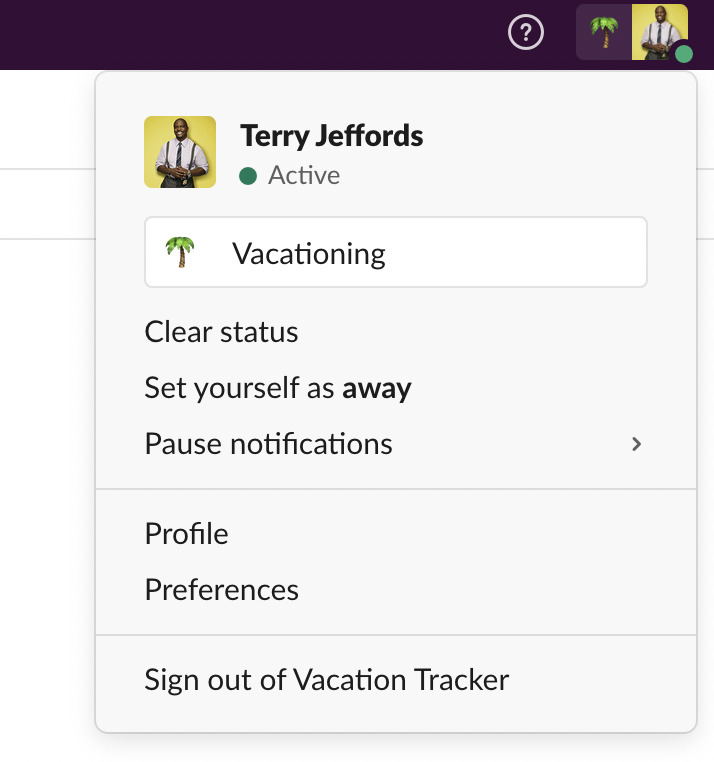
Click your profile picture and hover over Notifications.
-
Pick how long to pause, or select Custom and set the date and time.

-
Colleagues now see that you’ve paused notifications.

You can also type a command in any message box: /dnd until tomorrow morning, /dnd for 15 mins, or /dnd off to resume. If a few people should still reach you, such as your manager, add them to your VIP list and their messages will notify you even while notifications are paused.
Can Slack send an automatic out of office reply?
No. Slack has no automatic out of office reply for direct messages. Use a status to share your return date and a contact for urgent questions, but don’t expect it to send a reply. If you also need an email auto reply, configure that in your email app.
The guides for Gmail and Google Workspace and Outlook cover the email side.
What should a Slack out of office status say?
Put your return date and a contact for urgent questions in your Slack out of office status. Add a reason, such as vacation, if you want to share it. Keep the message to one line: “On vacation” alone leaves colleagues guessing when you’ll reply.
A few Slack out of office message examples you can copy:
- 🌴 On vacation until June 8. Urgent? Message @name
- 🤒 Out sick today, back tomorrow
- ✈️ Traveling, slow to reply until Wednesday
- 👶 On parental leave until September. Contact @name
For your Slack out of office emoji, try :palm_tree:, :airplane:, :face_with_thermometer: or :no_entry:. Use a consistent emoji for each reason so colleagues can recognize it.
How do you update your Slack status automatically when leave is approved?
In Vacation Tracker for Slack, an admin assigns a Slack status to each leave type, such as 🌴 “On vacation” for Vacation. When an approved leave starts, Vacation Tracker sets the person’s status and clears it when the leave ends. The admin configures this once per leave type.
Employees request leave in Slack and managers approve it there. Approval doesn’t change the status immediately: it changes when the leave starts. This status automation is available only for the Slack integration.
To set it up:
-
Sign in to the Vacation Tracker dashboard as an admin.

-
Go to Leave Setup > Leave Types. Older versions of the dashboard, like this screenshot, showed it under Settings.

-
Find the leave type you want, for example Vacation.

-
Click the edit (pencil) icon.

-
Turn on Set Slack Status, pick an emoji, write the status text and save.
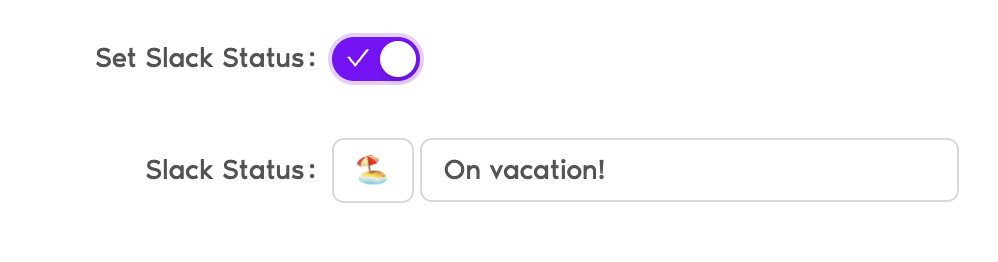
Repeat this setup for other leave types. Sick leave can show 🤒 while vacation shows 🌴. The Slack status guide has the details.
How can your team see who’s out in Slack each day?
Set up a daily or weekly summary in a Slack channel. Vacation Tracker lists who’s on leave, the leave type and duration, plus upcoming public holidays for their location. Half days include the hours. Colleagues can check the channel instead of opening individual profiles.

-
In the Vacation Tracker dashboard, go to Team & Approval Flows > Team Notifications. The older screenshot shows Notifications.

-
Click New Notification, then choose Daily/Weekly Notifications.

-
Fill in the details, such as the name and how often it’s sent.

-
Choose who it covers: departments, locations, labels or a mix. Label filters need the Complete plan.

-
Pick where it goes, for example a Slack channel or email addresses.

-
Review and click Create Notification. The older screenshot shows Save Notification.

See the notifications guide for every option.
What else should you know about out of office in Slack?
A Slack status explains your absence; your availability shows whether you’re active, and pausing notifications controls alerts. These settings serve different purposes. Use the answers below to set a status on mobile, check how long it lasts and understand who can see it outside your company.
How do I set out of office in Slack on my phone?
In the Slack mobile app, tap your profile picture, then tap the status field. Enter a status, tap the emoji icon to pick an emoji, then tap Clear after to choose when it ends. Tap Done. To edit it later, tap your profile picture and your current status. To remove it, tap Clear.
What’s the difference between away and an out of office status in Slack?
Away is your availability: Slack sets it automatically when you’re not active, and it shows as the dot next to your name. A status is the text and emoji you choose, such as 🌴 On vacation. When you’re out for a day or more, set a status, because away doesn’t say why or for how long.
Does pausing notifications change my status in Slack?
No. Pausing notifications only stops alerts, and colleagues see that your notifications are paused. Set a status as well, so they know you’re away and when you’re back. You can do both at once by checking Pause notifications when you set your status.
Can I set different Slack statuses for vacation and sick leave automatically?
Yes, with a leave management app. In Vacation Tracker each leave type has its own Slack status, for example 🌴 On vacation for Vacation and 🤒 Out sick for Sick Leave. An admin sets it once per leave type, and it applies to every approved request of that type.
How long can a Slack status stay on?
Choose when the status clears under Remove status after…. Use a preset such as today or this week, or set a custom date and time for your return. A scheduled status has its own start and end dates, set from the Duration menu.
Can people outside my company see my Slack status?
Yes, depending on your workspace or Enterprise Grid settings. Members of other organizations in externally shared channels may see your status. We’d keep the wording to a return date and contact name if you don’t want to share the reason for your absence.
Should you set your Slack status manually or automatically?
We’d use Slack’s scheduled status for an individual absence: set it when your leave is approved. For a team, we’d connect statuses to approved leave and set up a daily summary. Vacation Tracker supports both, so employees can request leave and managers can approve it in Slack without a separate manual status update.
Try Vacation Tracker free for 14 days, no credit card needed, or book a demo.
out of time off
tracking.Know exactly who's off and when—no spreadsheets, no surprises.
Get startedNo credit card required.

Lav Crnobrnja
The COO and co-founder of Vacation Tracker. He loves sharing his knowledge and passion for startups, business, and AI. When he’s not working, he can often be found experimenting with AI agents and exploring what the latest technology can do.