Last updated on February 4, 2026
Look, I get it. You're probably thinking, 'great, another wellness feature I'll ignore.' But hear me out on this one.
Energy isn't infinite. Your best people will burn out if they don't rest, and honestly, most of us are terrible at recognizing when we need a break. That's the problem Vacation Tracker Recharge actually solves (without getting preachy about self-care).
Watch this quick walkthrough to see how it works:
Your Energy Level Lives in the Bottom Left Corner
Once you log into your Vacation Tracker dashboard, you'll see a small battery indicator around your profile photo in the bottom left. That's your current energy level.
Hover over your profile section, and you'll see additional settings appear. Click 'My Energy Level' (the third option) to open your personalized energy dashboard.
What You'll Actually Find in the Recharge Dashboard

The dashboard breaks down into several modules that give you different angles on your energy patterns.
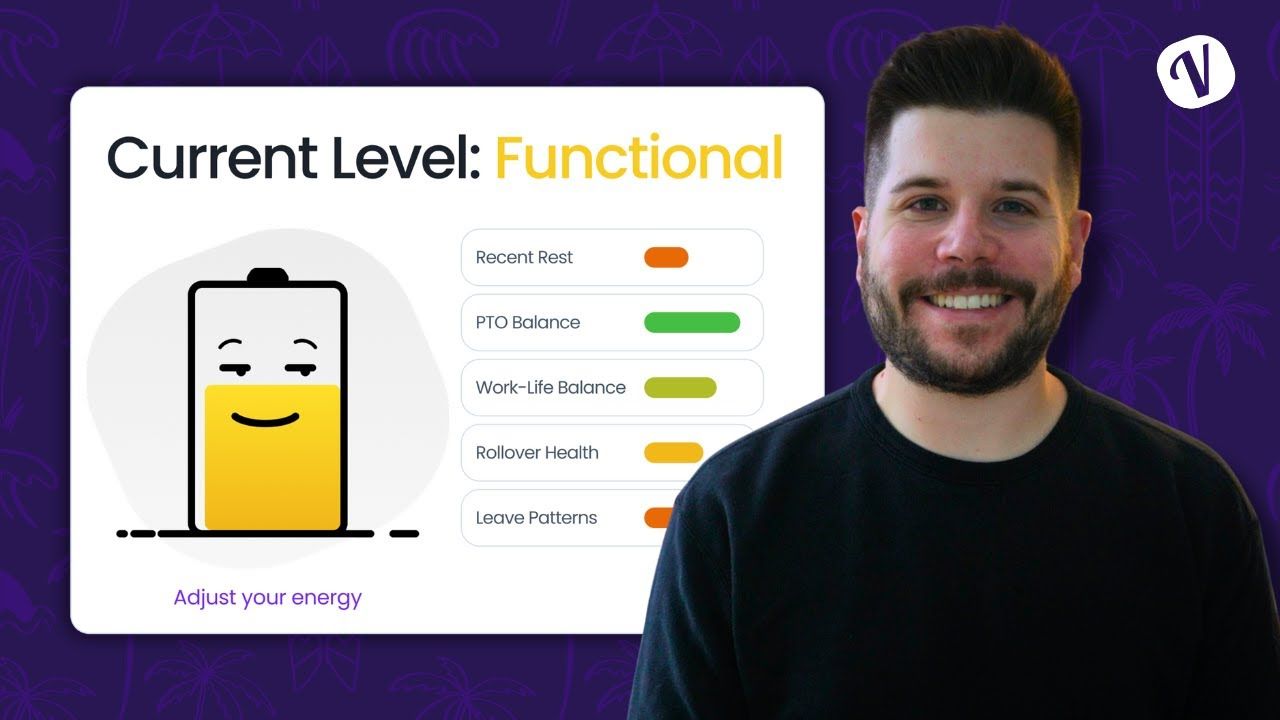
At the top, you get a summary of your current energy level with a battery character visual (yeah, it's a bit cutesy, but it works). Next to that sits your weekly energy trend, which plots your levels from the past seven days against your department's average. This comparison matters because it shows whether you're consistently lower than your peers, which might mean you need to actually use that PTO.
Think your energy score is wrong? Click 'Adjust Your Energy' and use the slider to set a more accurate level. You can also add text feedback about why you adjusted it. The system updates your dashboard immediately based on your input.
How Vacation Tracker Calculates Your Energy Score
Scroll down, and you'll find the score breakdown section. This shows all the components that feed into your energy calculation, with explanations for each factor.
The system looks at things like how long it's been since your last time off, how many consecutive days you've worked, and patterns in your leave requests. It's not magic, just math applied to your time-off data.
Finding Your Recharge Type (And Why It Matters)
Below the score breakdown, you'll see your recharge type. This only appears if you've completed the recharge quiz.
The quiz assigns you a recharge persona and gives specific tips on how you recover best. Some people recharge with short, frequent breaks, while others need longer stretches away. The personalization here actually helps because generic advice about 'taking breaks' doesn't account for how different people restore their energy.
The AI Suggestions That Tell You When to Request Time Off
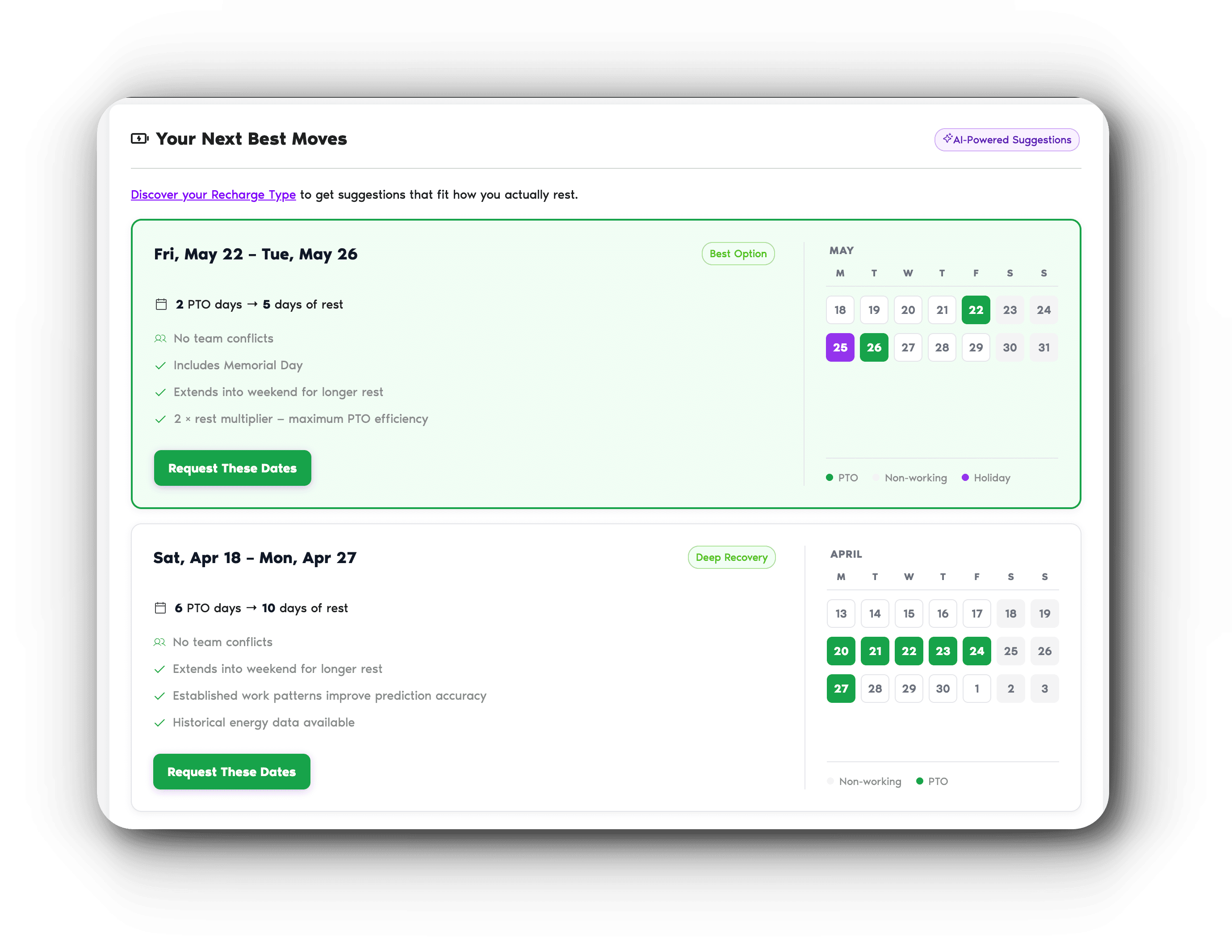
The 'Your Next Best Move' section sits at the bottom of the dashboard. This is where AI looks at your recharge type, company holidays, and leave policies to suggest optimal dates for time off.
When you find a suggestion that works, click 'Request These Dates' and you'll jump straight to the leave request page with those dates pre-filled. Just hit submit, and you're done. The whole process from viewing the suggestion to submitting the request takes maybe 30 seconds.
Why Energy Tracking Actually Helps Prevent Burnout
Here's the thing about burnout: you don't notice it happening until you're already there. Recharge builds self-awareness by showing you patterns you might miss otherwise.
When you see your energy consistently below your department average, or when you notice you haven't taken meaningful time off in months, that data creates a moment to pause. It removes the guesswork from 'do I need a break?' because the answer is right there in the dashboard.
The smart suggestions also solve the planning paralysis that keeps people from actually booking time off. You don't have to figure out the best dates yourself or worry about conflicting with company events. The system does that calculation for you.
Getting Started with Recharge
Recharge is included in Vacation Tracker. If you're already using the platform, you can access it right now through your profile settings.
New to Vacation Tracker? Start with the Free Plan to test it out. The platform handles leave requests, approvals, and tracking across Slack, Microsoft Teams, Google Workspace, and email. Mobile apps for iOS and Android let you check time off from anywhere.
Questions about how Recharge works? Check the Vacation Tracker Helpdesk for detailed articles on all the features. You can also reach the support team via chat or email if you hit any issues or want to share feedback.
The January 2026 update brought several improvements to Recharge alongside other platform features. Read the full January update notes to see what else changed.
Learn how to manage time off without
Tracking Can Be
confusion, delays, or admin headaches. 

David Vero
David is a marketer who loves learning new things—preferably not during his PTO.