





Last updated on October 7, 2026
How Can I Change a User's Location?
Moving someone from one office or region to another? Vacation Tracker gives you two paths: one through the user's profile (fast, direct) and one through the destination Location's Users tab (useful for moving several people at once). Both end up in the same place.
Method 1: Directly on the User's Profile
The quickest path for moving one person.
- Sign in at app.vacationtracker.io.
- In the left-hand menu, under Team & Approval Flows, click Users.
- Find the user you want to move and click their name to open their profile.
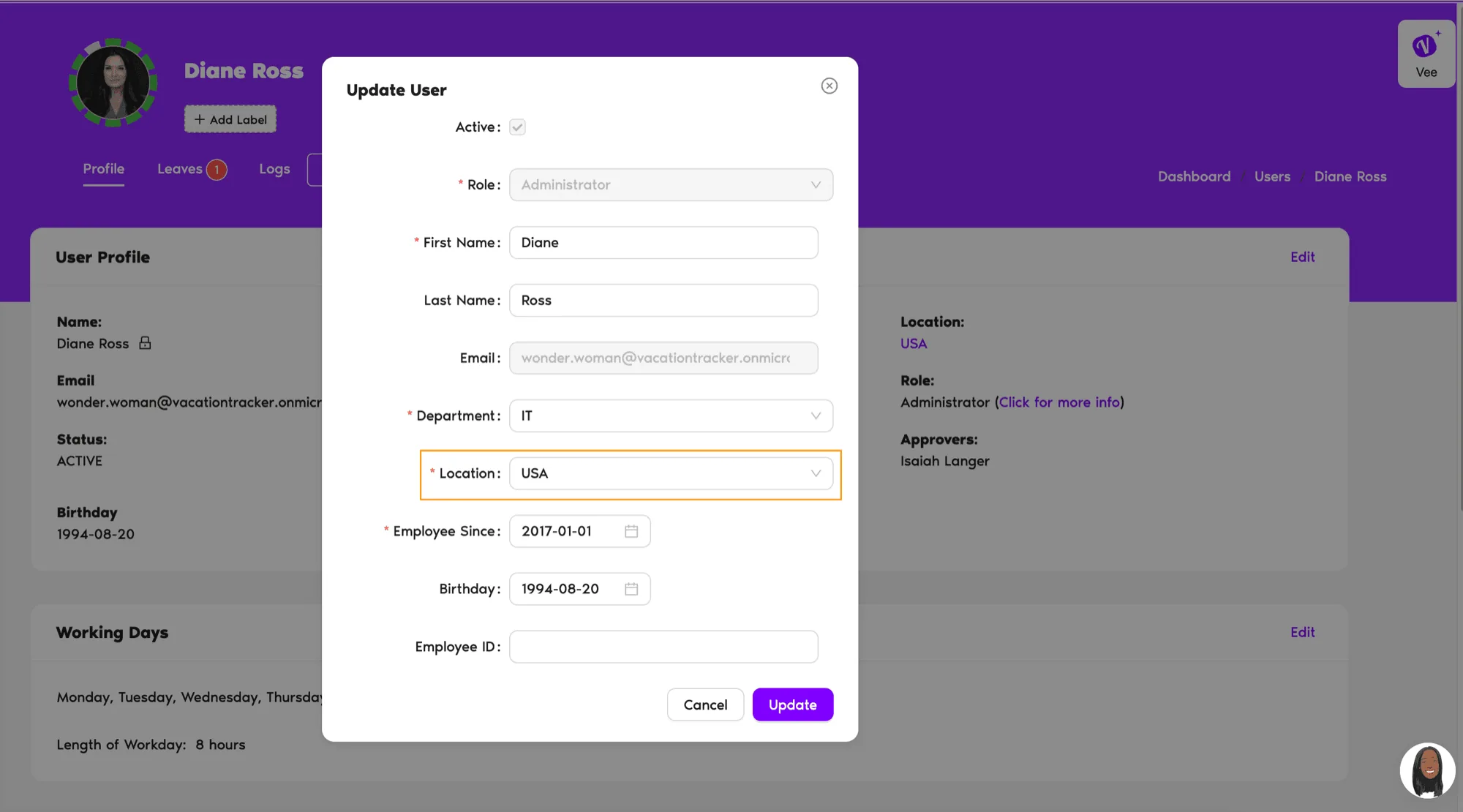
- In the User Profile section at the top of the page, click Edit.
- The Update User pop-up opens. Under the Location field, pick the new Location from the dropdown.
- Click Update to save. The new Location shows on the profile immediately.
Method 2: From the Destination Location's Users Tab
This path works well when you're moving several people into the same Location, for example when onboarding a new office. You add users straight from the Location they're moving to, and they're moved out of their current Location automatically.
- In the left-hand menu, expand Leave Setup and click Locations.
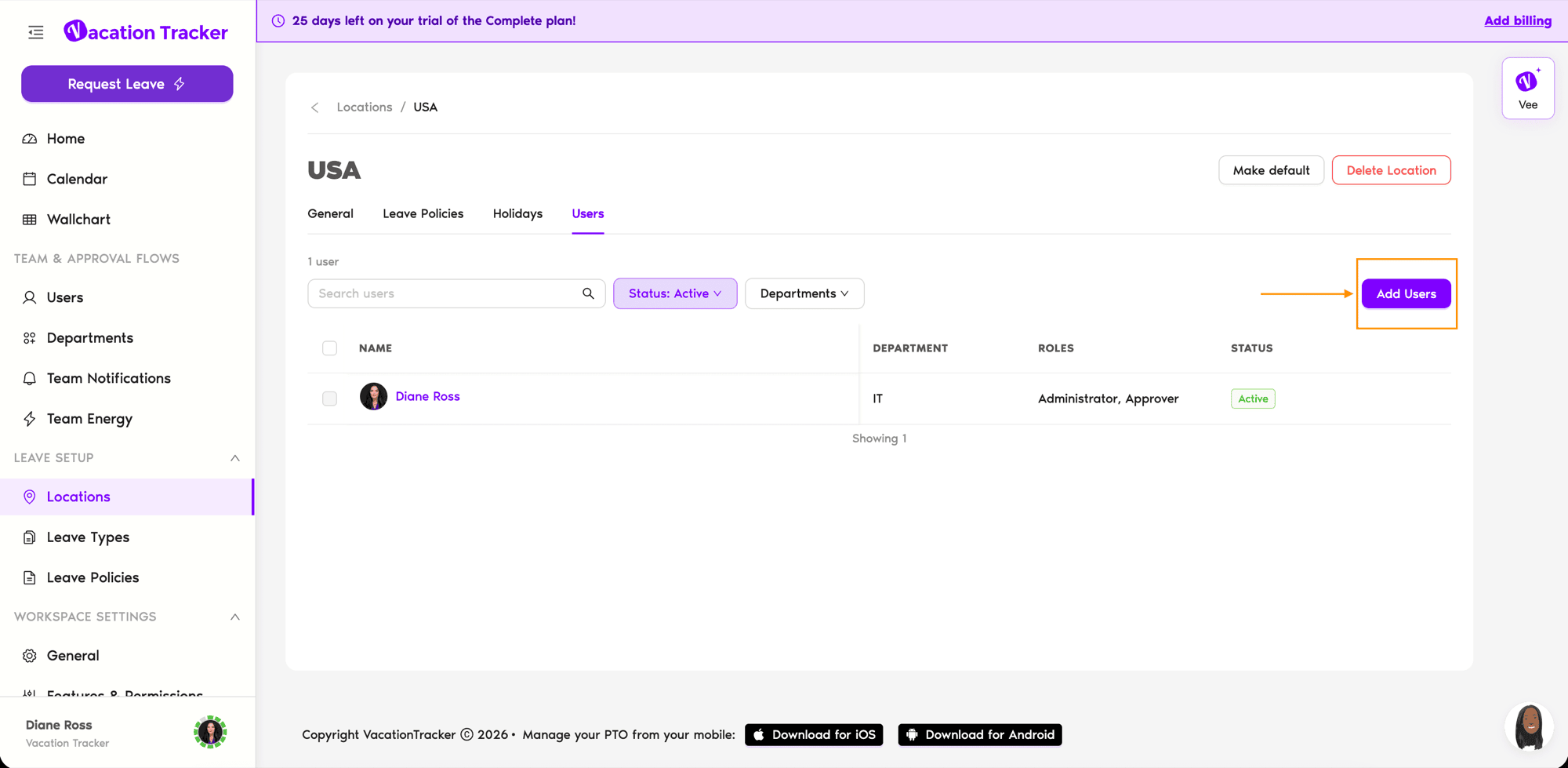
- Click the card of the destination Location (the one the user is moving to) and open the Users tab.
- Click Add Users.
- In the pop-up, search for and select the users you want to move. The Location column shows where each one is now.
- Click Add users to save.
What Happens When You Change a Location
The user immediately picks up everything the new Location defines:
Common Questions
No. Each user belongs to exactly one Location at a time. If someone splits time between offices, pick the Location that best reflects their leave calendar and policies.
Balances for Leave Types that exist in both Locations carry over. Balances for Leave Types only available in the old Location stop being visible once they're moved. If you need custom balances on the user's profile after the move, see How Do I Customize Leave Quotas for Individual Users?
Yes. Location is a Vacation Tracker concept, not something pulled from Slack or Teams. You set and change it inside Vacation Tracker regardless of your integration. Profile fields like name and email may be synced from the integration source, but Location assignment is yours to manage in-app.
What's Next?
How Do I Create a Location? How Do I Edit a Location? How Do I Customize Leave Quotas for Individual Users?Admins and Approvers: You can reach us via live chat Monday to Friday, 9 AM – 5 PM EST, or email us anytime at hello@vacationtracker.io.
 Book a Call