





Last updated on October 28, 2026
How Do I Limit Users' Visibility?
By default, everyone can see who's off across every Department. Turn on the Visibility Manager add-on and each User only sees leaves from their own Department or their own individual leaves.
Available on CompleteComplete plan only
The Visibility Manager add-on is available exclusively on the Complete plan.How the Visibility Manager Works
Example: Anna is a User in the Human Resources department, and her Approver is Peter. In the Department of Compliance, Lucas is a User, and Peter is also his Approver.
By activating the Visibility Manager, Users will only be able to see leaves in their own department:
By activating the Visibility Manager, Users will only be able to see leaves in their own department:
If you need help configuring your departments, please see: How Do I Edit Department Information?
Setting It Up
- Go to the Vacation Tracker Dashboard: app.vacationtracker.io/signin.
- On the left-hand side, click Workspace Settings → Add-ons.
- Click the Visibility Manager card. If it shows Inactive, click Confirm in the Subscribe to an Add-on window first.
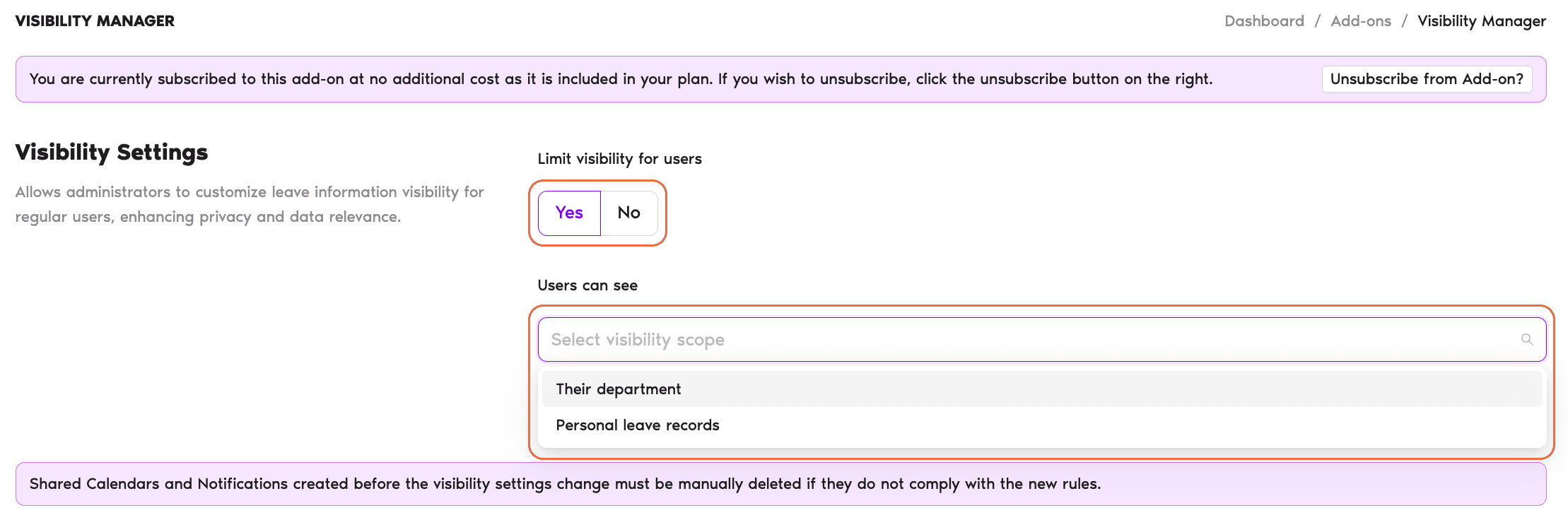
- On the Visibility Settings page, set Limit visibility for users to Yes.
- A Users can see dropdown will appear. Pick the visibility scope:
- Click Save.
Existing shared calendars & notifications
Shared Calendars and Notifications created before the visibility settings change must be manually deleted if they do not comply with the new rules.Disabling ≠ Unsubscribing
Disabling the automation (setting Limit visibility for users to No) will not cancel the subscription. If you want to turn off the subscription entirely, click the Unsubscribe from Add-on? button in the banner at the top of the Visibility Manager page.Admins only
At this time, only Vacation Tracker Admins can set up or edit the Visibility Manager.Departments & Sub-Departments
Do you need help creating different departments? See How Do I Create a Department within Vacation Tracker?Need to remove the automation?
To unsubscribe from an Add-On / Automation, take a look at: How Do I Unsubscribe From an Automation?What's Next?
Unsubscribe From an Automation Set Up a Leave Request Notice Period Limit Users' Leave DurationNeed help?
Regular Users: If you have any questions, email us anytime at hello@vacationtracker.io.Admins and Approvers: You can reach us via live chat Monday to Friday, 9 AM – 5 PM EST, or email us anytime at hello@vacationtracker.io.
 Book a Call