






Last updated on October 28, 2026
How To Set Up A Leave Request Notice Period?
The Leave Request Notice Period automation lets you require employees to give advance notice for longer leaves, so you have time to plan around their absence. Set it once and the rule enforces itself on every future request.
What It Does
Implements and automates a policy where employees are required to provide advanced notice for longer amounts of leave. Vacation Tracker checks the duration of each request against your rule, and if a User isn't giving enough notice, the request is blocked.
Watch the tutorial
Vacation Tracker has a YouTube tutorial walking through this automation:
Steps
- Log in to your Vacation Tracker account at app.vacationtracker.io/signin.
- On the left-hand side, click Workspace Settings → Add-ons.
- Click the Leave Request Notice Period card. If it shows Inactive, click Confirm in the Subscribe to an Add-on window first.
- Click Create policy in the top-right corner.
- Configure the rule, set how much notice is required for which leave duration, and which Locations / Departments / Leave Types it applies to.
- Save the automation. From that moment, leave requests that fall short of the notice period will be blocked at submission.
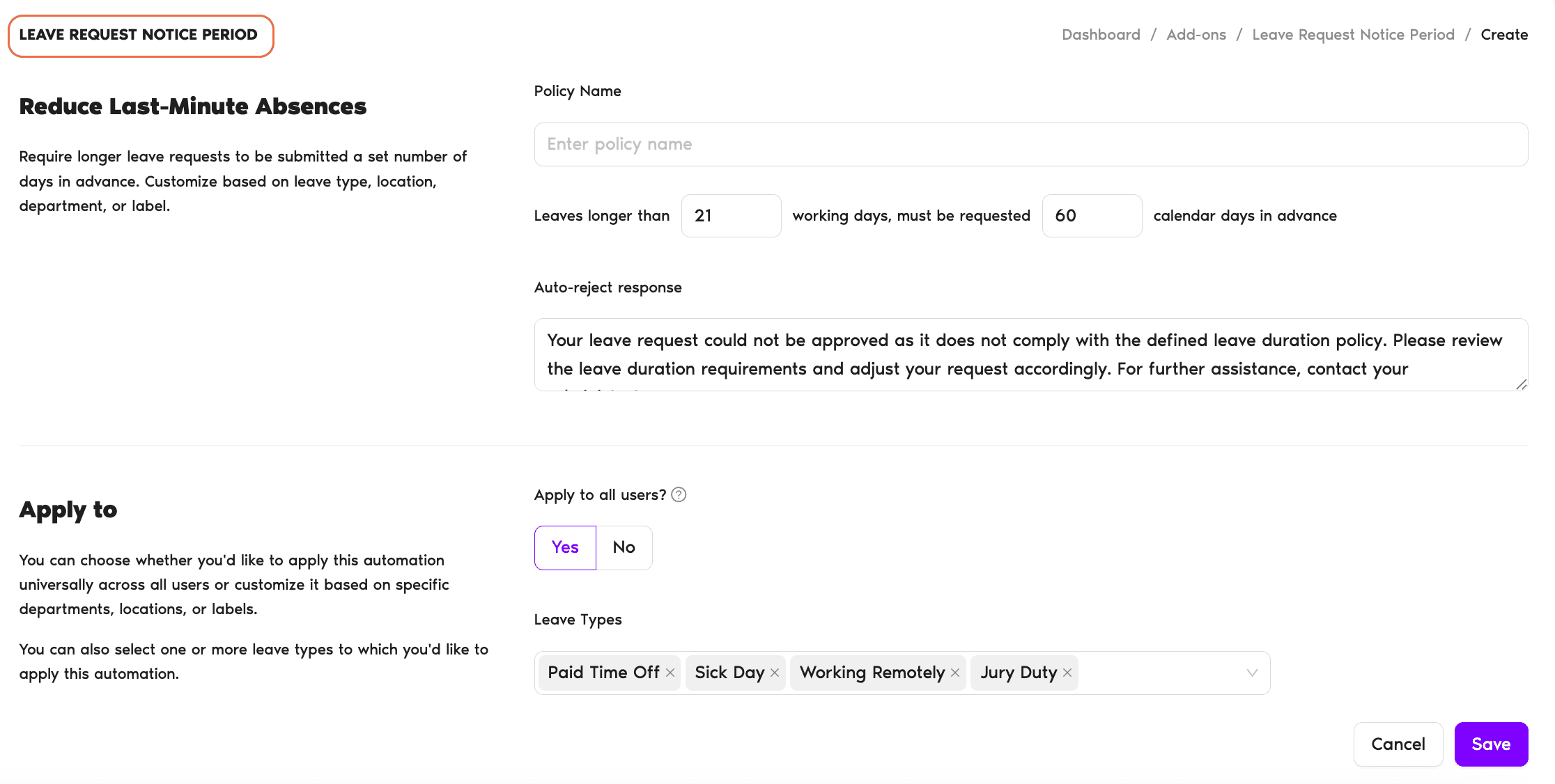
Where the Rule Applies
Notice Period rules can be scoped:
You can run multiple Notice Period automations side by side, one for short leaves, one for long ones, etc.
Admins and Approvers: You can reach us via live chat Monday to Friday, 9 AM – 5 PM EST, or email us anytime at hello@vacationtracker.io.
 Book a Call