






Last updated on October 10, 2025
How Do I Edit Department Information?
Department settings drift over time — a team gets renamed, approval flow changes, new users join, or you want to nest one team under another. Every piece of that sits in a single Edit Department form. Admins open it from the Departments page and update whatever needs updating in one save.
Open the Edit Department Form
Every editable field lives in one form. You only need to reach it once to change multiple things at the same save.
- Sign in at app.vacationtracker.io.
- In the left-hand menu, under Team & Approval Flows, click Departments.
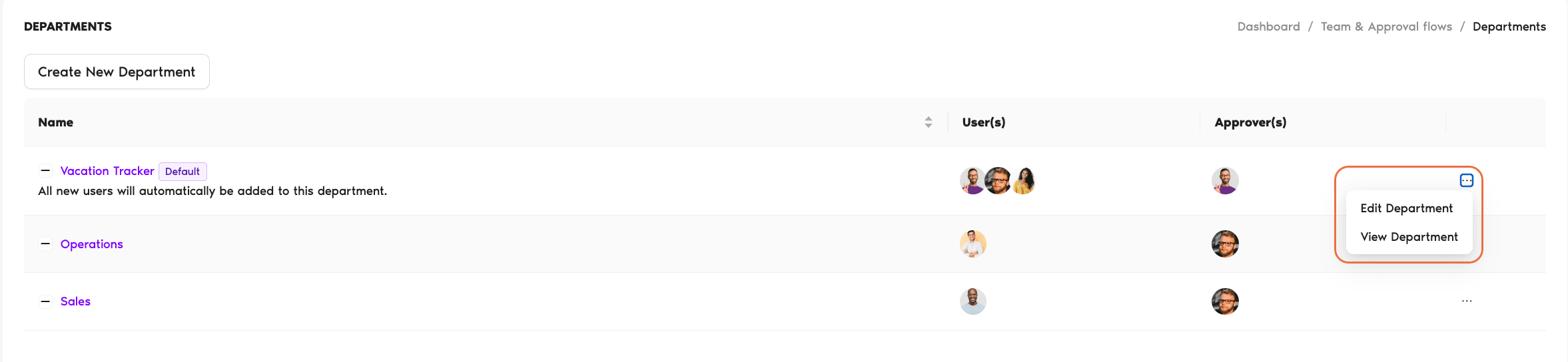
- Locate the Department you want to change. On the right end of its row, click the three-dot menu (...) and choose Edit Department.
- Adjust any of the sections below. You can change one field or all of them — the Update button at the bottom commits everything at once.
- Click Update Department to save. Use Cancel to exit without saving.
What You Can Edit
The form is grouped into five sections. Each one controls a different aspect of the Department.
1. Department Settings
This is the top of the form.
2. Approval Flow
This section controls who approves leave for this Department and how their decisions flow.
3. Leave Request Expiration
Controls how long pending requests stay open before they expire.
4. Default Department
Every workspace has exactly one default Department — the one new users are automatically added to.
5. Subdepartment Settings
Lets you nest this Department under another for structural grouping.
Save or Discard Your Changes
When you're done, click Update Department at the bottom of the form. The changes are committed to the Department immediately. Click Cancel to back out without saving — nothing is applied.
Common Questions
Admins. The Departments page sits under the Admin-only Team & Approval Flows section, so regular Users and Approvers don't see the Edit Department option.
Yes. Update the Name field alone and hit Update Department. Users, Approvers, Approval Flow, and all other settings stay exactly as they were — only the display name changes everywhere the Department appears.
Pending requests are routed to whoever is on the Approvers list at the time they're acted on. Adding a new Approver means they immediately see any open requests; removing an Approver means they stop receiving them. Requests in flight don't get re-queued or lost.
What's Next?
How To Set Up Multi-Level Approvals How to Enable or Disable Leave Request Expiration? How Do I Set an Approver within Vacation Tracker?Admins and Approvers: You can reach us via live chat Monday to Friday, 9 AM – 5 PM EST, or email us anytime at hello@vacationtracker.io.
 Book a Call