



Last updated on October 20, 2026
How Do I Set Regional Holidays for a Location?
When you choose a State, Province, or Nation for a Location, Vacation Tracker imports that region's public holidays together with the national ones. You can pick the region when you create the Location or change it later from the Location's General tab.
Which Countries Have Regions
The region field only appears for countries that have regional holidays, and its label matches the country:
Countries without regional holidays, such as Austria, don't show the field. Their Locations always use the national holidays.
Choosing a Region When You Create a Location
- In the left-hand menu, expand Leave Setup, click Locations, then click Create a Location.
- Select the Country.
- In the State, Province, or Nation field, select the region. Leave it blank to use national holidays only.
- Check the note below the field. It shows how many public holidays will be imported for this year and that 2 leave policies will be created.
- Complete the rest of the form and click Create Location.
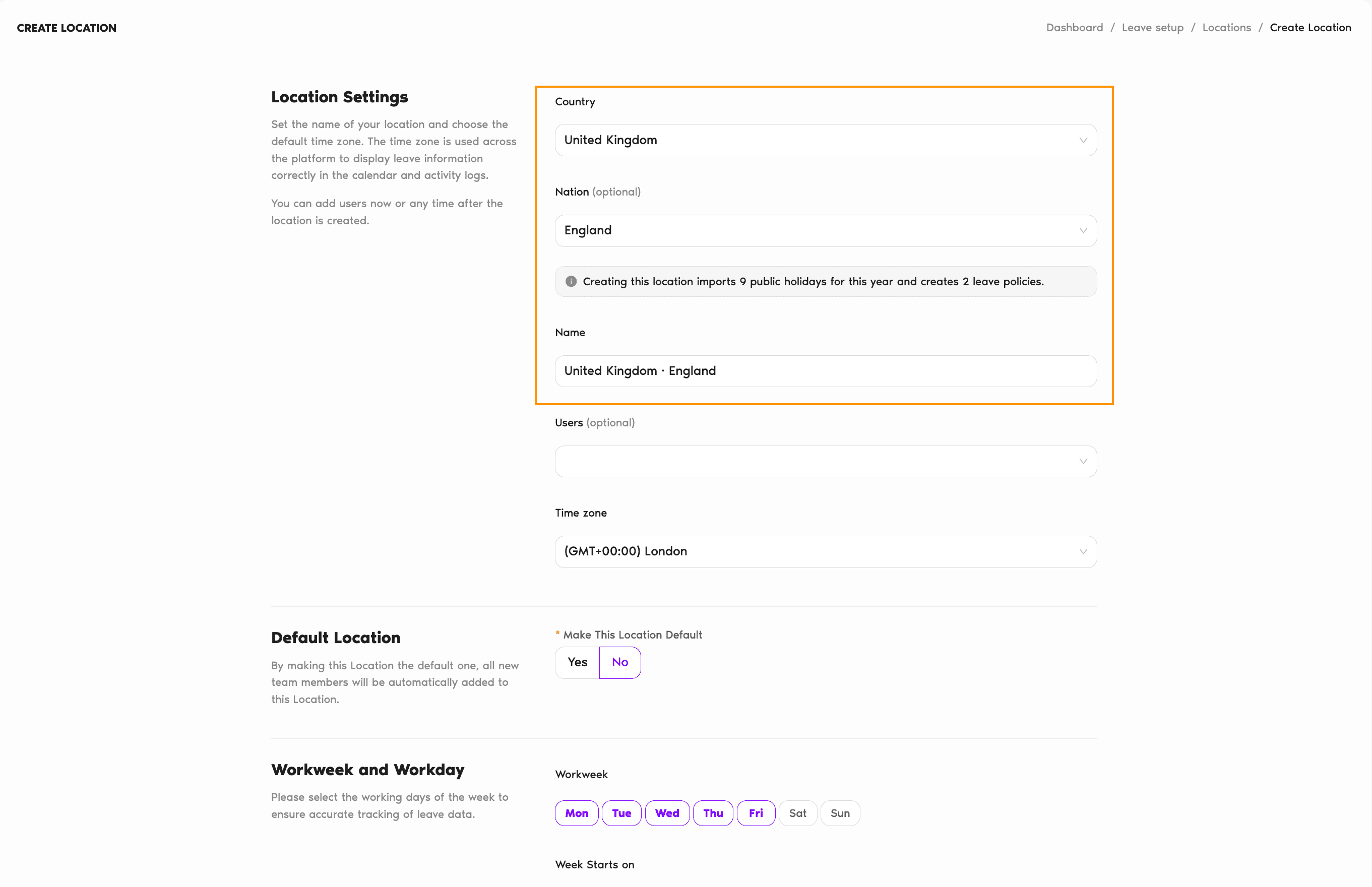
Selecting a region adds it to the Location's Name, for example "United States · Texas", and updates the Time zone to match. If you've typed your own name, it stays as it is. Regional holidays are added on top of the national ones: a Germany Location without a state imports 9 public holidays for 2026, while Germany · Bayern imports 12, adding Epiphany, Corpus Christi, and All Saints' Day.
National Holidays Only
If you leave the region blank, the Location gets the country's national public holidays only. The Location's card on the Locations page and its General tab show a note such as State not set next to the country, so you can see which Locations don't have a region yet. You can add one at any time.
Changing the Region Later
- On the Locations page, click the Location's card. It opens on the General tab.
- Hover over Country and region and click the pencil icon next to it.
- Select the new region (or a different country).
- Decide whether to tick Import [number] public holidays for [region]. See below.
- Click Save.
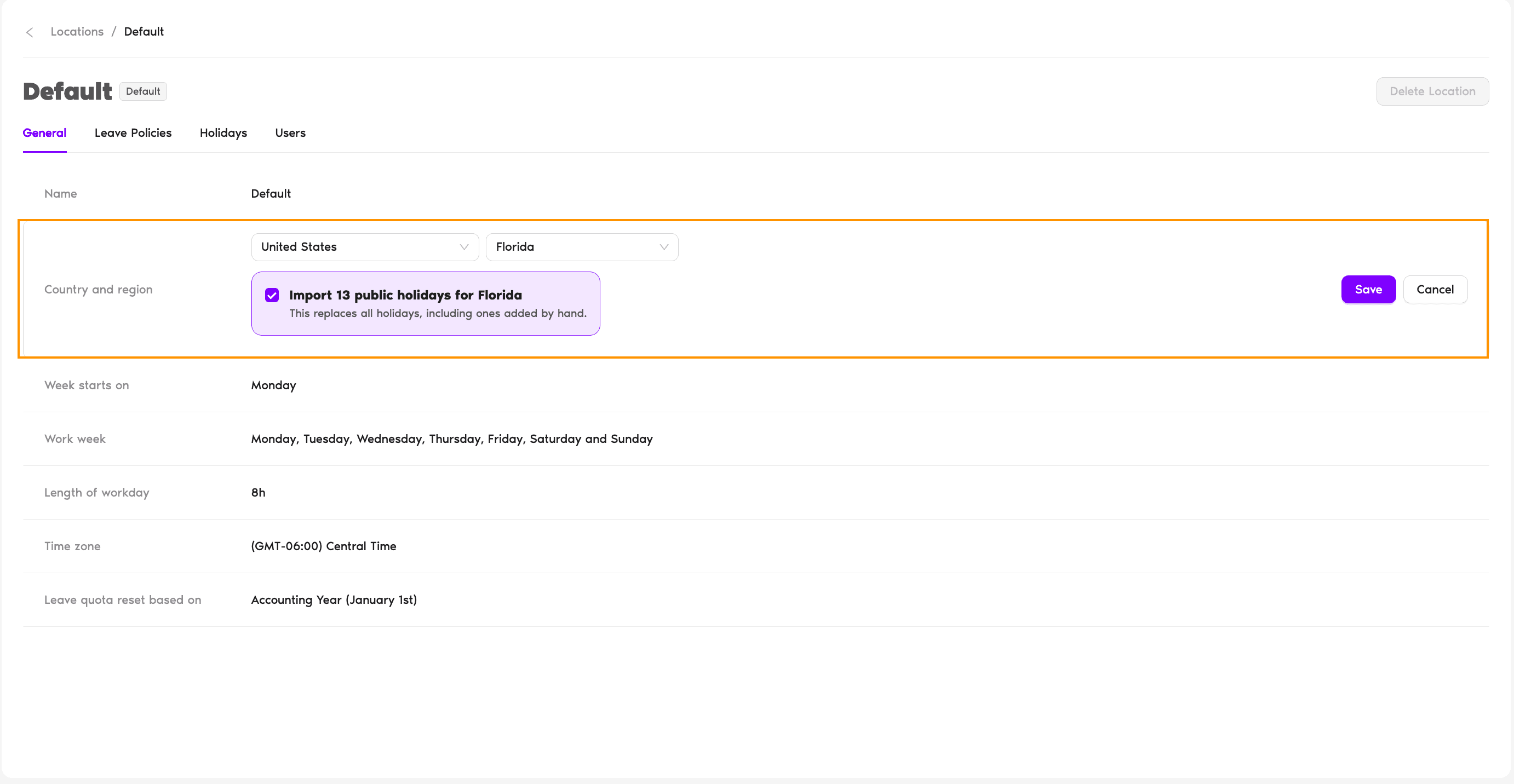
Import public holidays: ticked
All of the Location's holidays for this year and next year are replaced with the new region's public holidays, including any holidays added by hand. A "Holidays are successfully updated" message confirms the change.
Import public holidays: not ticked
Only the Country and region setting changes. The Location keeps its current holidays.
Changing the region doesn't rename the Location or change its time zone. Update the Name and Time zone separately on the General tab if they no longer fit.
Common Questions
Yes. On the Location's Holidays tab, click Import Holidays. The wizard opens with the Location's country and region filled in, and you can change them before you pick the holidays to import. See How Do I Set Holidays?
Each Location has one Country and one region. If people in different states, provinces, or nations observe different holidays, create a separate Location for each region and add each user to the Location that matches where they work.
Only when you create a Location. On an existing Location, changing the Country or region leaves the Time zone as it is, so edit the Time zone on the General tab if you need to.
 Book a Call