Last updated on January 6, 2026
Want to stay informed about team leave approvals without being the direct manager? I'm going to walk you through setting up watchers in Vacation Tracker, which lets you receive notifications whenever someone's time off gets final approval.
Watch the full tutorial above to see the exact steps in action.
Why You Might Need Watcher Notifications
Sometimes you need visibility into leave approvals without being part of the formal approval chain. Perhaps you're coordinating projects across departments, managing resources, or simply need to know when specific team members will be unavailable. The watcher feature solves this by sending you automatic notifications after leave gets approved.
The best part? You don't need to be anyone's manager or even part of their department to receive these updates.
Setting Up Watchers Takes Two Minutes
First, log in to your Vacation Tracker account. Head to the left-hand menu and click on the Departments section.
Select the department you want to monitor. This is where you'll receive notifications when any member of that department gets their leave approved. Click 'Edit Department' to access the settings.
Scroll down until you see the Approval Flow section. You'll find a box labeled 'Notify watchers after final approval.' This is where the magic happens.
Adding Watcher Email Addresses
Enter the email address (or multiple addresses) of anyone who needs these notifications. Here's something useful: the email addresses don't have to belong to people in your company or department. You can add external stakeholders, contractors, or anyone else who needs to stay informed.
After entering the addresses, scroll down and click 'Update Department.' That's it. Your changes are now active.
What Watchers Actually Receive
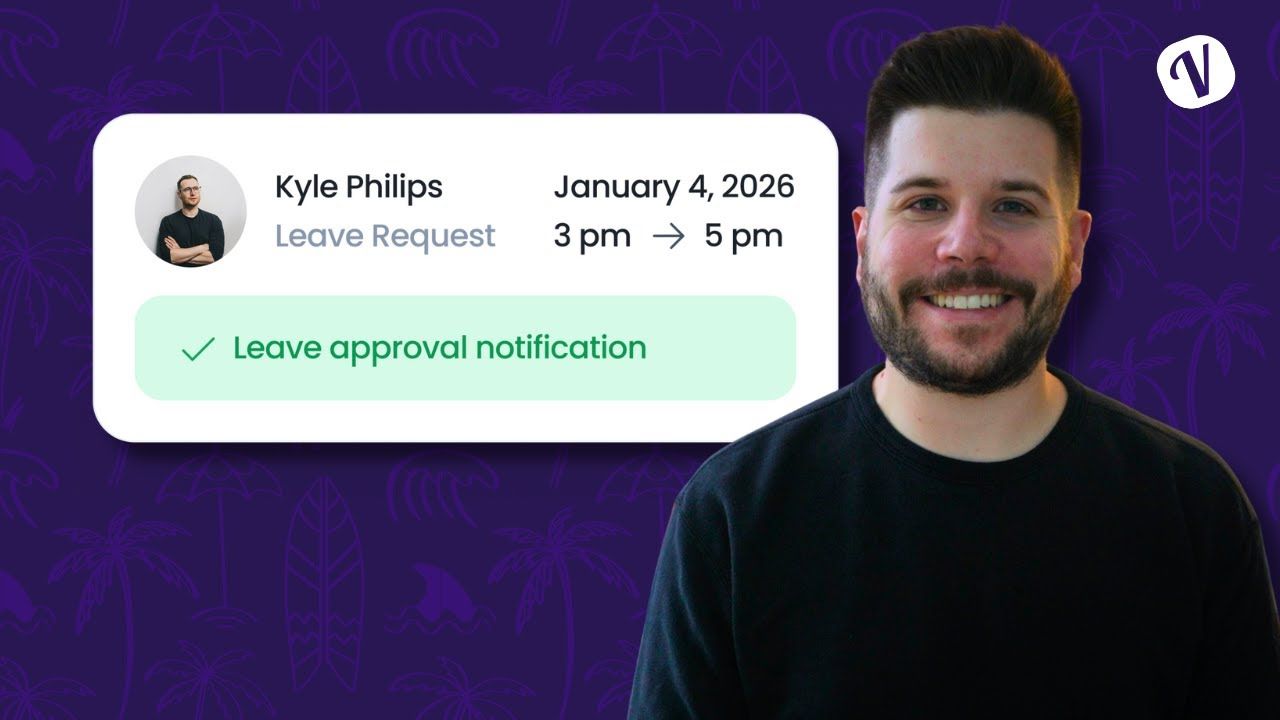
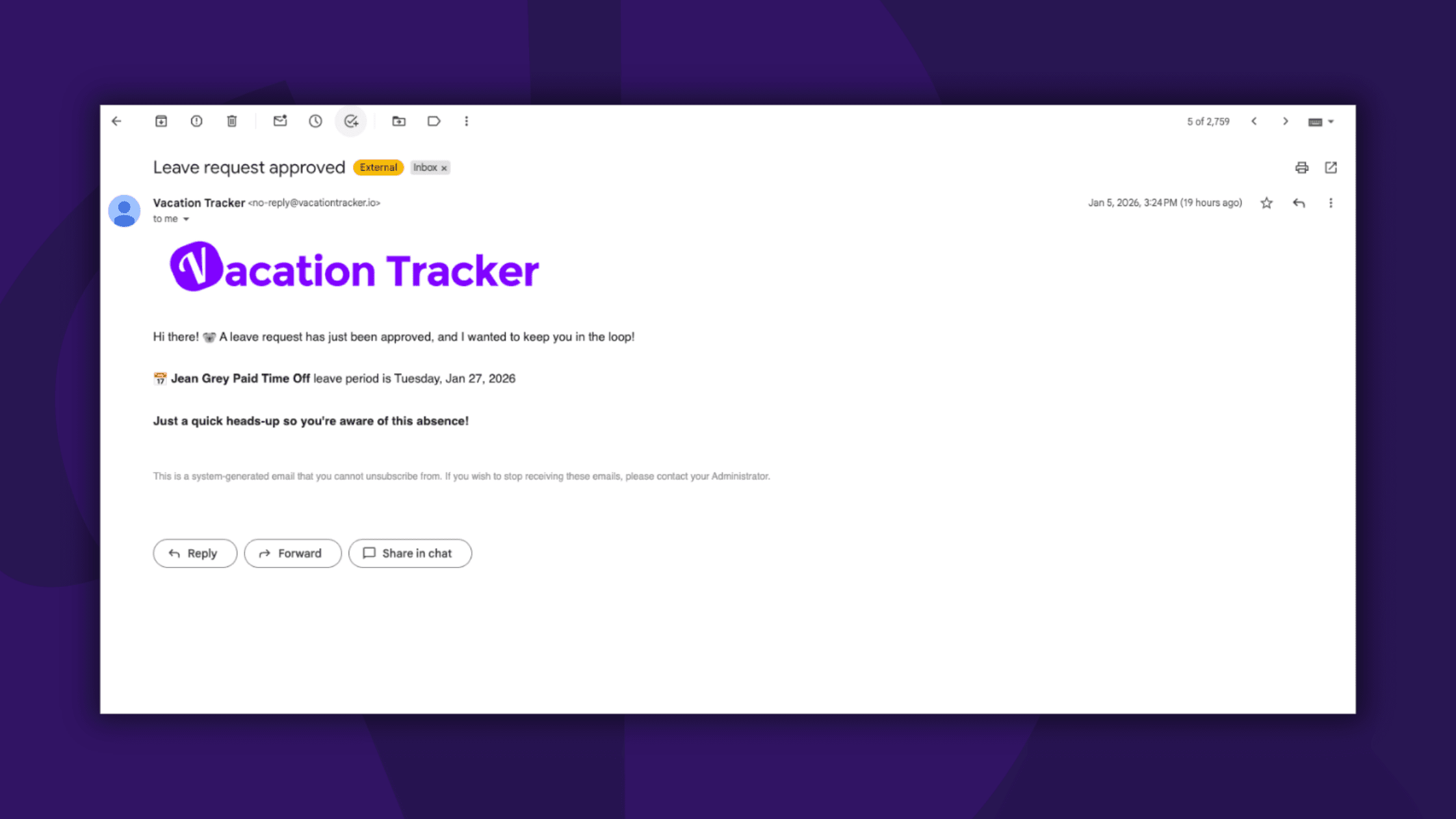
When someone from the monitored department requests time off, and their manager approves it, watchers get an email notification. The timing matters here: notifications only go out after final approval, not during the approval process.
The email itself is straightforward. It shows the employee's name and the dates that were approved for their leave. No clutter, just the information you need to stay informed.
When Watcher Notifications Trigger
The notification flow works like this: an employee submits a leave request, it goes to their approving manager, the manager approves it, and then (and only then) watchers receive their notification.
This means you're not getting pinged for every pending request. You only hear about it once the decision is final.
Using Watchers Across Your Organization
You can set up different watchers for different departments. This flexibility lets you create custom notification flows that match how your organization actually works.
For example, your finance team might need notifications for the sales department (to track commission-related absences), while your project managers might watch the engineering department (to plan sprint capacity).
Getting Help With Watcher Setup
If you run into any issues while setting up watchers, check out the Vacation Tracker Helpdesk. There are several articles covering different notification types and settings.
Still stuck? Reach out to the support team via chat or email. They can walk you through the setup or troubleshoot any problems with your specific configuration.
The watcher feature is available whether you're using Vacation Tracker with Slack, Microsoft Teams, Google Workspace, or just through email. The notification system works the same way across all platforms.
New to Vacation Tracker? Get started with the Free Plan to test out watchers and other leave management features.

David Vero
David is a marketer who loves learning new things—preferably not during his PTO.