



Last updated on October 23, 2026
Approver Training 7: Choose Who Approves Requests While You're Away (Microsoft Teams)
Going on leave? Choose a Substitute Approver to answer your team's requests while you're away.
Choose a Substitute When You Request Leave
- Click Request Leave at the top of the menu and choose Request Leave.
- Choose the Leave Type and your dates.
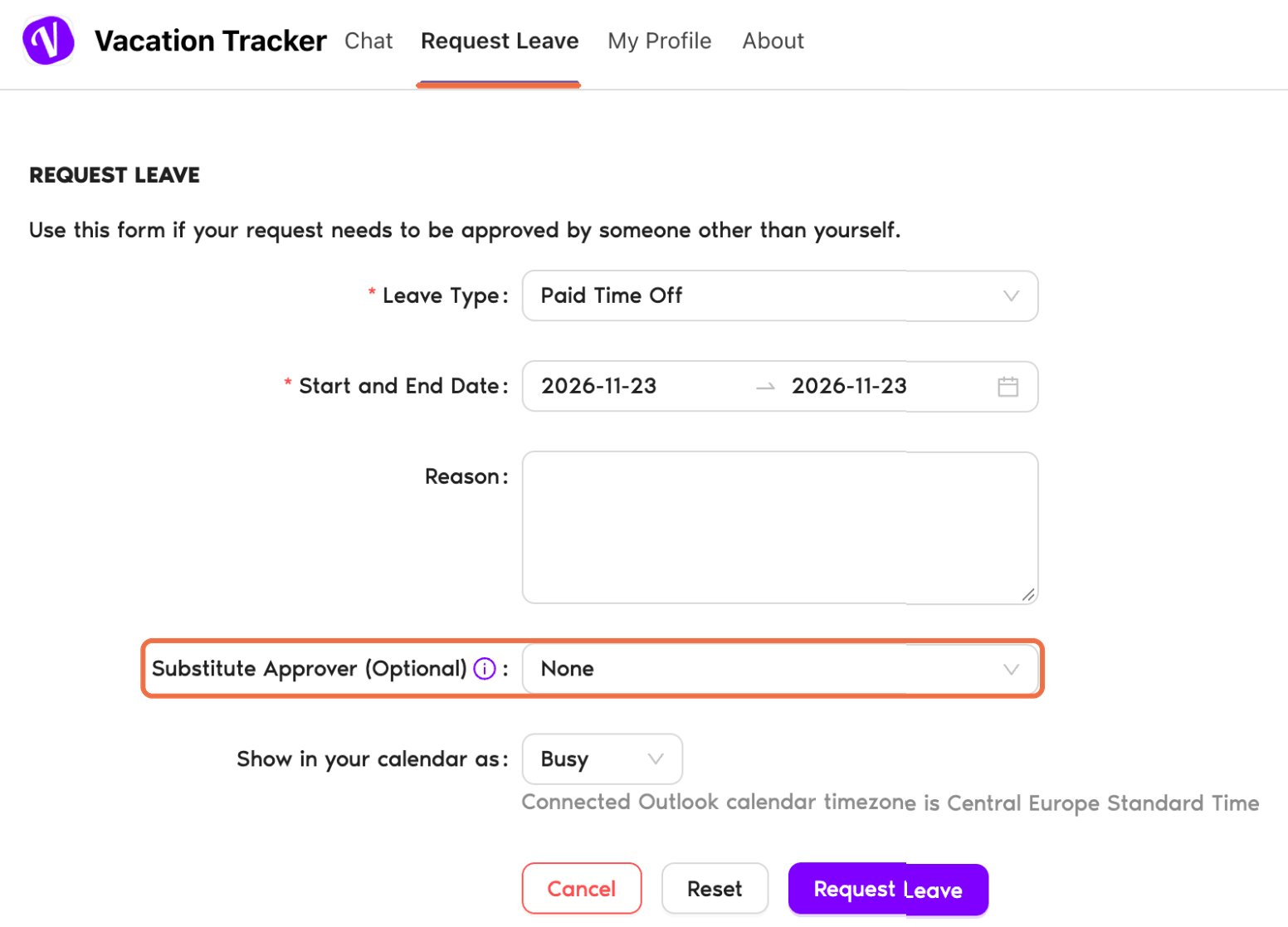
- Under Substitute Approver (Optional), choose who will answer requests while you're away. Each name is tagged as User, Admin or Approver.
- Check your balance and the line showing who else is off.
- Click Request Leave.
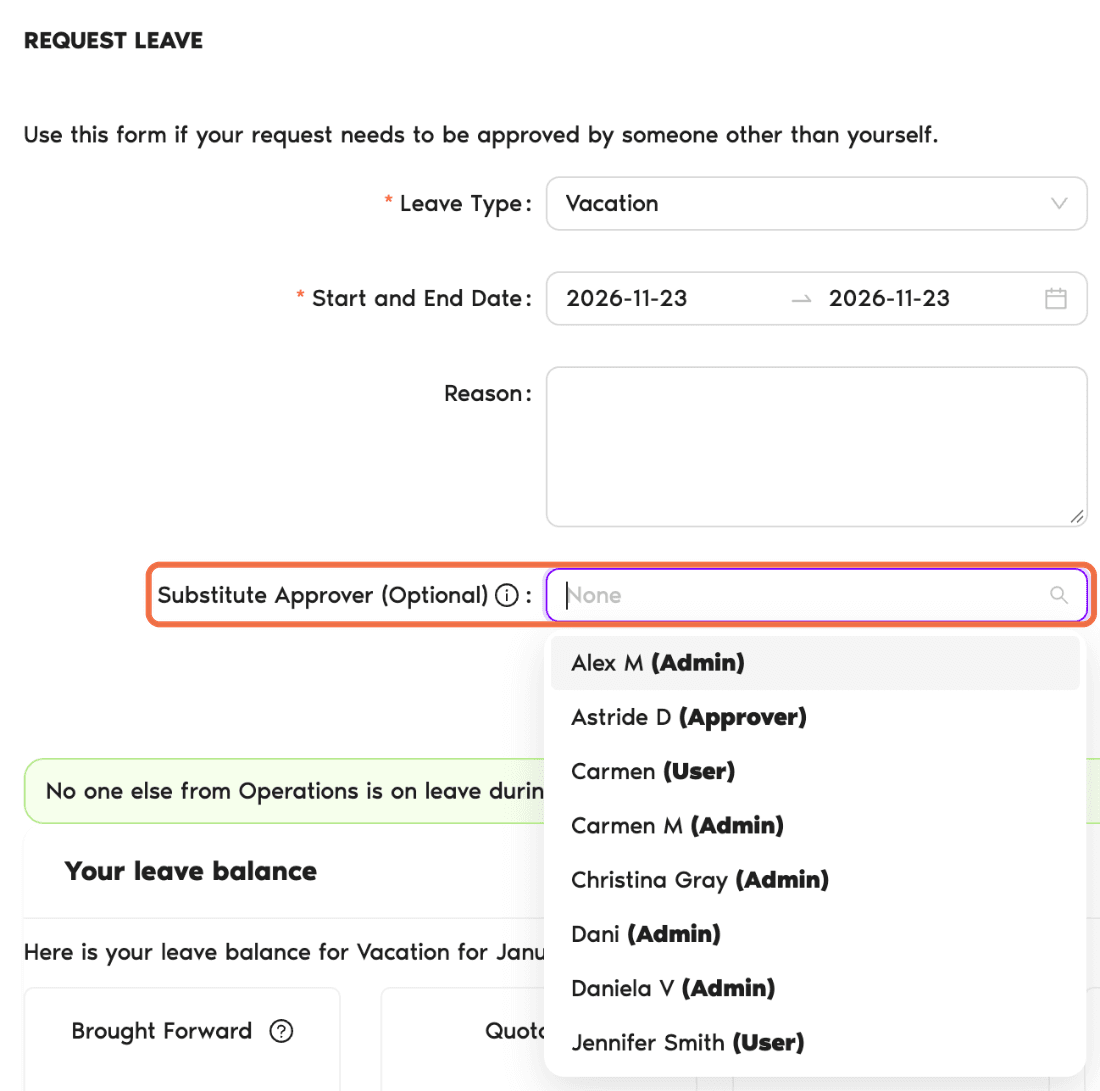
In Microsoft Teams, you can also open the Vacation Tracker app and go to the Request Leave tab. Once you pick your dates, the same Substitute Approver (Optional) field appears.
Change Your Substitute
Go to My Profile and open the Leaves tab.
Check It Worked
Your leave request shows the substitute you chose.
Common Questions
No. You can pick any user in the list. The tag next to each name shows their role.
 Book a Call